

A/B tests
Overview
An A/B test shows different visitors different versions of one page, and counts what each version's visitors do. After a while you can see which version gets more form submissions or button clicks, keep it, and end the test.
Use it on pages that matter and get steady traffic, such as an ad landing page or the home page. Try one clear change at a time: a different heading, a shorter form, a button with other words.
- Every version lives at the page's own address. There are no extra pages, and visitors never see a strange address.
- Visitors are split evenly between the versions, at random.
- A visitor keeps their version: they see the same one when they come back.
- The numbers come from Dirigible Analytics, on the site itself.
- A test runs until someone ends it. Nothing ends on its own.
A test can have the original and up to three more versions: Version B, Version C and Version D. Two versions give an answer soonest.
Start a test
A/B tests are on unless someone turns them off in Optimize Settings → A/B tests. The page must be published, without a password, and Analytics must be on.
- Open the page in the editor.
- In the Page tab's summary, click Start A/B test. The box says roughly how long this page would take to give a clear answer, from its last 30 days of visitors.
- Click Create Version B. Version B starts as an exact copy of the page.
- Edit Version B (see below), and add more versions with Add another version if you want them.
- Choose the main goal under What counts as a win (see Reading the results below).
- Click Start test in the A/B test panel.
Until you click Start test, visitors see only the original, so you can work on the versions in peace. To drop a test that hasn't started, click Cancel test: its versions go to the trash and the page doesn't change.
Edit the versions
The A/B test panel, in the Page tab, lists the versions. Click Edit next to one to open it in the editor, and View to see it on the site. Back to original returns to the page.
- A version is only the page's content, with its footnotes. The page's title, address, template, featured image and SEO settings are shared by every version.
- Save a version as you would a page. While the test runs, changes go live for that version's visitors when you save.
- Versions can be added or removed only before the test starts. To change the line-up of a running test, end it and start a new one.
- In the Pages list, a page with a test has Edit Version B (and C, D) in its row menu.
What visitors get
- The page's address stays the same for everyone. Visitors on another version are taken to it before anything shows, and the address bar keeps the page's own address, campaign tags included. Shares, bookmarks and the Back button behave normally.
- Each new visitor gets one version at random, so the versions get about the same number of visitors.
- The site remembers the version for 90 days, so a returning visitor sees the same one.
- People who can edit the page aren't put in a test while they're logged in. They see the original, and use View in the panel to look at a version. Looking at a version that way isn't counted in the test.
- A View link works only for people logged in who can edit the page. Anyone else who opens it sees the original. To show a version to someone without an account, ask them to look while logged in, or share a screenshot.
- Some browsers are left out of tests: those set to ask sites not to track them (Do Not Track or Global Privacy Control), those that block cookies, and automated ones. They always see the original and aren't counted in the test.
- Visitors on another version wait for one extra page load from the host's cache, usually about a tenth of a second.
What's counted, and where to read it
For each version, the test counts:
- Visitors put in that version, each counted once.
- Page views and Average time on page.
- Every click on the page that Analytics already counts: buttons, phone and email links, links to other sites, downloads and goals.
- Every Gravity Forms submission made by a visitor in the test, on this page or anywhere else on the site later. A visitor who reads the landing page and then sends the contact form counts for their version. On sites with the cookie banner, a form counts for the test only if the visitor accepted.
- Form goals count people, not submissions. Any form sent counts each visitor once, whichever forms they send and however often. With one form as the main goal, each visitor who sent that form counts once. Other interactions still shows how many times each form was sent.
- To keep made-up numbers out of a test, each internet address can add at most 20 new visitors to a version in a day, and at most 20 who reach its main goal. People on one network (a classroom, an office, a campus) each count, up to that limit.
- Someone with many internet addresses can still add made-up clicks. Form goals (Any form sent or one form) count real Gravity Forms submissions only, so they're the hardest to fake: prefer them for tests that matter.
Read the numbers in three places:
- Pages → A/B tests: every running, not started and ended test. Click a page to open its results.
- The A/B test panel in the editor: visitors so far, each version's rate on the main goal, the verdict, and View results.
- The Pages list: a page with a running test shows an A/B test running pill in its Status column, with the days it has run when you hover over it. Click it, or See A/B results in the row menu, for the results.
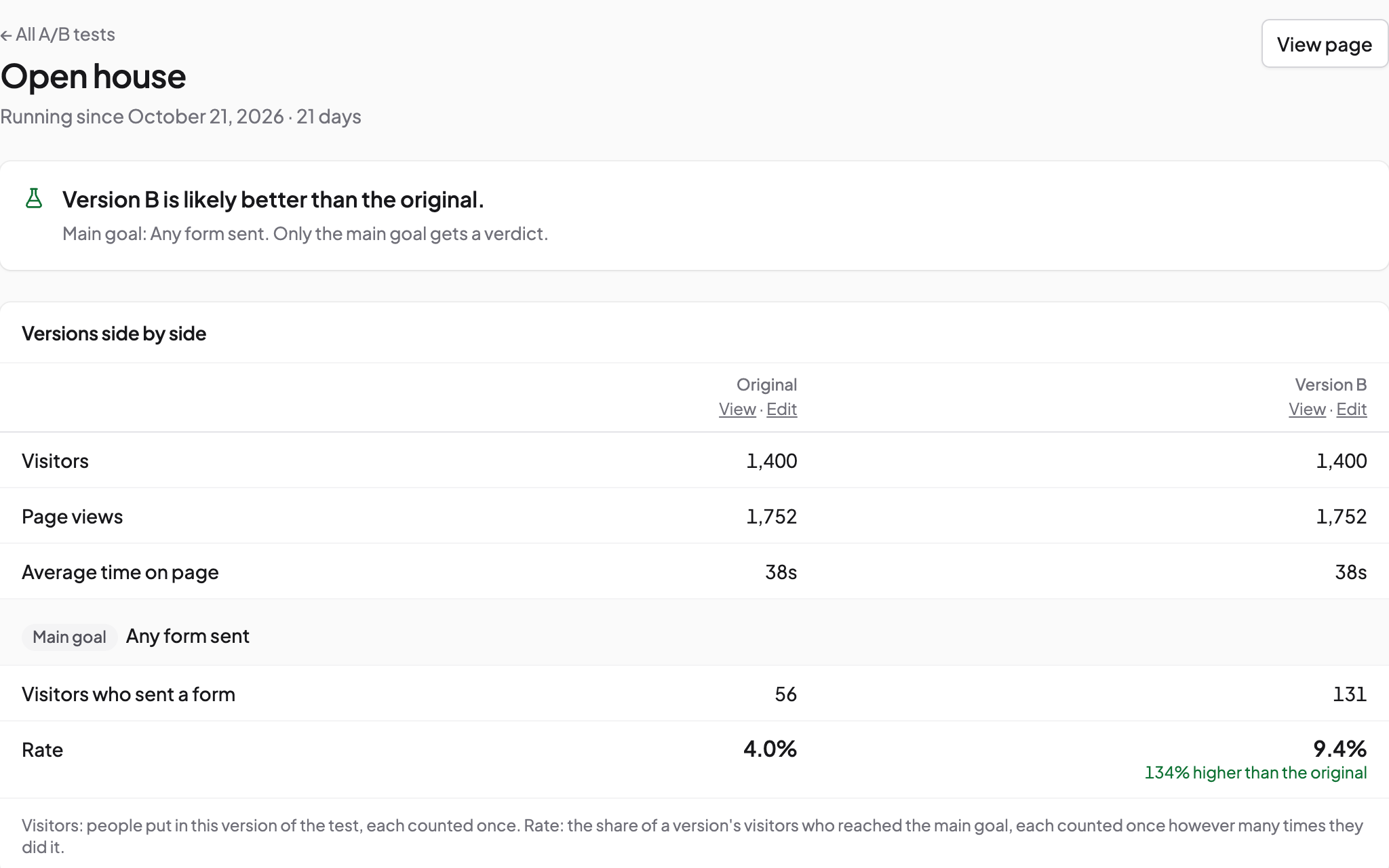
The results screen shows the versions side by side: visitors, page views, time on page, then the main goal with each version's rate and how it compares with the original. Below that, Other interactions lists the 50 most frequent clicks and forms by version, and always every form, phone, email and text link, and the main goal. Numbers update as visits come in.
Reading the results
Each test has one main goal, chosen under What counts as a win. It's Any form sent to start with. Once the test has had some visitors, you can pick a particular button or link instead.
Only the main goal gets a verdict. With every click listed across several versions, some numbers will differ by chance, and one will look like a winner when it isn't. So choose the one thing you care about, and treat Other interactions as background.
You can check the verdict as often as you like. Most quick tests are only right if you look once, at a size chosen in advance: check one every day and sooner or later it calls a winner by chance. The verdict here is worked out so that looking at it any number of times doesn't make that happen. The price is visitors: it needs about twice as many as a one-off check, so tests take about twice as long, though a big difference often shows sooner.
The verdict is one of:
| Verdict | What it means |
|---|---|
| Too early to tell. Check back after … | The test hasn't run two full weeks yet, or doesn't have enough visitors or goals reached. It says when to look again. |
| Version B is likely better than the original. | Version B's rate on the main goal is higher, by more than chance would explain. |
| The original is likely better than Version B. | The original's rate is higher, by more than chance would explain. |
| No clear difference yet. About 15,100 more visitors needed. | The versions are close so far. It says roughly how many more visitors it would take to tell. |
| No clear difference yet. At this page's traffic, a difference this small would take over a year to confirm. | The versions are close, and the page is too quiet to tell them apart. Keep either one. |
| No verdict: the versions' visitor numbers are further apart than an even split allows … | Visitors are given a version at random, so each version should have about the same number. One has far more than chance explains, so the numbers can't be trusted: something other than real visitors may have been counted, or visitors are being lost on the way to a version. End the test. If it happens again on the same page, ask your developer before testing it again. |
"Likely better" is a strong signal, not a promise. A version that wins by a little may do about the same in the long run.
Why quiet pages take long
To tell two versions apart, a test needs many visitors who reach the goal, not just many visitors. A page with a few hundred visitors a month and a handful of form submissions can take months or more.
Before you start, the A/B test panel shows an estimate such as "About 8,610 visitors a month. Expect roughly 6 weeks for a clear answer." It's worked out for a big difference (a third better) on a goal one visitor in twenty reaches: about 12,000 visitors in all with two versions. Smaller differences take longer. On a quiet page it says plainly that a test would take over a year.
Each extra version splits the visitors further and makes the test longer. On most pages, test one change at a time with two versions.
End a test and keep a version
When you have an answer, or decide to stop, end the test:
- Click End test in the A/B test panel, or scroll to End test on the results screen.
- Choose the version to keep. A version that's likely better is chosen for you.
- Click Keep Version B and end test (or Keep the original and end test).
If you keep the original, the page doesn't change. If you keep another version, its content replaces the page's content. The page's old content stays in its revisions, so you can bring it back from Revisions in the editor. The other versions go to the trash, and every visitor sees the page you kept.
- Bringing the old content back needs revisions. If the site keeps fewer than 2 revisions, it can't keep a copy of the old content, so keeping another version is refused with a message saying so. Set Revisions on Optimize Settings to 2 or more (or
WP_POST_REVISIONSin wp-config.php, if your developer set it there), or keep the original. - The content and its footnotes come across, nothing else. Keeping a version copies the page's content and its footnotes. Anything else stored outside the content stays the page's own. The page's old footnotes are kept in its revisions with the old content.
Ended tests stay under Pages → A/B tests → Ended, with their results.
A test is meant to run for weeks, not months. After 90 days, the panel, the results screen and Pages → A/B tests say "This test has run for 96 days. Search engines shouldn't see two versions for this long: end it when you can." (with the real number), and the pill in the Pages list says it's time to end it. The test keeps running until someone ends it.
Who can do what
- Anyone who can edit the page (Editors, Administrators) can create a test, edit and add versions, and change the main goal. Removing a version or cancelling a test that hasn't started puts versions in the trash, so it also takes permission to delete pages.
- Starting and ending a test changes what visitors see, so it also takes permission to publish pages. Someone who can edit but not publish sees "Someone who can publish pages can start the test."
- Pages → A/B tests and the results are open to everyone who can publish pages, not only Administrators. The rest of Analytics stays with Administrators.
Privacy
A visitor in a test gets one first-party cookie, ds_ab. It holds only the test's number and the version letter they see (for example 12.b), for up to eight tests. It has no visitor id and lasts 90 days. When they send a form, a second one, ds_abf, holds only test and form numbers (for example 12.3, test 12 and form 3), so they're counted once per form; it also lasts 90 days. Both are removed if they later decline cookies on the banner. Counts are totals per version per day, like the rest of Dirigible Analytics. Nothing is stored about the person.
To apply that limit, the site keeps anonymous codes for the day, made from each visitor's internet address with a secret that's replaced every day, the same way Dirigible Analytics counts visitors without cookies. The address itself is never stored, and the code can't be turned back into it.
While a visitor is taken to their version, the browser holds the address they arrived at and where they came from in its session storage for a moment, so they can be put back. Nothing of it is sent anywhere.
On sites with the theme's cookie banner on, only visitors who clicked Accept are put in a test. Everyone else sees the original, gets no cookie and isn't counted in the test. The split stays fair, since the versions are chosen at random among the people who accepted. Results come more slowly on those sites.
A sentence for the site's privacy policy:
Some pages on this site may show visitors one of several versions so we can see which works best. If you're shown one, a first-party cookie (
ds_ab) remembers which version you saw for 90 days, so you see the same one next time, and another (ds_abf) notes which of the site's forms you've sent during the test. They hold only test, version and form numbers, no identifier, and nothing is shared with third parties.
On a site with the cookie banner, add "This happens only after you accept cookies."
Things to know
- Pages only. Posts, events and other content can't be tested.
- Analytics must be on. A test counts its results with Dirigible Analytics. If Analytics is off, the panel says so and links to the switch.
- On sites with the cookie banner, some visitors join from their second page. Visitors in a US time zone are let in by the banner on their own, a moment after the page starts. They enter a test from their second page view, never on a visit of one page. Sites without the banner aren't affected.
- Search engines and shared links see the original's description. A version's search-engine description and structured data come from the page itself, as does the page title.
- A version's View icon is missing from the editor's top bar while you edit it. Use View in the A/B test panel.
- Don't leave a test running for months. Search engines are fine with a test, but not with two versions of a page for good. End it once you have an answer, or after about three months.
- Turning A/B tests off in Optimize Settings → A/B tests hides them everywhere: no Start A/B test button, no Pages → A/B tests, no pills, and visitors see each page's original. Running tests and their results are kept, and pick up again when you turn it back on.
- Turning Dirigible Optimize off shows everyone the original. Nothing breaks, and the test picks up again when it's back on.
- A copy of a page (the theme's Clone, Duplicate Post, or any other copy tool) starts without the test, and nothing done on the copy touches the original's test. Deleting a page for good deletes its versions too.
- The A/B test running pill shows in blue with a flask icon on an up-to-date Dirigible theme; an older theme shows the same pill in grey.
- Developers can override the A/B tests setting with the
ds_ab_testing_enabledfilter (it gets the setting's value):falseturns the whole feature off, as the setting does.
Deleting Optimize
Deleting Dirigible Optimize keeps tests, versions and their history, so reinstalling it brings them back. If Also delete the Analytics numbers when Dirigible Optimize is deleted is checked on Optimize Settings, the tests go too: every page keeps its own content, and the versions are deleted for good. Deactivating Dirigible Optimize never removes tests or versions.
Screenshots
Editor
-
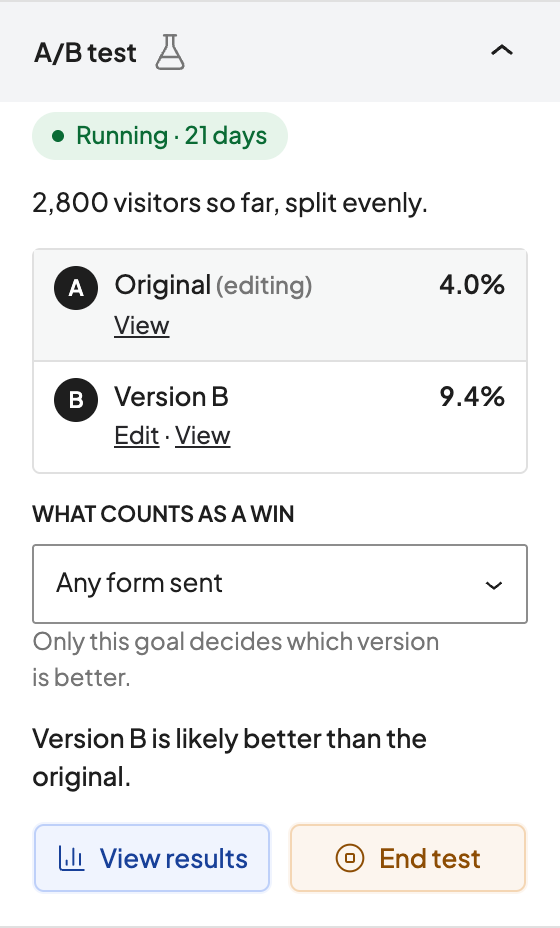
The A/B test panel in the Page tab while a test runs. -

In the Pages list, a page with a running test shows A/B test running; click it for the results.
