

Before and After
Usage
Before and After is an image comparison slider. Upload a Before and an After photo, and visitors drag a divider across the image to reveal one over the other. Clicking or tapping anywhere on the image moves the divider there.
Keyboard and screen reader visitors can use it too: Tab to the slider, then use the arrow keys to move the divider (Page Up and Page Down move it further, Home and End go to either edge).
Use it for renovation reveals, product transformations, landscaping results, or any comparison where both photos share the same framing.
Important constraint
Both images should use the same aspect ratio. The slider takes its shape from the Before image. If the After image has different proportions, it's cropped to fit and the two won't line up. Crop or export both images at the same dimensions before uploading.
Block fields
Select the block to see two fields in the sidebar:
- Before: the starting image.
- After: the image revealed as visitors drag the handle.
There are no other style settings.
Editor vs. front end
In the editor, both images show as a static diagonal split with a note that the draggable slider appears on the live page. If either image is missing, you'll see a placeholder asking you to add both.
On the live page, visitors drag the handle to wipe between the two images. Nothing shows on the live page until both images are set.
Block width
Before and After supports Wide, Full, and Center alignment and defaults to Wide.
Tips
- Shoot both photos from the same spot so the reveal lines up.
- For comparing features in rows with icons or text, use Comparison Table instead. For a single photo with copy, use Photo Feature.
Screenshots
Editor
-
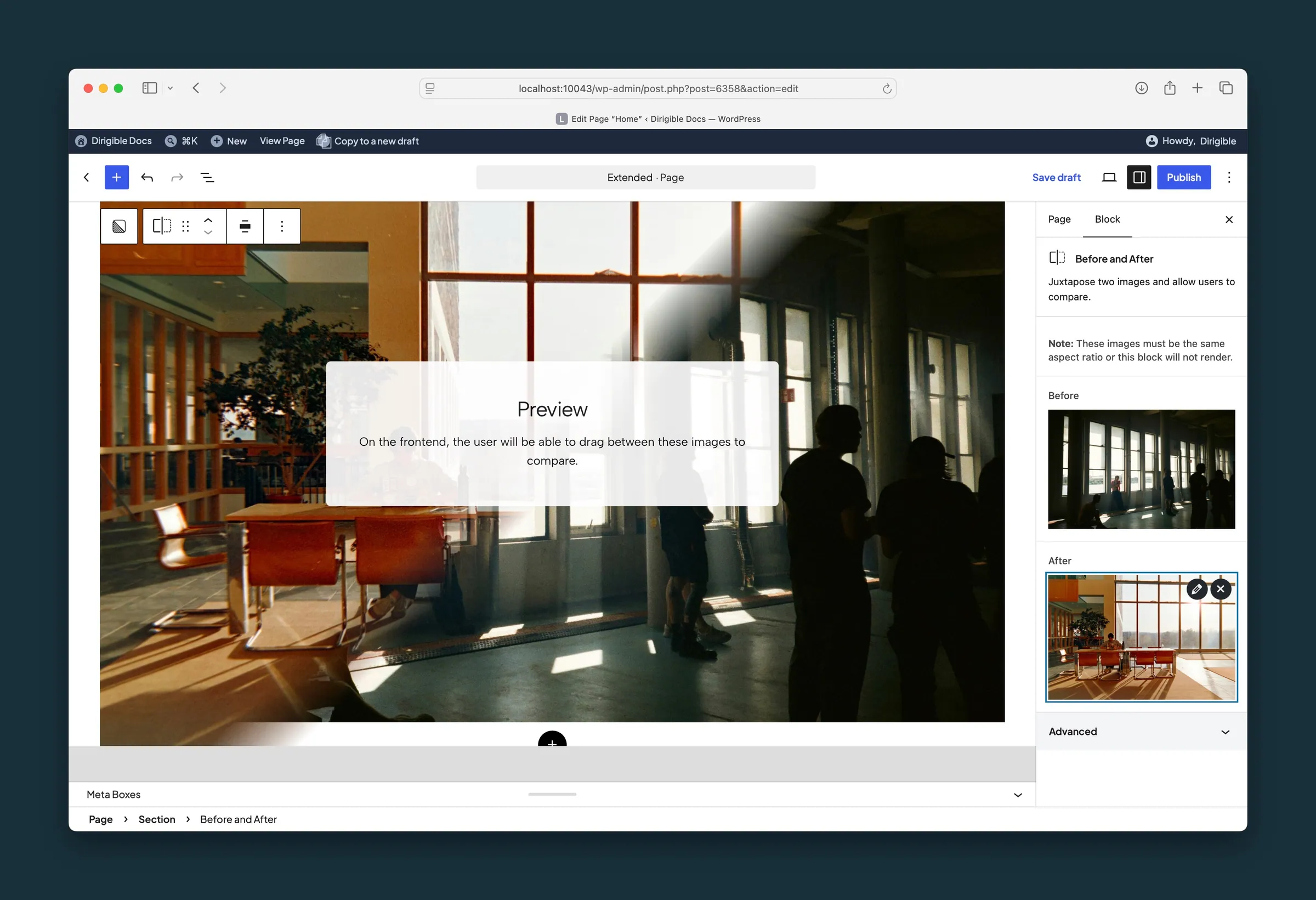
With both images chosen, the editor shows a preview note and the sidebar shows the Before and After thumbnails. -
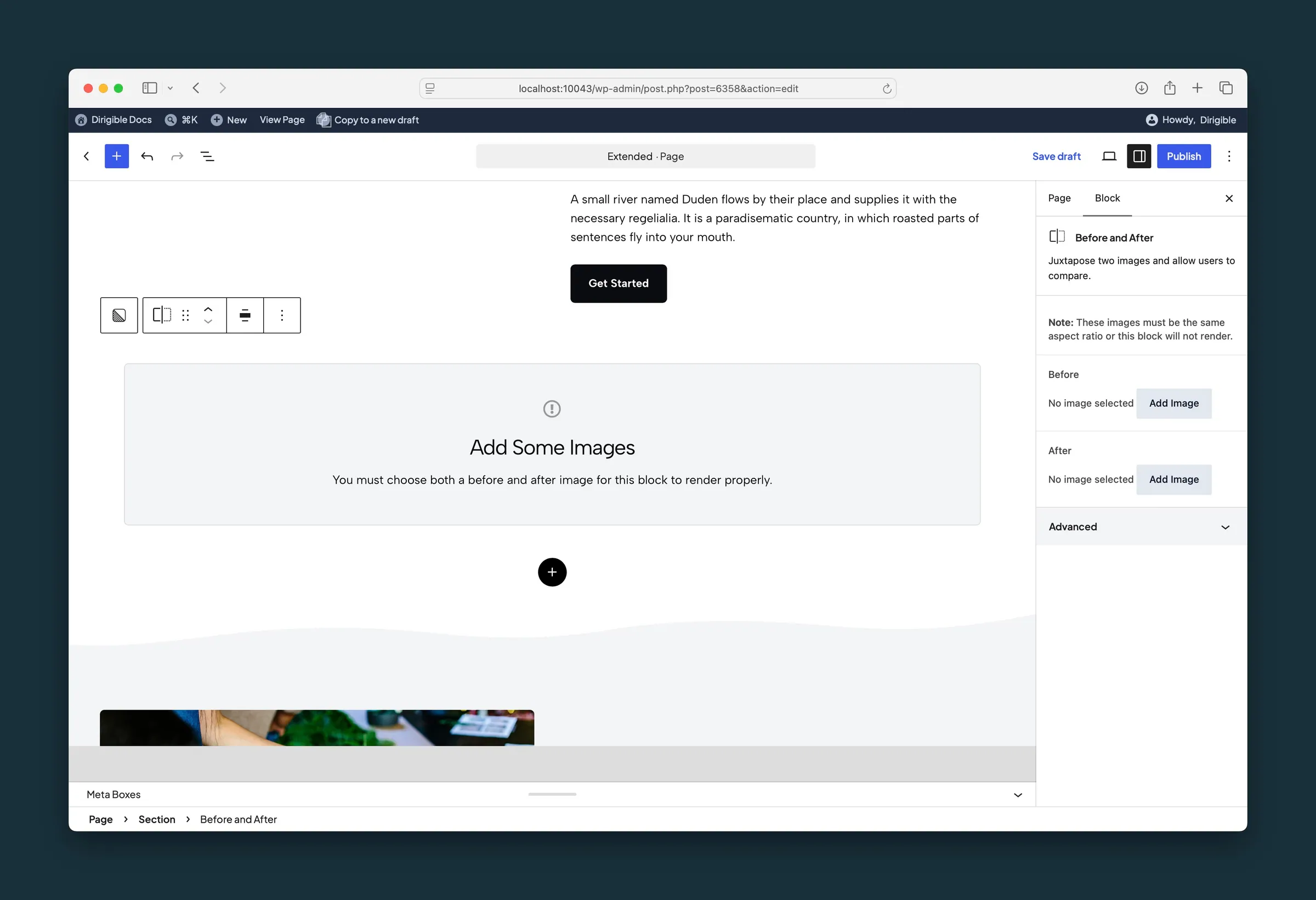
Before any images are chosen, the block shows a placeholder and the sidebar offers Add Image for each field.
Settings
Before and After
<strong>Note:</strong> Use two images with the same aspect ratio. The After image is cropped to the shape of the Before image. · <strong>Note:</strong> Use two images with the same aspect ratio. The After image is cropped to the shape of the Before image.

The starting image. Must match the After image's aspect ratio.
The image revealed as visitors drag the handle. Must match the Before image's aspect ratio.