

People
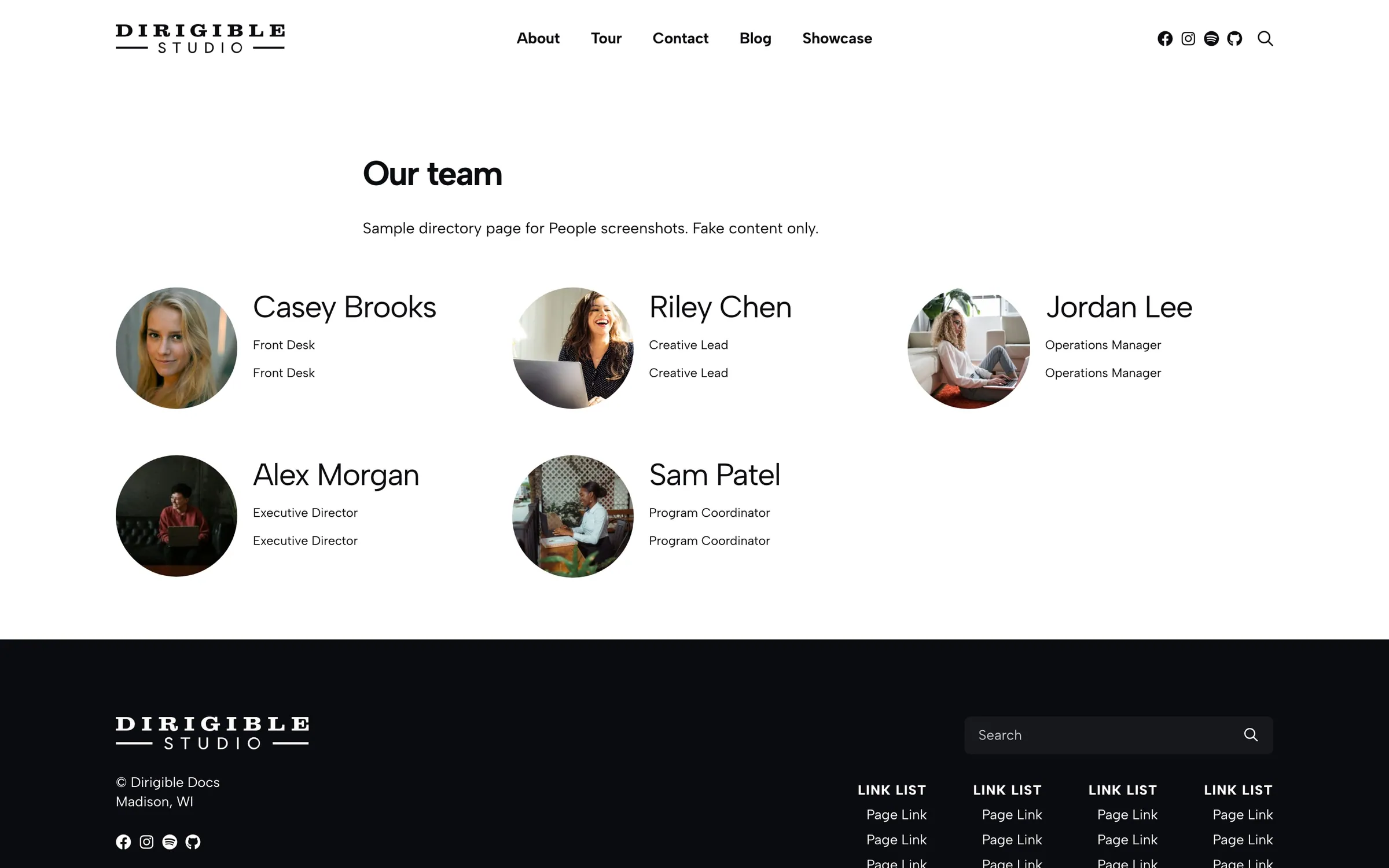
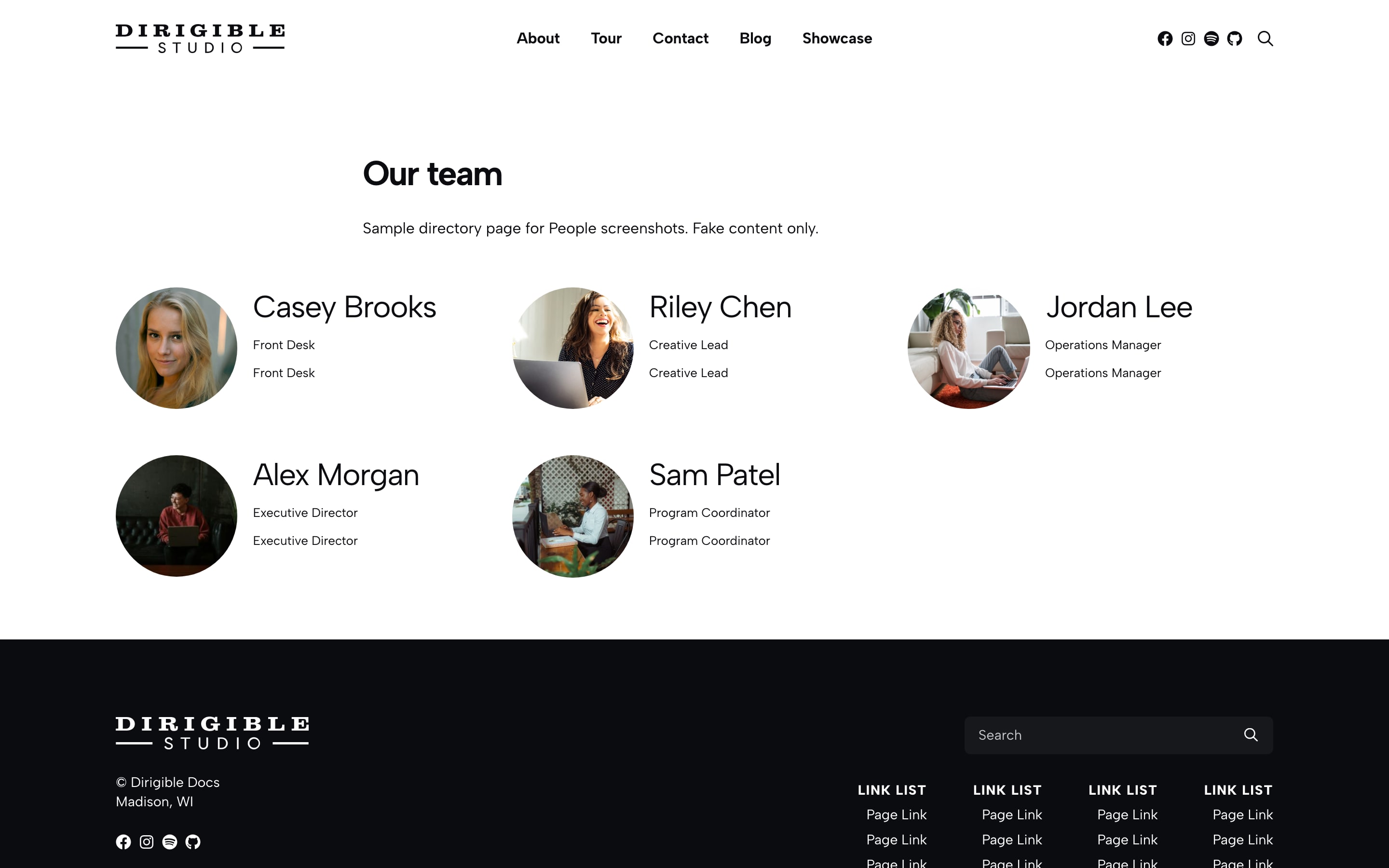
Usage
The People block turns your people into a staff directory or team members page. Choose Directory, Headshots, Blocks, or Minimal, then show everyone, one or more People Categories, or people you pick by hand. You can also add filter buttons so visitors can narrow the list by department.
Real-world example
UW–Madison Division of Continuing Studies — Directory uses a People block with:
- Display set to Directory with a multi-column grid
- Enable Filtering on, with Filter Categories set to department categories (Academic Affairs, Badger Precollege, Continuing Education, etc.)
- A Show All button plus one button per category
- Each card: headshot, linked name, and job title
The dean at the top of the page would fit a separate Person block.
Content
- Populate By — Show All (default), By Category, or Handpicked
- Categories — when By Category is selected, pick which categories to include
- Handpicked — when Handpicked is selected, search and add specific people. Only published people appear on the page; drafts and private people are skipped until they're published
Appearance
- Display — Directory (default), Headshots, Blocks, or Minimal
- Columns — 1–6 per row (default 3)
- Border Radius — circle, rounded, or square headshots when Display is Headshots
- Name Style / Title Style — text styles for names and job titles
- Heading Level — H2–H6 (default H2). Pick the level that fits under the section heading above the block; job titles sit one level below. It doesn't change the look
- Hide Title / Hide Excerpt — hide each person's job title or short bio
- Enable Filtering — add category filter buttons above the list
- Filter Categories — which categories get a button
- Labels — text, icons, or neither on the filter buttons
- Fields to Display — add phone, email, address, or social links to each card
Tips
- Name Style at h4 or h5 keeps a large directory easy to scan.
- Directly under the page title, keep H2; under an H2 section heading, set Heading Level to H3. Name Style still controls how names look.
- Keep Fields to Display short and let each person's page hold the full contact details.
Settings
Appearance
Three or four works well for a staff directory.
Appears when Display is Headshots.
Text style for each person's name.
Pick the level that fits under the section heading above this block: H2 under the page title, H3 under an H2 section. It doesn't change the look. Job titles sit one level below.
Text style for the job title under each name.
Hides each person's job title. Names stay visible.
Hides each person's short bio.
People
Adds filter buttons above the directory: Show All plus one per category.
Fields
Show filter buttons as text, icons, or neither.
Live Preview


Ashton
Graphic Designer
Lorem ipsum dolor sit amet, consectetur adipiscing elit. Etiam rutrum sagittis odio ac suscipit.

Emma
Multimedia Developer
Lorem ipsum dolor sit amet, consectetur adipiscing elit. Fusce massa mauris, imperdiet sed quam in, laoreet commodo magna.

Jordan
Production Manager
Lorem ipsum dolor sit amet, consectetur adipiscing elit. Praesent finibus sit amet dolor non rutrum.
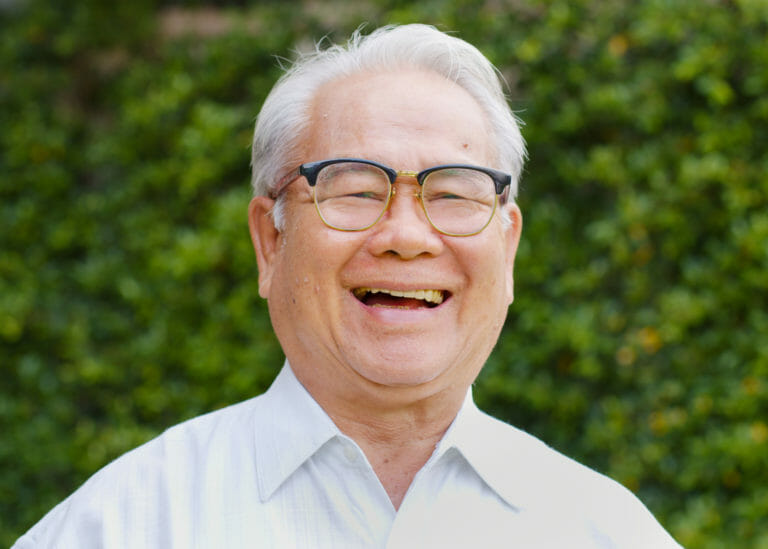
Ken
Marketing Manager
Lorem ipsum dolor sit amet, consectetur adipiscing elit. Suspendisse est magna, rhoncus vestibulum neque vitae, faucibus elementum nunc.

Maja
Digital Content Designer
Lorem ipsum dolor sit amet, consectetur adipiscing elit. Curabitur ornare euismod lacus.

Yael
Creative Director
Lorem ipsum dolor sit amet, consectetur adipiscing elit. Donec elementum auctor turpis, sit amet placerat libero dictum vitae.
