

Bulk Edit
Overview
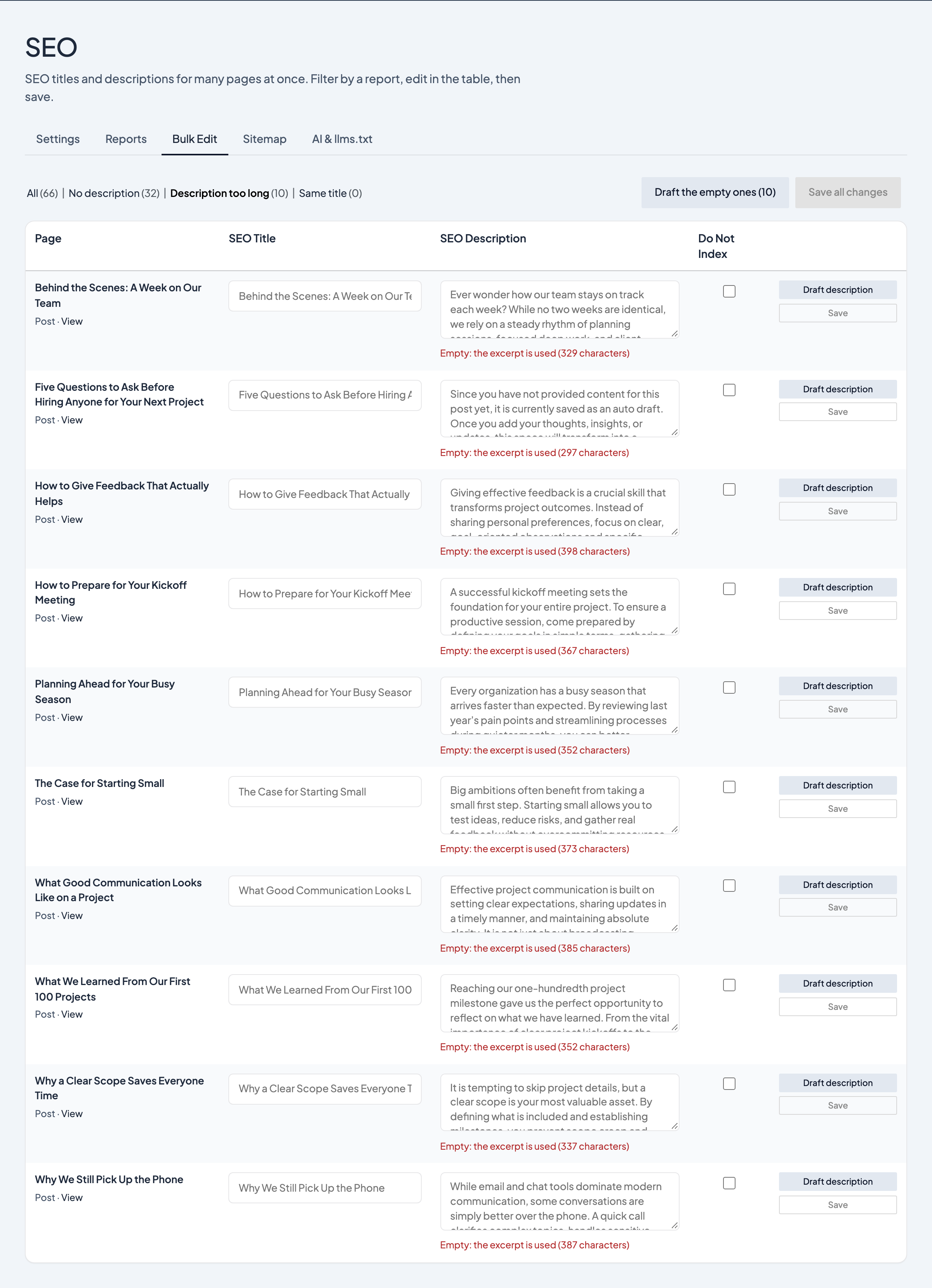
The Bulk Edit tab turns the SEO reports into a fix-it list. It shows your published posts, pages and other public content in a table, with each one's SEO Title, SEO Description and Do Not Index ready to edit. Change what you like and save a row, or save every change on the page at once. It writes the same fields as the page's SEO box, so either place shows what the other saved.
Where to find it
- In the WordPress admin, go to SEO → Bulk Edit
- Or open SEO → Reports, open a report, and select Fix these in Bulk Edit to start with just its pages.
You need an Administrator account.
Filtering the table
The links above the table are the reports:
- All: every published page, 50 to a page.
- No description: no SEO Description and no excerpt.
- Description too long: over 160 characters, counting the excerpt when there's no SEO Description.
- Same title: a title shared with another page.
The count beside each link is how many pages it lists.
Editing
- SEO Title: leave it empty to use the page's own title. The SEO box's tokens work here too, typed as text:
{title},{site}and{|}for the separator. - SEO Description: the count under the field shows its length against 160 characters, and turns red past that. An empty field shows the excerpt it will use instead, when there is one.
- Do Not Index: the same as Private Page (Do Not Index) in the SEO box.
A changed row gets a blue edge and its Save button. Save all changes at the top saves every changed row in one go. Leaving the page with unsaved changes asks first.
Drafting descriptions with AI
When the site has an OpenRouter key (set under Dirigible → AI / OpenRouter), each row has a Draft description button, and Draft the empty ones at the top drafts every row on the page whose description is empty, up to 20 at a time. A draft is written from the page's own text, lands in the field highlighted in yellow, and is not saved until you save the row. Read each one: shorten it, fix the tone, or replace it, then save.
Without a key the AI buttons don't appear and a note says where to add one. Drafting is never automatic: nothing is drafted when a page is published or edited.
Tips
- A page with very little text in the editor (a page built from listings, for example) can't be drafted; write its description by hand.
- Saving updates the reports straight away, so a page you've fixed leaves its report on the next visit.
- The table lists published, public pages. Drafts and password-protected pages aren't here; use their SEO box.