

Documentation Explorer
Usage
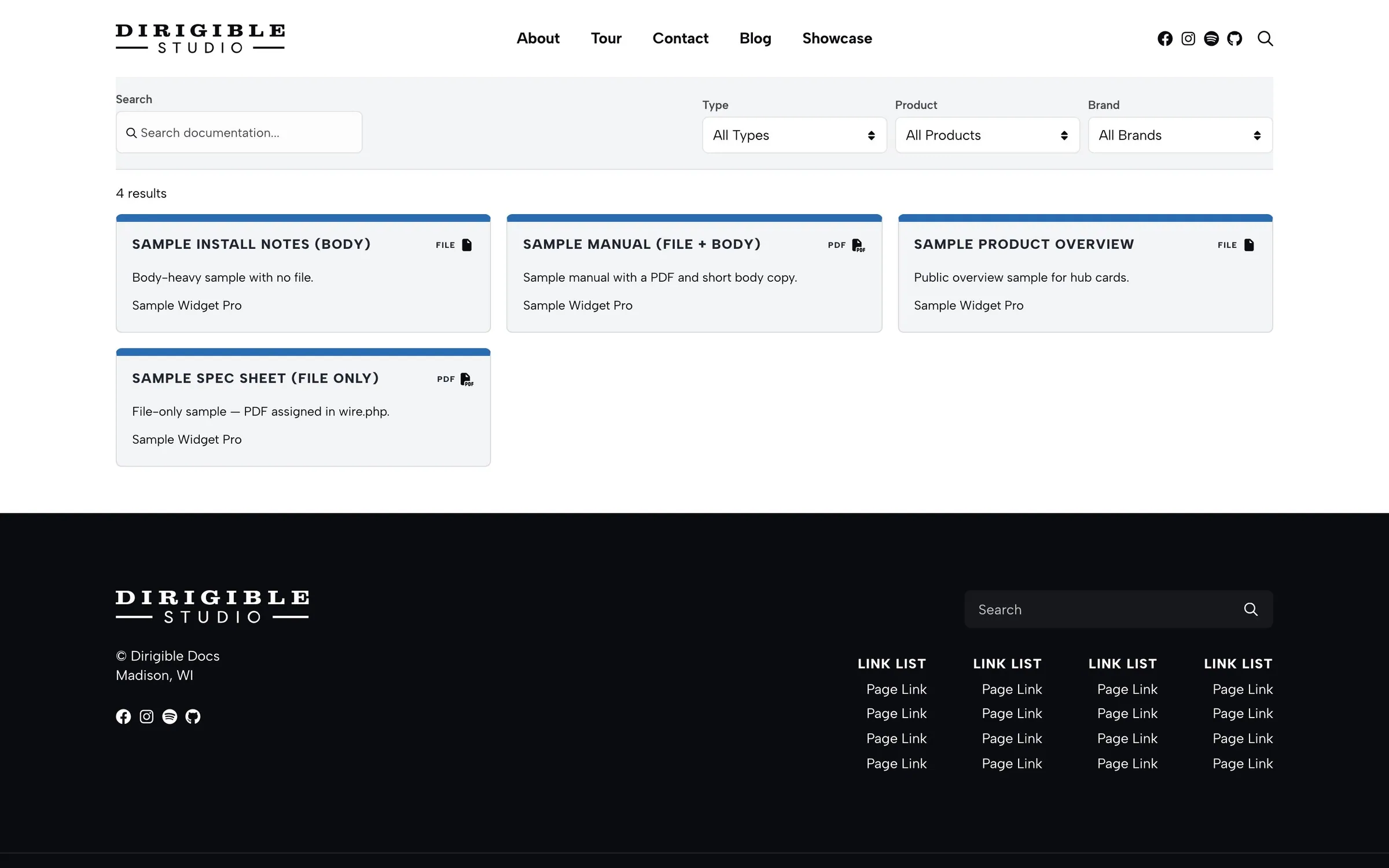
Documentation Explorer lists published docs on a page. Visitors can search and filter by type, product, and brand.
Place it inside a Section (or a column). The inserter hides it at the root of the page.
On the Documentation Base Page, the list follows the filters in the page URL. A Viewing: line names the active type, product, or brand. Reset filters clears search and filters. Both appear on the page, not in the block sidebar.
When to use it
Use Explorer as the main library on the hub page. Use Product Downloads instead when a product landing page should list only that product’s files.
Tips
- Set Documentation Source to By Type, By Product, or By Brand when this block should start from a subset. Filters still apply on top of that subset.
- Cards is a grid with optional excerpts. Tiers groups files under Doc Type headings.
- Leave Filter by Types, Filter by Products, or Filter by Brands empty to offer every term. The pickers appear only when that filter is on.
Settings
Documentation Explorer
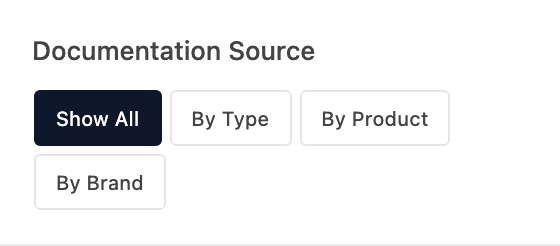
Which docs this block starts from. Filters and hub URLs still narrow that set.
- Show All defaultEvery published doc.
- By TypeOnly docs in the types you pick next.
- By ProductOnly docs in the products you pick next.
- By BrandOnly docs in the brands you pick next.
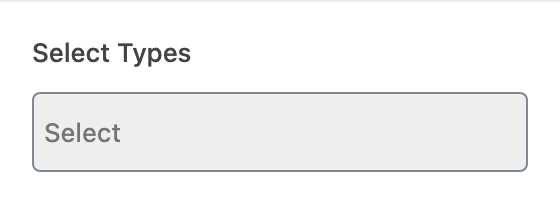
Set Documentation Source to By Type first. Pick one or more Doc Types.
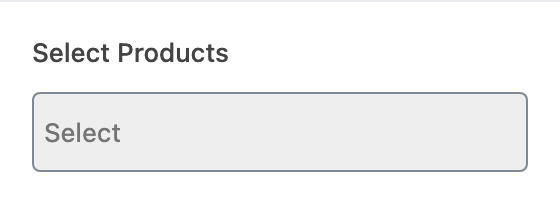
Set Documentation Source to By Product first. Pick one or more Doc Products.
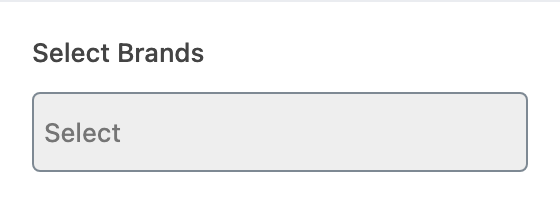
Set Documentation Source to By Brand first. Pick one or more Doc Brands.

Shows the Type picker visitors use on the page.
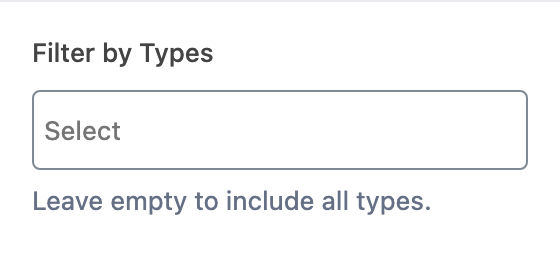
Which types appear in that picker. Set Show Type Filter on first. Leave empty to include all types.
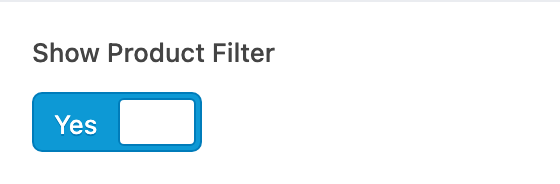
Shows the Product picker visitors use on the page.
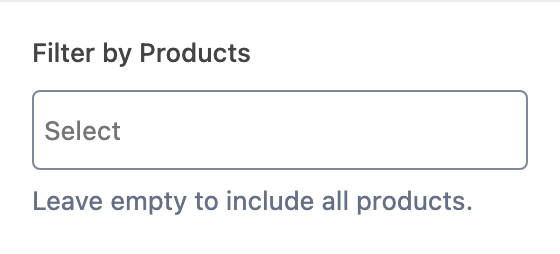
Which products appear in that picker. Set Show Product Filter on first. Leave empty to include all products.

Shows the Brand picker visitors use on the page.

Which brands appear in that picker. Set Show Brand Filter on first. Leave empty to include all brands.
Shows the search field above the list.
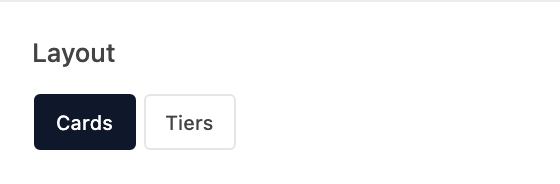
How the results are arranged. Cards is a grid. Tiers groups files under Doc Type headings.
- Cards defaultA card grid. Show Excerpt and Grid Gap appear for this layout.
- TiersHeadings per Doc Type, then a list. Columns appears for this layout.
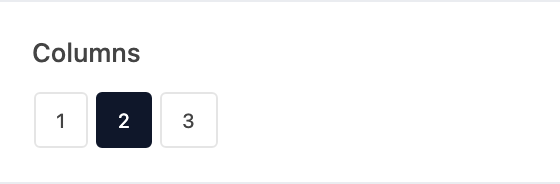
How many columns each type list uses. Set Layout to Tiers first.
Shows each doc’s excerpt on the card. Set Layout to Cards first.
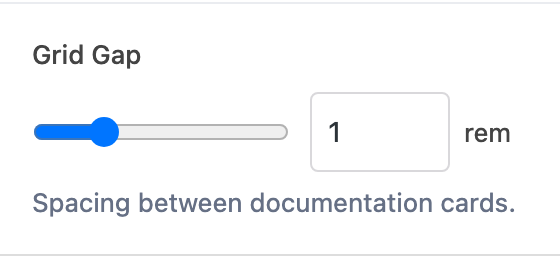
Space between cards. Set Layout to Cards first.
