

Documentation hub
Turn the hub on
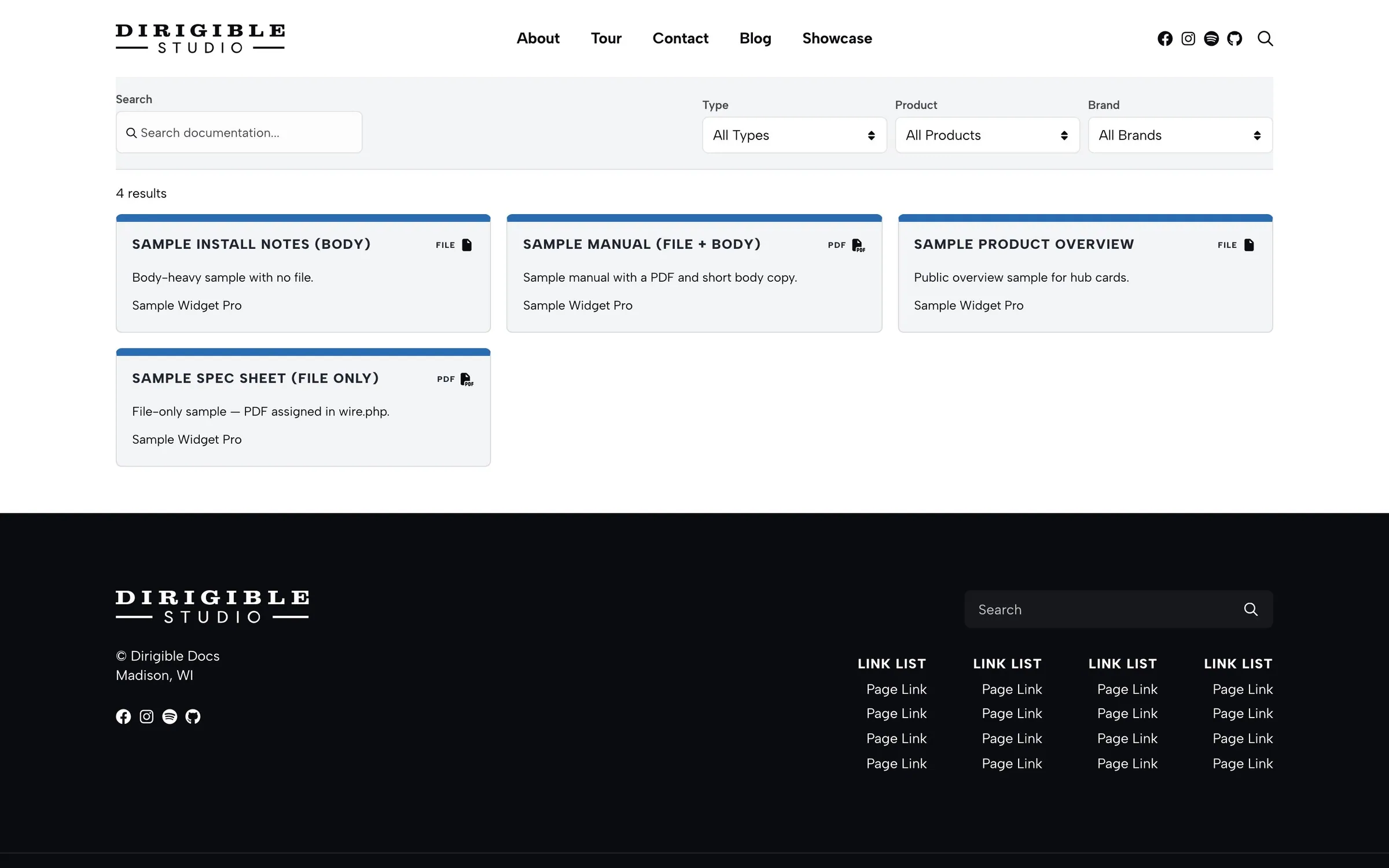
The hub is the Documentation Base Page plus a Documentation Explorer on that page.
- Put Documentation Explorer on a published page (inside a Section)
- Go to Documentation → Settings
- Choose that page as Documentation Base Page
- Select Save Settings
Leave Documentation Base Page empty if you do not want a hub. Type, product, and brand archives then keep their own URLs. With the hub on, those archives redirect to the hub, so link people to the hub page rather than an archive.
Filter URLs
Filters append to the hub path: type, product, and brand, each followed by that term’s slug. You can combine them. Examples:
/documentation/type/manuals//documentation/product/dehumidifier//documentation/type/manuals/brand/quest/
Explorer updates the URL as visitors pick filters, so filtered views can be bookmarked and shared. A view filtered by one type, product, or brand can show up in search engines as a page of its own, titled after that filter (for example "Dehumidifier Documentation"), and it's listed in your sitemap. Combined filters and search results are kept out of search engines. If you set the hub page to No Index in Dirigible SEO or Yoast SEO, its filtered views are left out of the sitemap too.
On the hub, a Viewing: line names the active type, product, or brand. Reset filters clears search and those filters. Both appear on the page, not in the block sidebar.
If a filter URL shows a “page not found” error after you first set the base page or change that page’s slug, go to Settings → Permalinks and click Save Changes.
Search
Turn on Show Text Search in the Explorer sidebar (on by default). The search box filters the listing on the hub.
Cards vs Tiers
Explorer Layout is Cards (default) or Tiers.
- Cards — a grid of doc cards. Show Excerpt and Grid Gap apply here.
- Tiers — grouped rows. Columns (1, 2, or 3) appears when Tiers is selected.
Tips
- Set Documentation Source if this Explorer should start from one type, product, or brand instead of the full library.
- Type, product, and brand filter controls each have their own Show toggle in the sidebar.
- Single docs link back to All Documentation when a base page is set.
