

Documentation
Overview
Docs are the items in the library. Create them under Documentation → Add Doc. The admin list is All Docs.
Each doc can have a File, a YouTube Video, Body copy, an Excerpt, and terms from Doc Types, Doc Products, and Doc Brands.
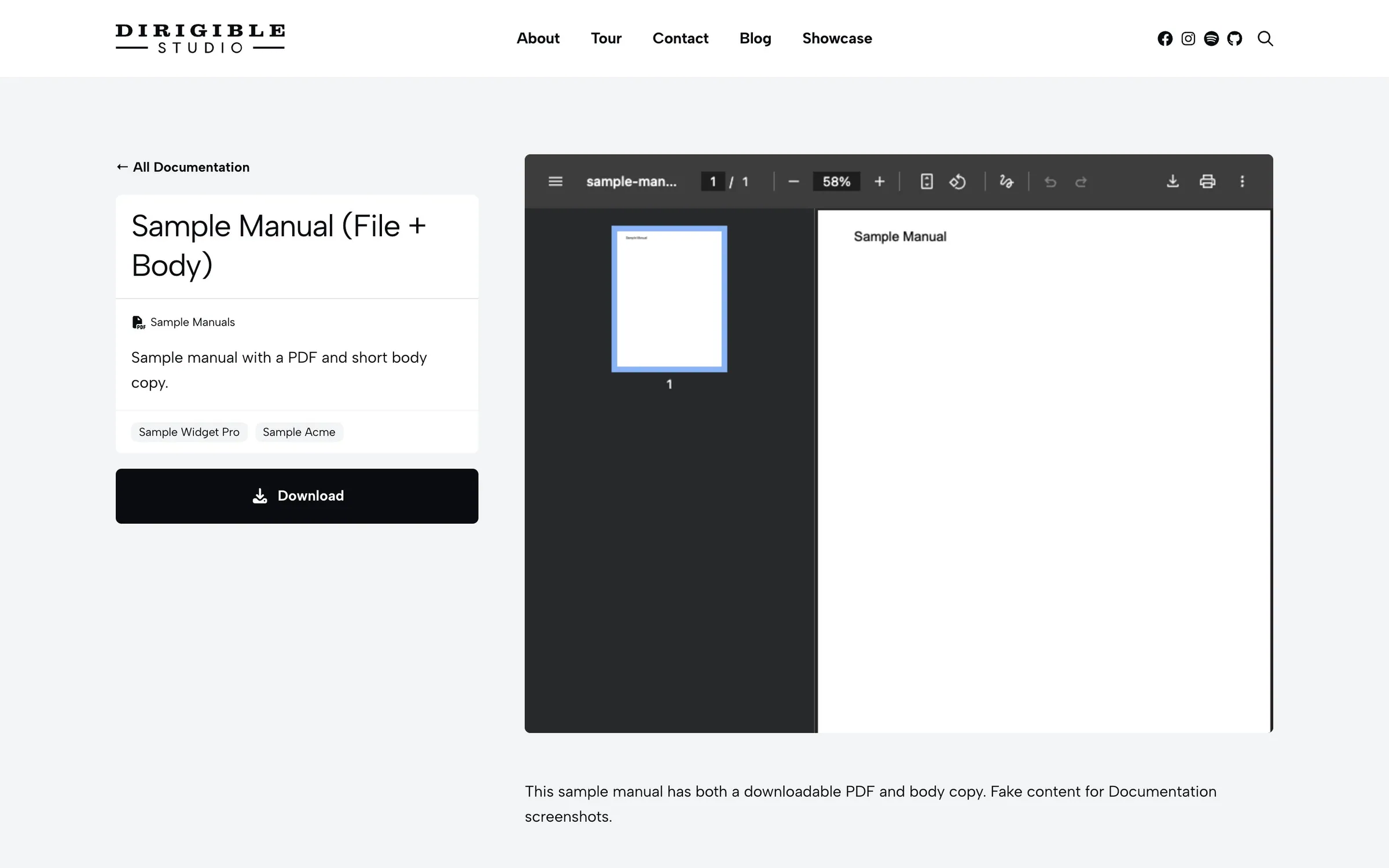
Docs open in the block editor as a preview of the doc's page: the title card with its types and excerpt beside the file, video and body. Hover a part and click Edit to change it in a window, or use the Doc panel in the sidebar, which lists the same parts. Longer copy belongs in Body.
Fields
- File — the downloadable file. The All Docs list shows a File URL column for the assigned file
- YouTube Video — a watch, share, or Shorts URL, shown at the top of the documentation page
- Redirect file to this page — send visitors who open the file’s own URL to this doc instead. Only works on hosts that run Apache. See Features → Redirect file to this page.
- Access — Public (default) or Selected users. Public docs follow lead gating when that is on. Selected-user docs require a login and skip the lead form. Their files move to private storage
- Allowed Users — who may view and download when Access is Selected users. People who can edit the doc always keep access
- Body — optional longer copy on the documentation page
- Excerpt — short summary on cards and in the sidebar of the single doc
- Doc Types, Doc Products, Doc Brands — terms used for hub filters and grouping
WordPress features
- Supports: title, excerpt, editor, revisions, featured image
- Featured image: optional, in the sidebar. Link previews use it when the doc's page is shared (Dirigible SEO), and a Hero block set to the featured image shows it
- Archive: yes, but the hub page is the public listing once Documentation Base Page is set
- Public URL: yes — the path includes the first Doc Type
- Editor: the block editor, with the doc's page previewed on the canvas
Tips
- Assign at least one Doc Type so the permalink has a real type segment instead of uncategorized.
- Use Selected users only when the file should stay out of the public library. See Usage → Member access.
- Turn on Redirect file to this page if people should not be able to skip the documentation page by opening the file directly.
Settings
Documentation
File
YouTube Video
ds_redirect_pdf
ds_docs_access_mode
ds_docs_allowed_usersAvailable when ds_docs_access_mode is “undefined”
Body
