

Change a page's URL (permalink) in WordPress
To change a permalink in WordPress, edit the page's slug: open the page, click the slug next to Slug in the Page sidebar, type the new one, and click Save. You can change the slug before or after you publish. If the page is already live, add a redirect from the old address, because WordPress doesn't do that for pages.
What is a URL slug?
The slug is the last part of a page address. In yoursite.com/services, the slug is services.
WordPress makes the slug from the title the first time you publish. Changing the title later doesn't change the slug, so a renamed page keeps its old address until you edit the slug yourself.
Keep slugs short and lowercase, with hyphens between words (summer-events).
How do I change a page's URL?
Open the page or post in the block editor.
In the sidebar, open the Page (or Post) tab, not the Block tab. If the sidebar is closed, see Bring back a missing editor sidebar.
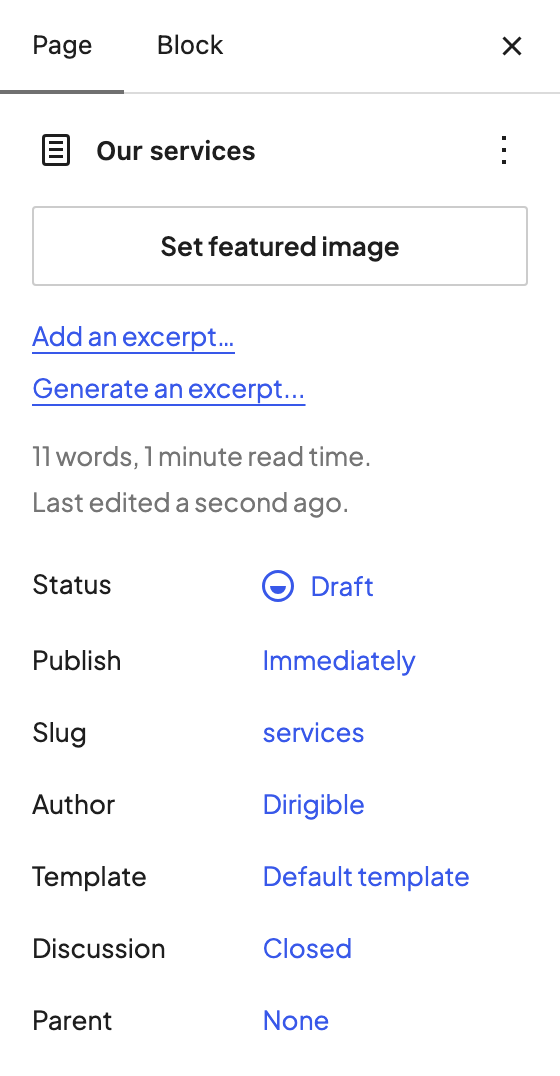
Find the Slug row and click the current slug next to it. Older versions of WordPress label this row Link, URL, or Permalink.
Type the new slug, using only lowercase letters, numbers, and hyphens. WordPress turns spaces and capitals into the right format when you click away.
Check the Permalink: preview under the box.
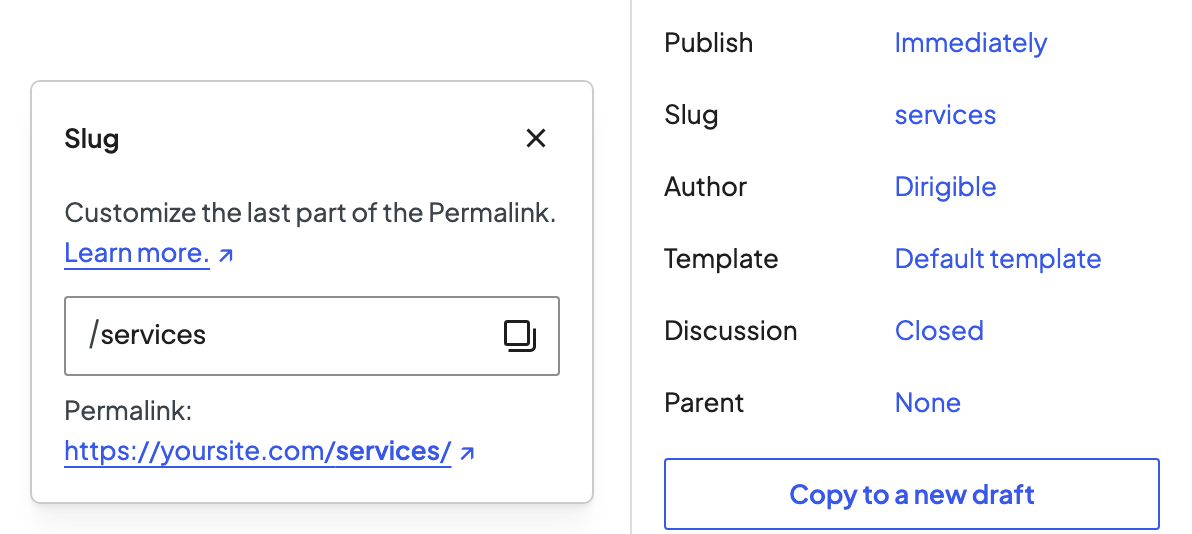
Click Save (or Publish if the page isn't live yet).
The permalink preview updates to the new address once you save.
Change it from the Pages list
Go to Pages → All Pages (or Posts → All Posts).
Hover over the page and click Quick Edit.
Change the Slug field.
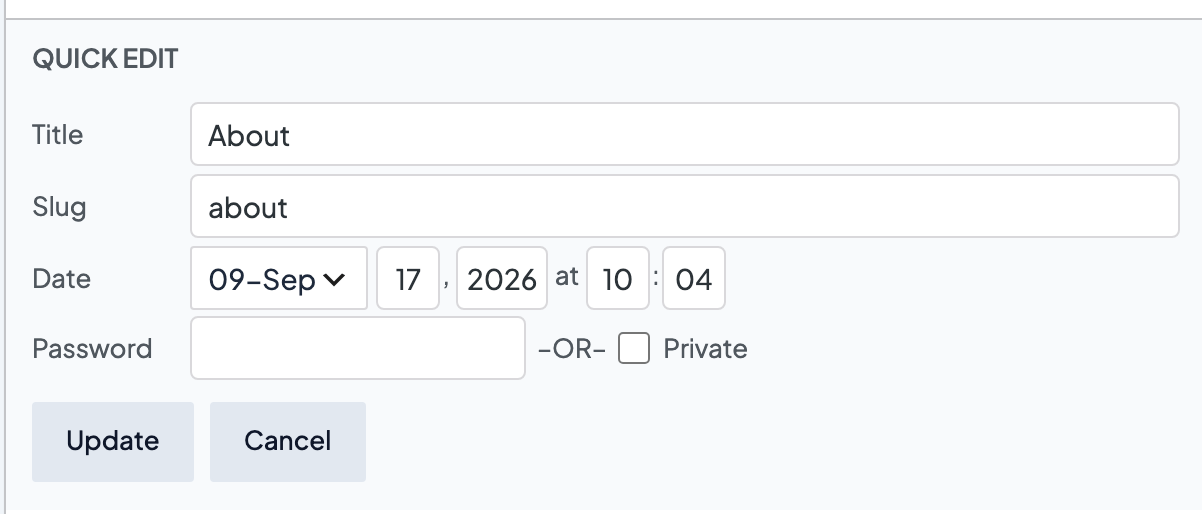
Click Update.
Why does WordPress add "-2" to my URL?
Each address has to be unique, so when a slug is already taken WordPress adds -2 (then -3, and so on). WordPress checks when you publish, so a draft can show the slug you typed and then publish with -2. Common causes:
- Another page uses it. Two pages can't share a slug under the same parent, and two posts can't share one at all. The other page may be private, scheduled, or a draft. Search Pages → All Pages for it, change its slug, then set yours again.
- An image or file took it. Uploading
about.jpggives that file the slugabout, so a new About page becomesabout-2. - The slug is only a number. Pages can't use a slug like
2026, because WordPress reads numbers as page numbers.
A page in the Trash doesn't block the slug. WordPress renames the trashed page and lets the new one have it.
Parent pages are part of the address
If a page has a parent, its URL includes the parent's slug: yoursite.com/services/wedding-photography/. Choosing a different Parent in the Page sidebar (or in Quick Edit) moves the page to a new address. Renaming a parent page's slug changes the address of every page under it.
The homepage's slug doesn't matter
The page you chose as your homepage under Settings → Reading always lives at your main address, yoursite.com/. Its sidebar shows Link instead of Slug, with no slug to edit.
Will changing a URL break links?
- Anyone with the old link (bookmarks, other sites, Google) will hit a 404 unless you add a 301 redirect from the old slug. See Set up a 301 redirect in WordPress. When you change the slug of a published post, WordPress remembers the old one and sends visitors to the new address. It does this for posts and other content that can't have a parent, not for pages, and it doesn't cover a change of parent page.
- The Redirection plugin can also watch for changed addresses and add the redirect for you. Turn on URL monitoring in its options.
- Menu items that point to the page update on their own. Links you typed into other pages keep the old address, so update the important ones even when a redirect is in place.
- Use real words, not numbers:
/aboutreads better than/page-42. - Settings → Permalinks controls the URL pattern for the whole site. It's separate from one page's slug. If many URLs broke after a move or new plugin, see Fix 404 errors by refreshing permalinks.
Changing many addresses at once, as in a redesign? See Keep your SEO when you redesign or move a website.
If there's no Slug row
- Settings → Permalinks is set to Plain. Pages then use addresses like
yoursite.com/?page_id=12, with no slug to edit. Most sites use Post name. Switching changes every address on the site, so read the warning in Fix 404 errors by refreshing permalinks first. - Your user role can't publish. Contributors see the address but can't change it. Ask an Editor or Administrator.
If your site runs on Dirigible
Dirigible doesn't add a redirect when you change a slug, so use Redirection as above.
With Dirigible Optimize active, uploads don't take a page's slug: a new About page gets about even if about.jpg was uploaded first. Old image-page addresses go straight to the image file.
