

Navigating blocks with List View
On pages with lots of blocks inside other blocks, List View and the block toolbar make it much easier to find and move the one you want. List View is an outline of every block on the page, and you open it with the Document Overview button at the top left of the editor.
How do I open List View?
List View shows an outline of every block on the page, with blocks inside sections and columns indented under them.
To open it, click the List View icon (three horizontal lines) in the top toolbar of the block editor. Its tooltip reads Document Overview. The shortcut is Shift+Alt+O on Windows, or Ctrl+Option+O (⌃⌥O) on a Mac.
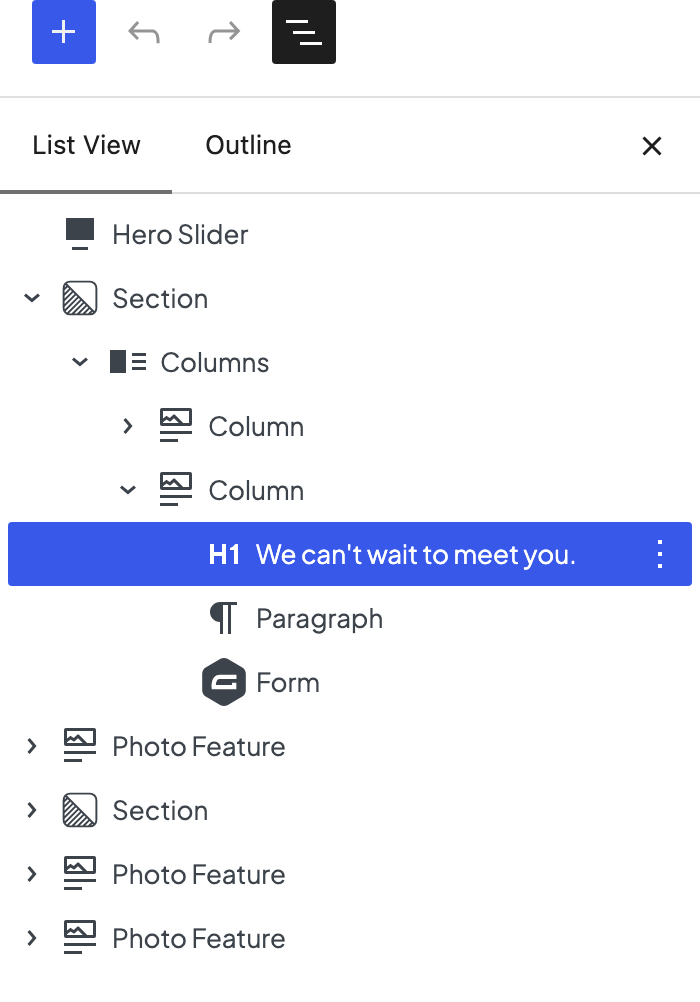
- Click a row to select that block on the page.
- Drag a row up or down to move the block.
- Click the arrow next to a section or column to show or hide what's inside it.
Clicking a small block buried inside columns can be fiddly on the page itself. List View is usually quicker.
The panel has two tabs. List View is the block outline. Outline shows the page's character count, word count, and time to read, and lists its headings in order. It flags empty headings, skipped heading levels, and more than one H1. See Structure a page with headings.
What else can I do in List View?
- Select several blocks: click one row, then Shift-click another to select everything between them. If the two rows are at different levels, WordPress selects the outer blocks that contain them instead.
- Use a block's menu: each row has its own ⋮ (Options) button with the same menu as the block toolbar, including Duplicate, Add before, Add after, and Delete.
- Delete a block: select its row and press Delete or Backspace. This removes everything inside it too.
- Rename a block: open the row's ⋮ menu, choose Rename, type a name, and click Save. The name only shows in List View and the editor, not on the live page. It helps on long pages with lots of identical sections, such as "Pricing" or "Team photos". Most blocks can be renamed. A few, such as the Classic block and synced patterns, can't.
Keep List View open
To have List View open every time you edit a page:
Click the ⋮ (Options) button at the top right of the editor.
Click Preferences.
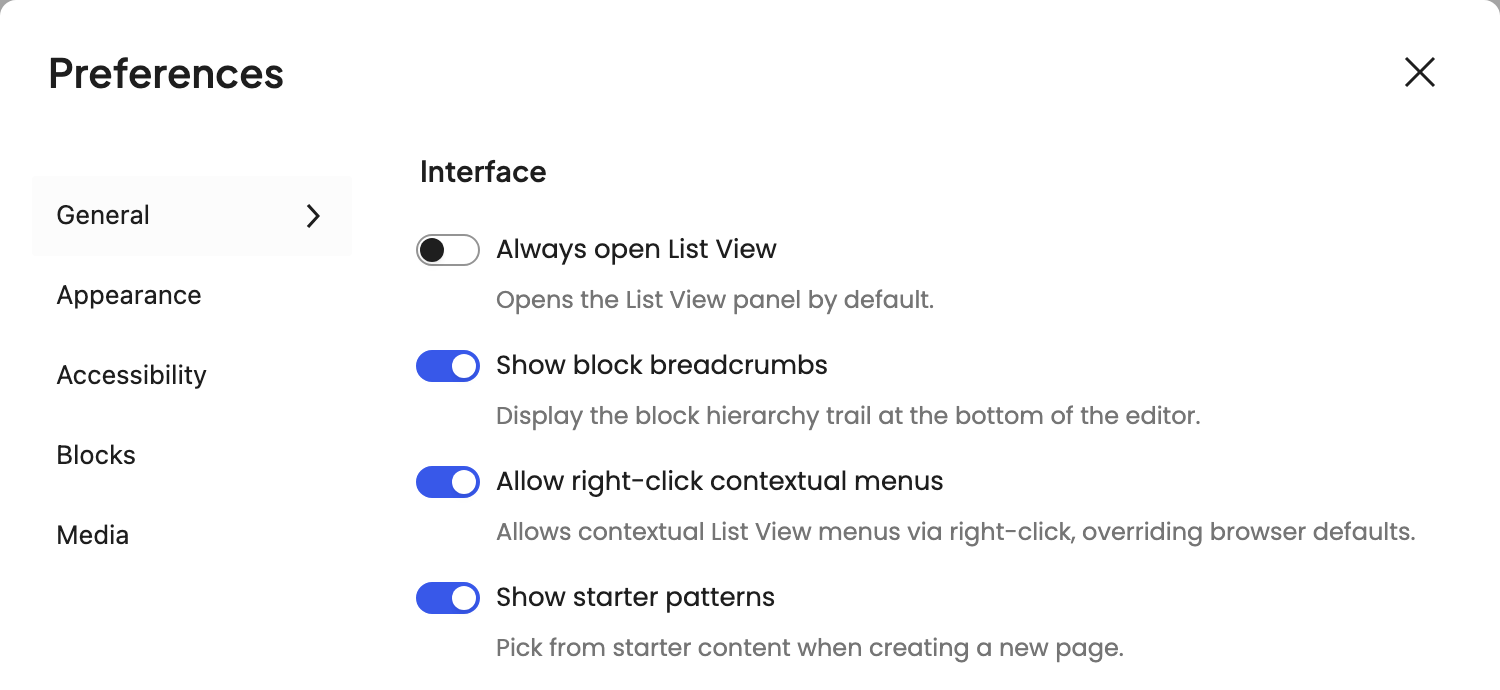
On the General tab, under Interface, turn on Always open List View.
Move and select blocks with the toolbar
When a block is selected, its toolbar appears above it:
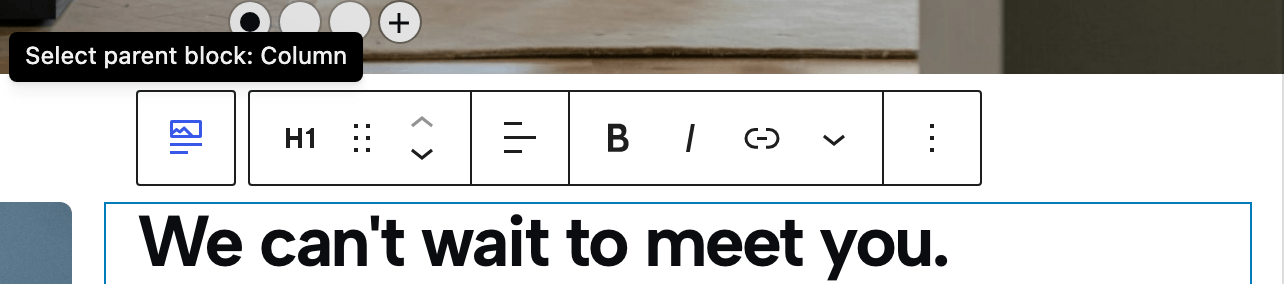
- Select parent: jump from a block to the one around it, for example from a paragraph inside a column up to the Columns block. It's the button at the left end of the toolbar; its tooltip reads Select parent block: and the parent's name. It's also in the toolbar's ⋮ menu as Select parent block, which helps on narrow screens where the toolbar button is hidden.
- Drag handle (six dots): drag the block to a new spot.
- Move up / Move down: move the block one step at a time. Inside a row of blocks side by side, these become Move left / Move right.
To move or duplicate a whole section, select the section first with Select parent or List View, not a block inside it.
Common mistakes
- Moving the block inside a section instead of the section. Check which row is highlighted in List View before you drag or delete.
- Dropping a block into the wrong container. While you drag a row, watch how far it's indented: that's the block it will land inside.
- Deleting a container to remove one block. Deleting a section or column deletes everything in it. Expand the row first and delete only the block you meant.
If you deleted the wrong thing, press Ctrl+Z (⌘Z on a Mac) to undo before you save. For a leftover gap after deleting, see Delete leftover empty buttons.
If your site runs on Dirigible
Dirigible's layout blocks nest several levels deep, for example Columns → Column → Buttons → Button, or Blocks → Block. List View is the quickest way to reach the right level, such as the Column whose Content Position decides where its text and buttons sit. See Center buttons that won't center.
For more on building pages, see Create and edit a page in WordPress.
