

Set your homepage
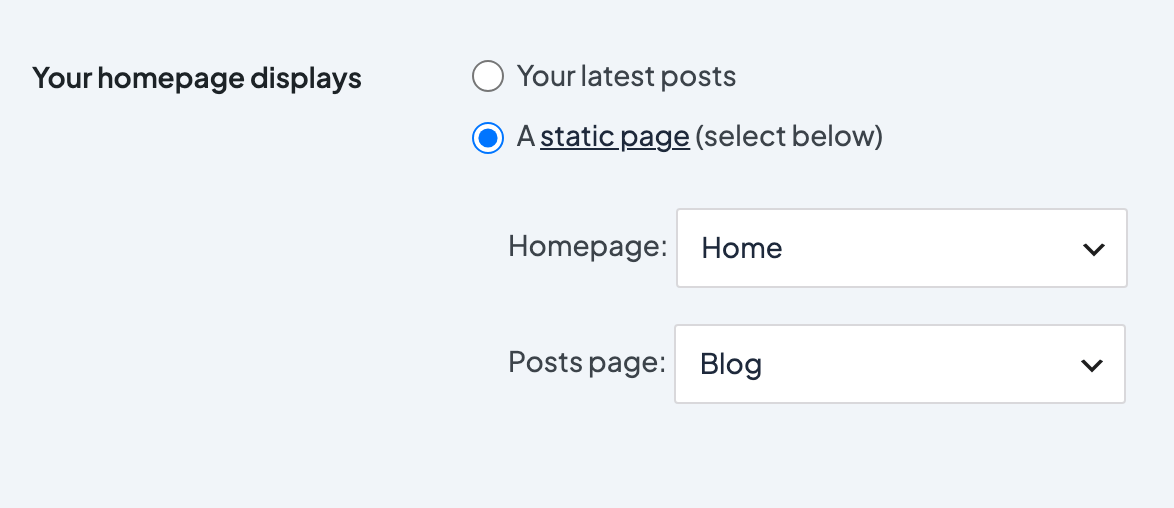
To set your homepage in WordPress, go to Settings → Reading, choose A static page, pick your page in the Homepage dropdown, and click Save Changes. WordPress can open your site with a page you built (a "static" homepage) or a list of your latest posts. Most business sites use a page, so visitors land on your best introduction rather than whatever you posted last.
Choose your homepage
Build and publish the page you want as your homepage. It can be called anything; Home is common.
Go to Settings → Reading.
Under Your homepage displays, choose A static page (select below).
In the Homepage dropdown, pick your page.
Click Save Changes.
Only published pages appear in the dropdown.
The same settings are in the Customizer. On a Dirigible site they're under Appearance → Customize → Settings → Frontpage & Blog, where you can preview the change before clicking Publish.
Give blog posts their own page
With a static homepage, your posts need a page of their own.
- Create an empty page called Blog (or News) and publish it. Leave the content empty: WordPress fills it with your posts.
- In Settings → Reading, choose it as the Posts page.
- Click Save Changes.
For blog layout and post cards, see Set up a blog page in WordPress.
Check which page is the homepage
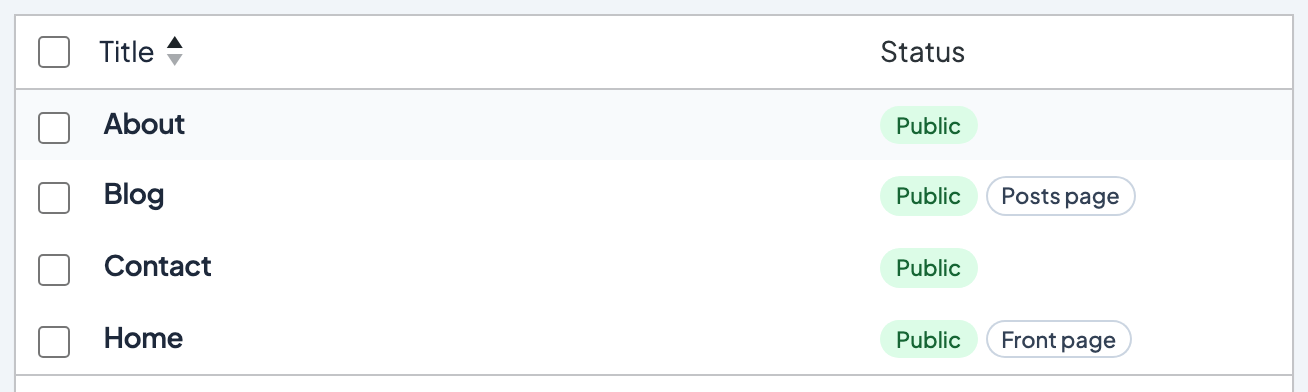
In Pages → All Pages, WordPress labels your homepage — Front Page and your blog page — Posts Page, after their titles. On a Dirigible site the labels read Front page and Posts page, in the Status column.
If your homepage switched back to latest posts
If you move the homepage page to the trash, WordPress switches Your homepage displays back to Your latest posts. Restoring the page from the trash doesn't switch it back. Restore or rebuild the page, then choose it again in Settings → Reading.
To try a new homepage design without taking the current one down, duplicate the page and publish it later, then switch the Homepage setting when it's ready.
If your site runs on Dirigible
Theme Setup can create starter Home and Blog pages in its Content step and sets them as your homepage and posts page. See Run Theme Setup on a new site.
