

Using Tools & Maintenance
Tools & Maintenance is where you check and fix a whole site at once: pages, media and forms. Open it from Dirigible → Tools & Maintenance. Administrators and Managers can open it; a few tools that make sitewide or permanent changes are for Administrators only.
Find your way around
The list on the left jumps to each tool. The tools are in four groups:
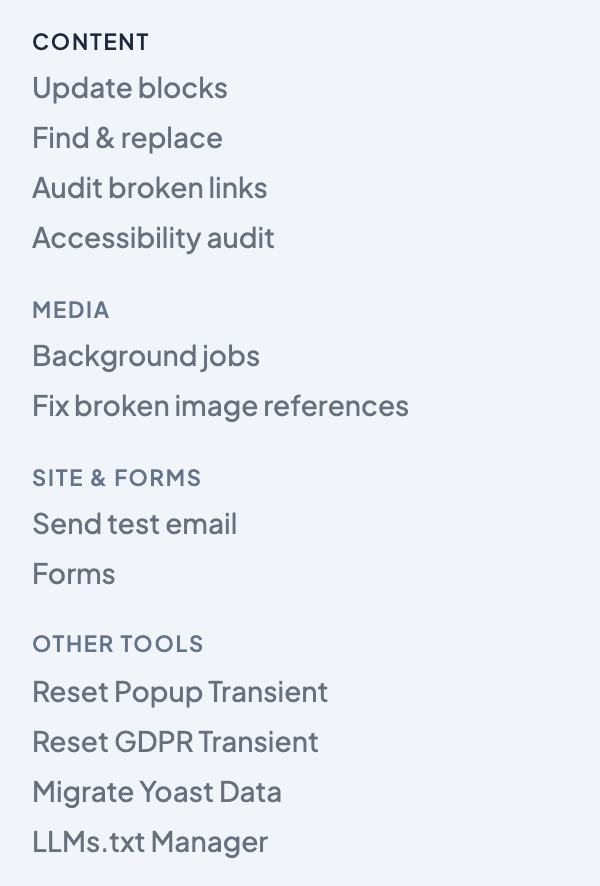
| Group | Tools |
|---|---|
| Content | Update blocks, Restore block settings from revisions (only when blocks are waiting for review), Find & replace, Audit broken links, Accessibility audit |
| Media | Background jobs (new image sizes and media indexing), Fix broken image references |
| Site & forms | Send test email, and Forms when Gravity Forms is active |
| Other tools | One-off resets and imports from your Dirigible plugins, such as Reset Popup Transient, Reset GDPR Transient and Migrate Yoast Data. What's here depends on the plugins you use. |
Every tool is a card that's always open. Under its name, one line says when to reach for it.
Choose what a tool checks
Find & replace, Audit broken links and the Accessibility audit show Checks: all content · Change near the top of the card. They check all your content unless you narrow it:
Click Change.
Untick All content, then tick the types you want, such as Posts and Pages.
Click Done. The line now reads, for example, Checks: Posts, Pages.
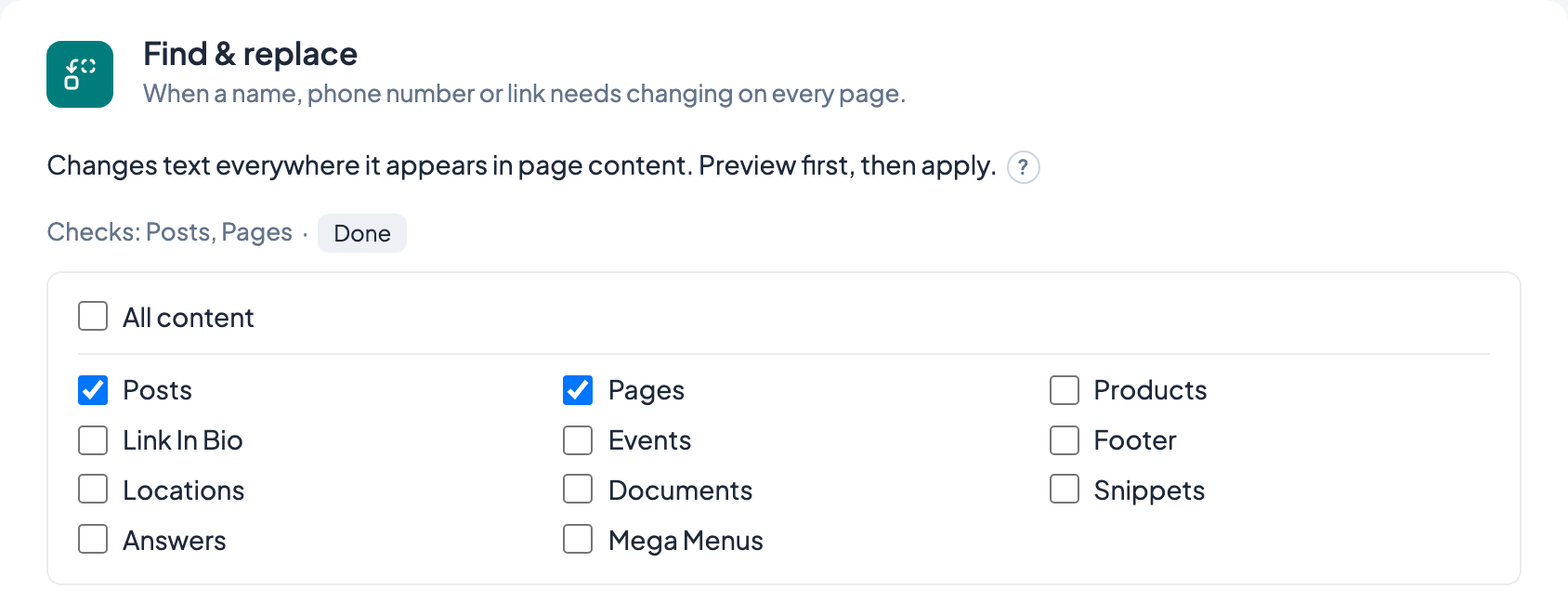
Each tool remembers its own choice in your browser.
Update blocks has no choice: it always checks every kind of content that uses blocks, in every status, plus synced patterns.
Run a tool
Set any options on the card.
Click the card's button: Run, Preview, Scan or Send test email, depending on the tool.
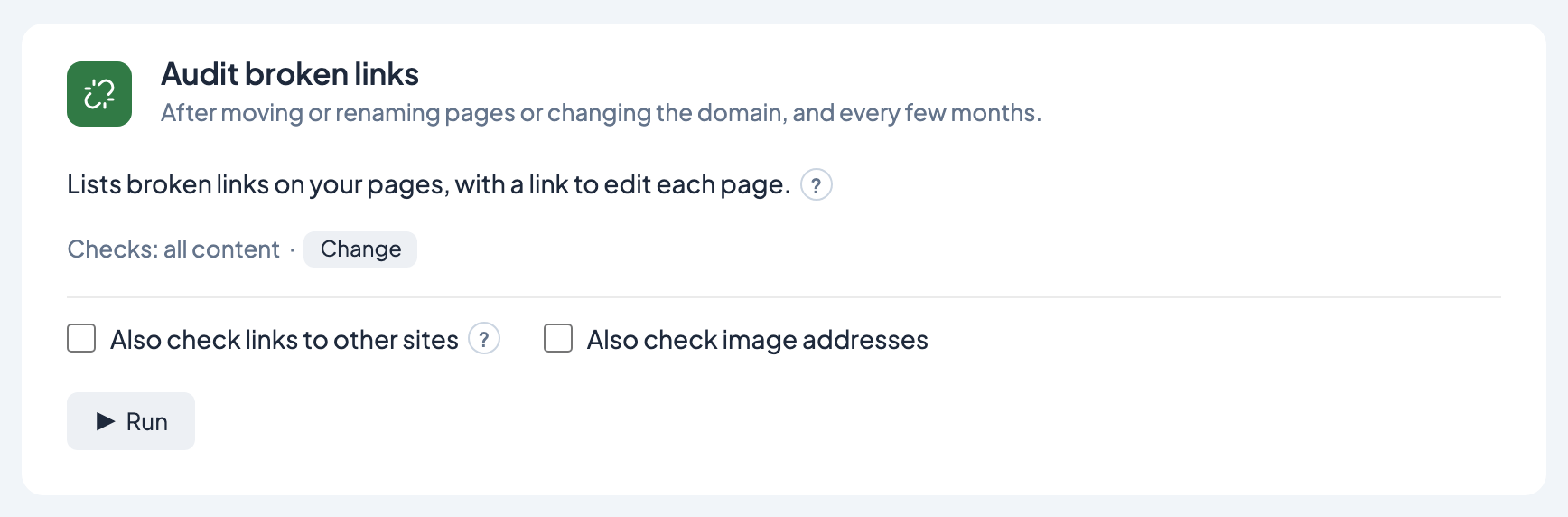
Read the log on the card for results, edit links and downloads.
Click Stop to halt a long run.
One tool runs at a time. While it runs, the buttons on the other cards are greyed out, and your browser asks before you leave the page. If the server is busy or a request fails, the tool waits a few seconds and tries again, and it stops with a message after five failures in a row. A page left open overnight still works; if your login has expired, the run stops: reload the page, log in, and run it again.
What each tool is for
| Tool | Use it when |
|---|---|
| Update blocks | The block plugins have updated, or the editor says a block has unexpected content. It re-saves only the pages whose blocks change, and they keep their last-modified date. |
| Restore block settings from revisions | Blocks show "unexpected or invalid content" and have lost their images, colors or layout. |
| Find & replace | A name, phone number or link needs changing on every page. Preview first, then apply. |
| Audit broken links | You've moved or renamed pages or changed the domain, and every few months. |
| Accessibility audit | Before launch and after big content changes. It finds errors software can detect; a person still needs to review the site. |
| Background jobs | Shows the two jobs that run on their own: adding new image sizes to existing images, and indexing images for duplicate detection. Use Run now or Retry only when a line says a job is stuck or behind. |
| Fix broken image references | Images show as broken on pages, often after a migration or a media cleanup. Preview first, then apply. |
| Send test email | Form notifications or password reset emails aren't arriving. |
| Forms | Form emails go missing (Settings check), or spam and old entries pile up (Entry cleanup, Administrators only). |
Which tools change your site
- Audit broken links, the Accessibility audit and Forms → Settings check only list problems. They don't change anything.
- Find & replace, Fix broken image references and Restore block settings from revisions show a preview first and change nothing until you apply. Each changed page gets a revision you can revert.
- Forms → Entry cleanup deletes entries for good. Scan first, read what will be removed, and back up the site before you confirm.
Alt text fills in by itself
You don't need a tool to keep image alt text in step with the media library. When an image on a page has no alt text of its own, the page shows the alt text from the media library. See How to write alt text for images.
Moved or done for you
Older versions of this page had more tools. Their jobs now happen elsewhere or by themselves:
- Revision limit and Purge revisions are in Dirigible Optimize, under Optimize Settings → Revisions. See Revisions.
- Generate missing image sizes and Index media hashes run by themselves as Media → Background jobs.
- Email deliverability check is replaced by Send test email.
- The Mixed-content scan is part of Audit broken links.
- The separate Dirigible Theme Tools page is now the Other tools group.
- The cache, database, comment and site health cleanups have been removed. If the live site shows old content, see Fix WordPress changes not showing on your site. For WordPress's own health checks, go to Tools → Site Health. To review who has administrator access, use the Users screen.
Related guides
- Changing your URL structure? See Change a page's URL (permalink) in WordPress and Set up a 301 redirect in WordPress.
- Moving from Yoast SEO: use Migrate Yoast Data under Other tools. See Edit the SEO title and meta description for a page.
- Content gardening tools, Media maintenance tools and Forms and email tools go into more detail.
