

Set up a 301 redirect in WordPress
To add a 301 redirect in WordPress, install the free Redirection plugin, then enter the old address as the source and the new page as the target. A 301 redirect sends anyone who visits an old URL to the page that replaced it. Without one, people following old links, bookmarks, or search results land on a 404 page.
When to add a redirect
- You changed the slug of a published page or post (see Change a page's URL (permalink) in WordPress).
- You deleted or merged pages and the old URL should land somewhere useful.
- You moved the site or reorganized a section of it.
Use a 301 (permanent) redirect for moves you intend to keep. Search engines carry the old page's ranking over to the new URL.
WordPress redirects some changes on its own: when you change the slug of a published post, the old address keeps working. It doesn't do this for pages, so add a redirect whenever you change a page's address.
Add a redirect with the Redirection plugin
If Redirection isn't installed yet, go to Plugins → Add Plugin, search for Redirection, then install and activate it. Its setup screen walks you through the first steps. Most Dirigible sites already have it.
Go to Tools → Redirection (older versions put it under Settings → Redirection).
Open the Redirects screen and fill in the Add redirect form below the list:
- Source URL: the old path, such as
/old-page/. - Target URL: the new path or full URL, such as
/new-page/.
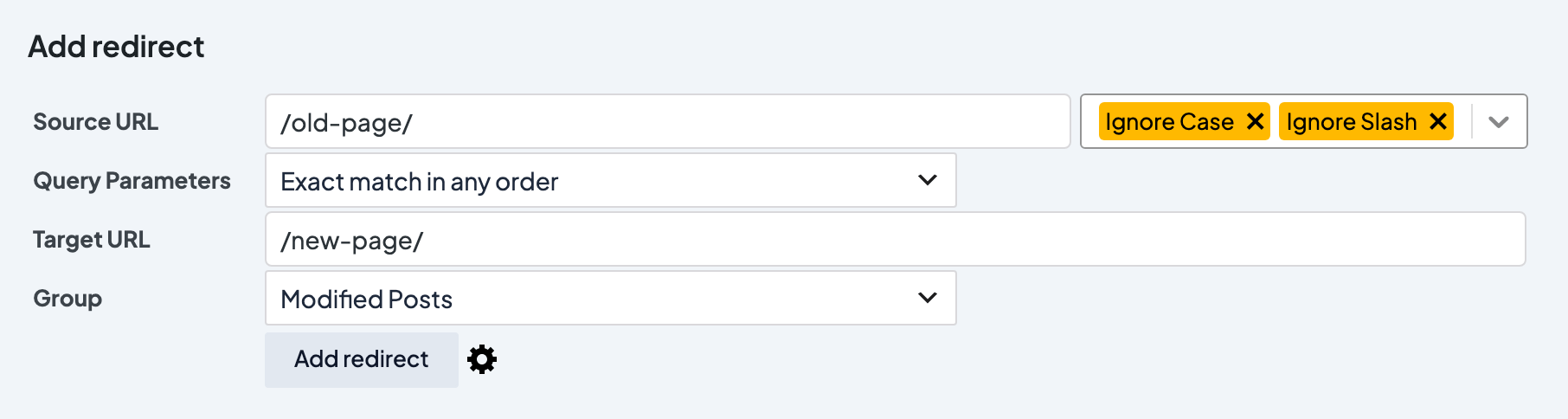
- Source URL: the old path, such as
Leave the type as 301 unless the move is temporary. It's under the gear icon next to the Add redirect button, as with HTTP code: 301 - Moved Permanently.
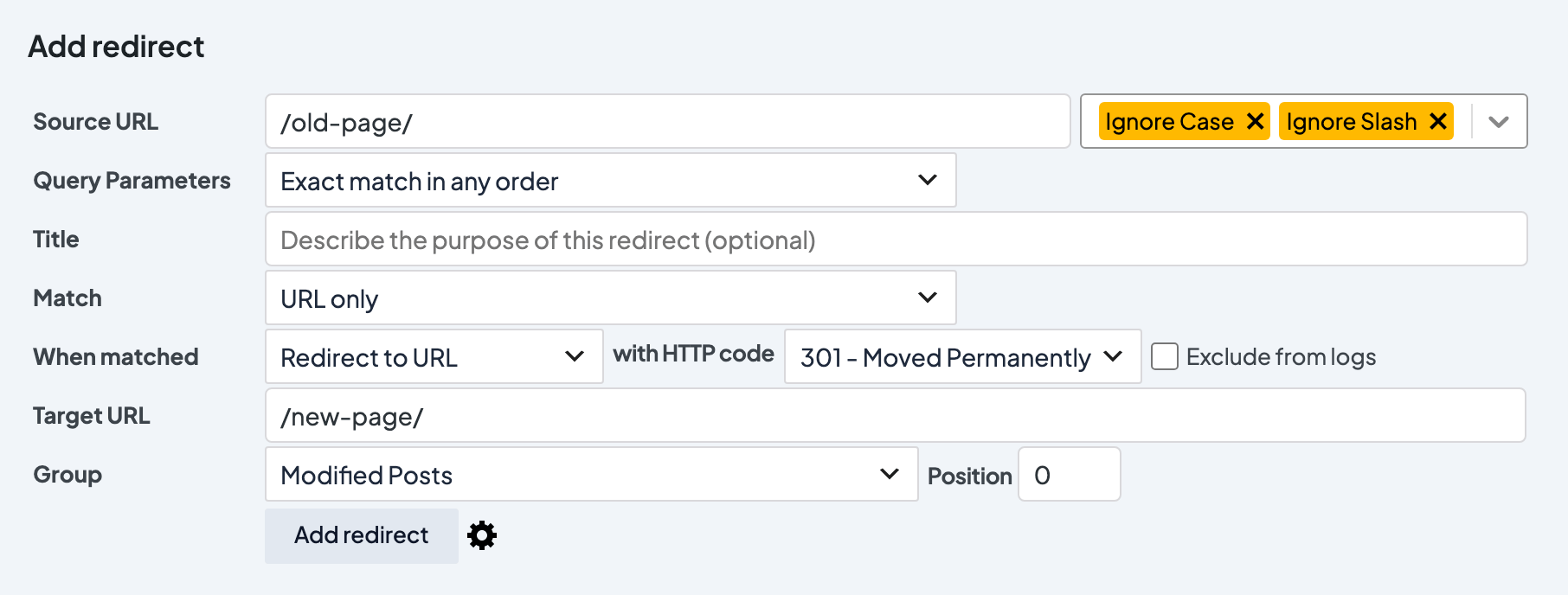
Click Add redirect.
Open the old URL in a private or incognito window and confirm it lands on the new page.
Tips
- Match trailing slashes to how your site writes URLs (
/page/vs/page), or leave Ignore Slash on next to Source URL (it's on by default) so the plugin ignores them. - Point old URLs straight at the final page. If A redirects to B and B redirects to C, update A to go directly to C.
- Don't send every missing URL to the homepage. Pick the closest relevant page.
- If other URLs start returning 404s after a batch of slug changes, see Fix 404 errors by refreshing permalinks.
