

Add license keys for your Dirigible plugins
Dirigible Studio and each Dirigible plugin have their own license key. An active license lets that theme or plugin receive updates. Theme Setup also uses your licenses to download and install the core plugins for you.
You need an Administrator account to add or change licenses.
Where do I enter license keys?
There are two places, and they save to the same spot:
- Theme Setup → Licenses, when you set up a new site. See Run Theme Setup on a new site.
- Dirigible → Licenses in the WordPress admin menu, any time after that.
Activate a license
Go to Dirigible → Licenses.
Find the card for the theme or plugin. Each installed Dirigible product has its own card with its name at the top.
Paste the license key you received from Dirigible into the Enter License Key... field.
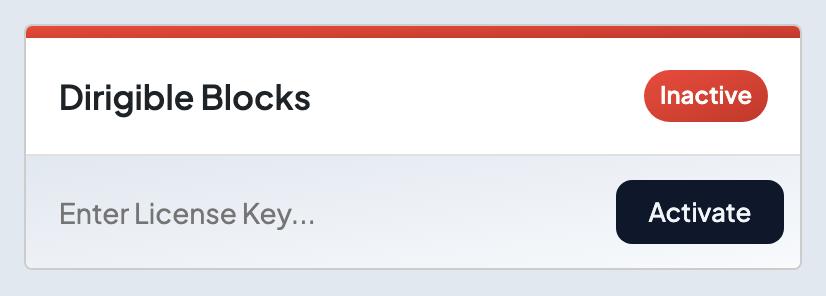
Click Activate.
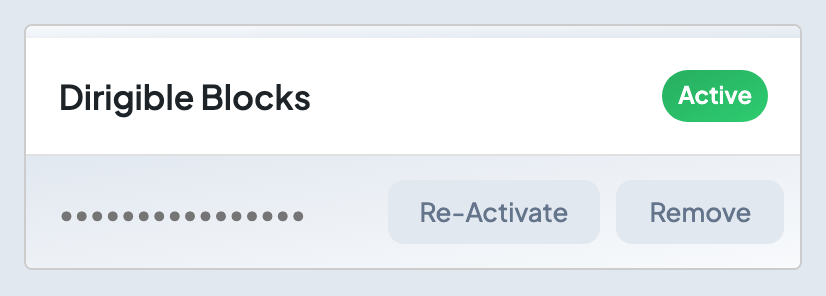
When the key is accepted, you'll see Activation successful! Thank you! and the card's badge changes from Inactive to Active. The key field shows dots instead of your key, and the button changes to Re-Activate.
If the key isn't accepted, the badge stays Inactive and a message explains why. Check that you copied the whole key with no extra spaces, and that it's the key for that product.
Repeat for each product. A key for one plugin won't activate another.
Activate licenses during Theme Setup
The Licenses step lists Dirigible Studio and the core plugins it installs: Dirigible Blocks, Dirigible Fonts, Dirigible SEO, Dirigible Optimize, and Dirigible AI.
- Paste each key into its field. A key is checked as soon as you click out of the field, and a check mark with Active replaces the field when it's accepted.
- Click Next.
If any key is left empty or isn't accepted, Next changes to Retry and Continue Anyway appears. Fix the key and click Retry, or click Continue Anyway to finish setup and add the missing licenses later under Dirigible → Licenses.
When every license is already active, the step says You're good to go!
Check or refresh a license
Open Dirigible → Licenses and look at the badge on each card. Active means updates are on for that product. Inactive means it needs a key.
To re-check an active license without retyping it, click Re-Activate. The saved key is checked again.
Remove a license
Click Remove on the card. You'll see License removed., the badge changes to Inactive, and that product stops receiving updates on this site until you activate a key again.
Moving to a new site
A brand-new site starts with no licenses. Go to Dirigible → Licenses on it and activate each key.
If you move an existing site to a new address, open Dirigible → Licenses after the move and click Re-Activate on each card so every license is checked again from the new address. Full checklist: Move a site or make a staging copy.
