Enter and display business hours
To show your business hours on your site, enter them once under Dirigible → Hours, then choose where they appear under Display on the same page: the footer, the end of the main menu, or the utility nav. This needs the Dirigible Hours plugin.
Enter your weekly hours
Go to Dirigible → Hours.
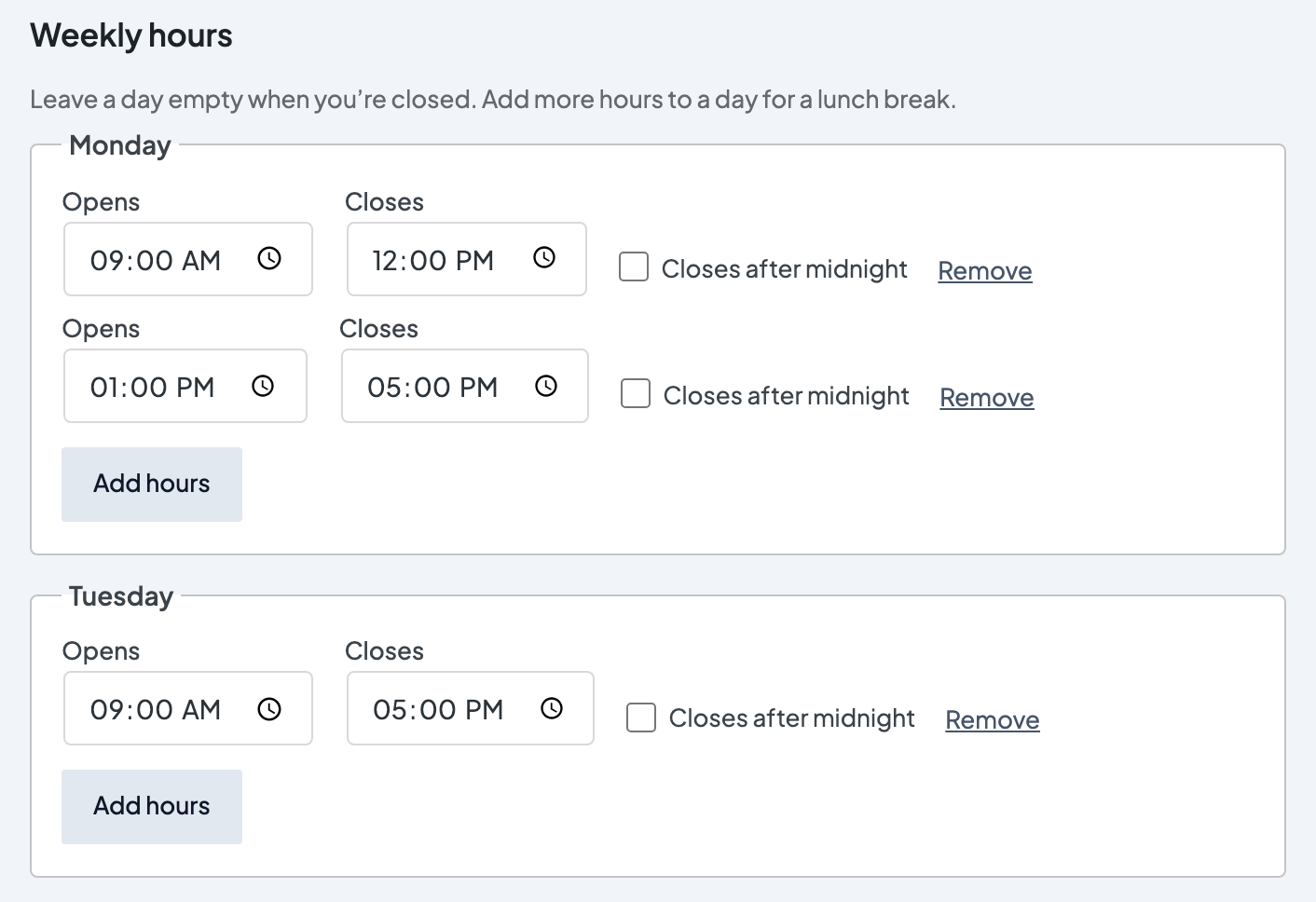
For each day, click Add hours and fill in Opens and Closes. Leave a day empty on days you're closed. For a lunch break, click Add hours again and enter a second set of times.
Select Save Settings.
Under Display on the same page, change Week Starts On if your week doesn't start on Monday, then select Save Settings. It only changes the order of the lists on your site, not which day counts as today.
"Open now" and "today's hours" use the timezone under Settings → General in the WordPress admin. Make sure it's set to your business's local time.
Choose where hours appear
Under Display on the Dirigible → Hours page:
- Hours Headline: the heading above the footer list. Defaults to Hours.
- Footer Display: None, Every Day, or Open Days (skips the days you're closed).
- Nav Display: None, Next Opening, or Hours Today, shown at the end of the main menu.
- Utility Nav Display: None, Next Opening, Hours Today, or Inline Hours. Only shows if the utility nav is turned on.
- Format: how times are written, for example 12:30 PM or 12 pm.
Select Save Settings when you're done. The hours and the display choices save together.
If you use a freeform footer, the footer hours list won't appear there. Add your hours to that footer with blocks instead.
Tips
Fill in both Opens and Closes. If a time is missing, nothing is saved and the page lists what to fix. For hours past midnight, check Closes after midnight.
The hours you enter are also added to your site's structured data, which search engines can use to show your opening hours. Keep them the same as your Google Business Profile.
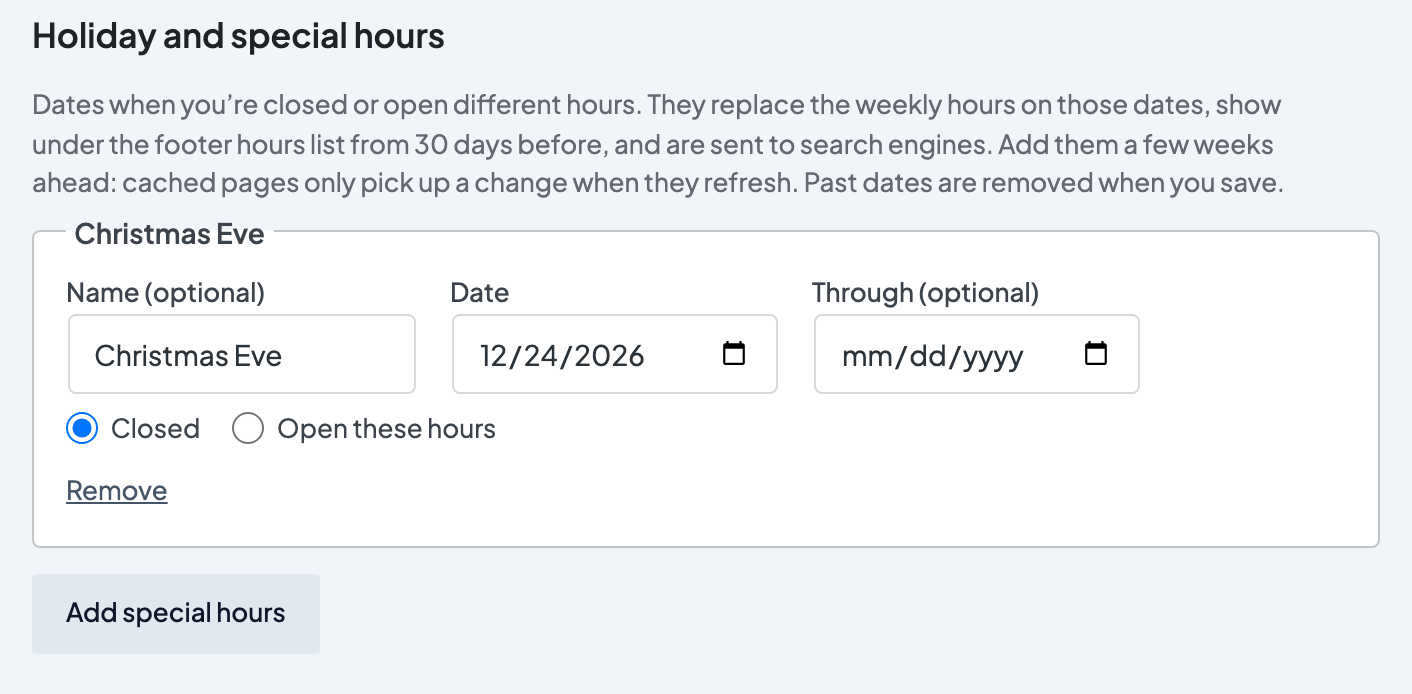
For holidays and one-off closures, click Add special hours on the Hours page, pick the Date, choose Closed or Open these hours, and select Save Settings. You can also announce it with a site-wide pop-up.