

Fix "This block contains unexpected or invalid content"
When the editor shows Block contains unexpected or invalid content. (older versions of WordPress say This block contains unexpected or invalid content.), click Attempt recovery first. It fixes most cases in one click. If it doesn't, rebuild the block next to the broken one.
The warning means the block's saved HTML no longer matches the HTML the block would write today. WordPress won't guess which one is right, so it stops and asks you.
Your live page keeps showing the last good version until you delete the block, so don't delete it yet.
Why it happens
- A plugin or theme update changed the block. Well-built blocks upgrade old content by themselves. When one doesn't, every copy of that block on the site can show the warning at once.
- Someone edited the block's HTML. Edit as HTML in the block's ⋮ menu, or the Code editor in the top-right ⋮ (Options) menu, lets you type HTML the block doesn't expect.
- The content was changed outside the editor. Importing content, moving the site, or a find-and-replace tool can alter the saved HTML.
- WordPress removed some code when a user saved. Users without full permission to post HTML have some code stripped out of their content when they save, which can leave a block that no longer matches.
If the message says Your site doesn't include support for a block instead, that's a different problem: the plugin that provides the block is off or missing. Turn it back on in Plugins.
Try Attempt recovery first
Open the page in the editor.
Find the block showing the error.
Click Attempt recovery (older WordPress versions say Attempt Block Recovery).
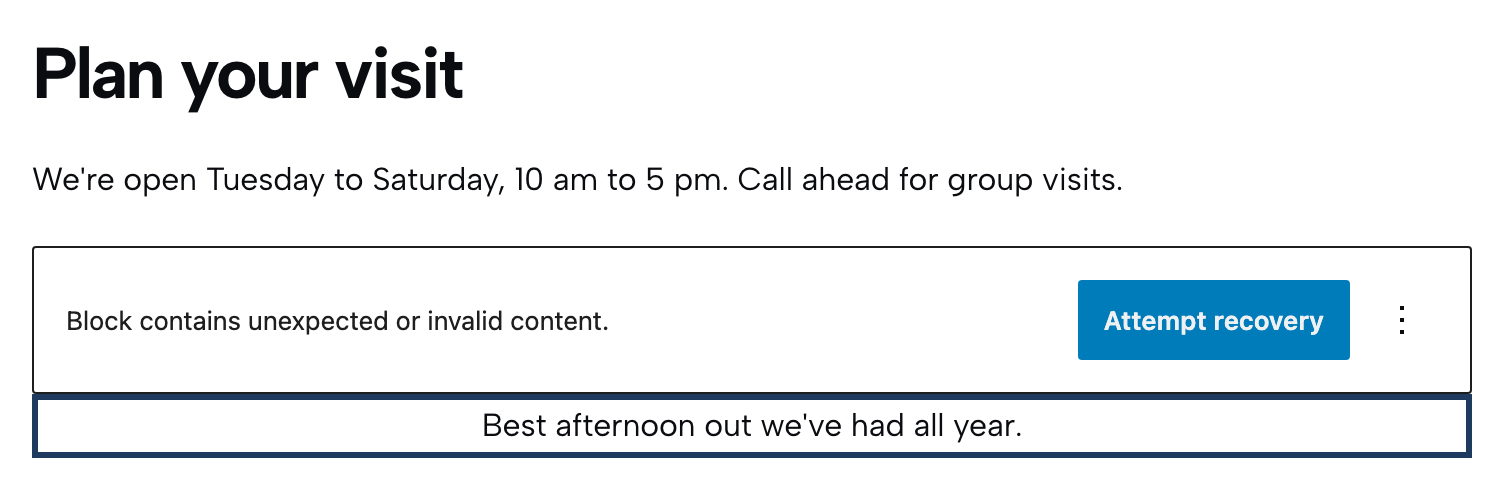
Check the block. If it looks right, click Save.
WordPress rebuilds the block from its settings and writes fresh HTML. Anything in the old HTML that the block doesn't recognize, such as code added by hand, is dropped, so check the text and links before you save. If it looks wrong, press Ctrl+Z (⌘Z on a Mac) to undo, or leave without saving.
If several blocks break after a big theme or plugin update, recover them one at a time. List View makes it easier to find blocks nested inside layouts.
Compare with Resolve
The warning has its own ⋮ (More options) menu. Resolve opens a Resolve Block window with two versions side by side:
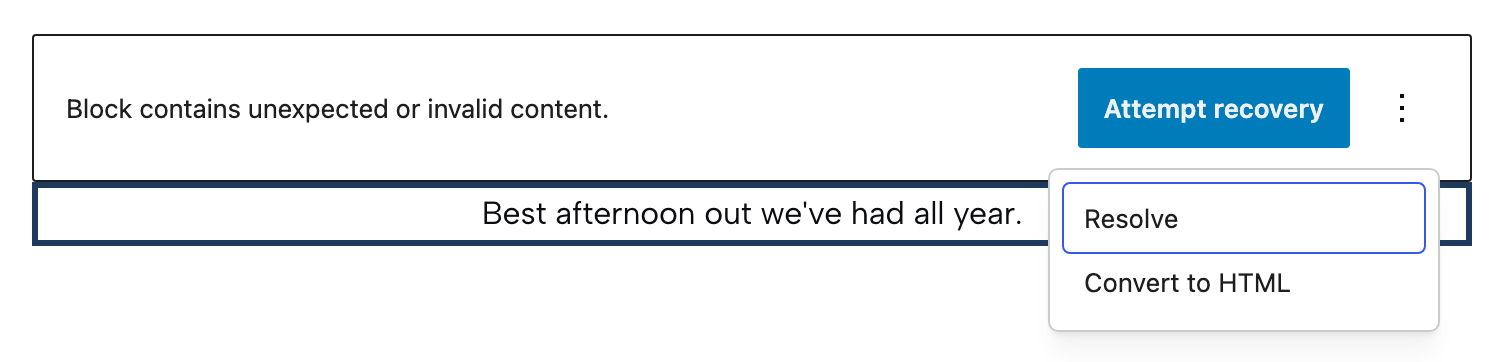
- Current is the saved HTML. Convert to HTML keeps it as a Custom HTML block.
- After Conversion turns the HTML into basic blocks such as paragraphs and images. Convert to Blocks uses that version.
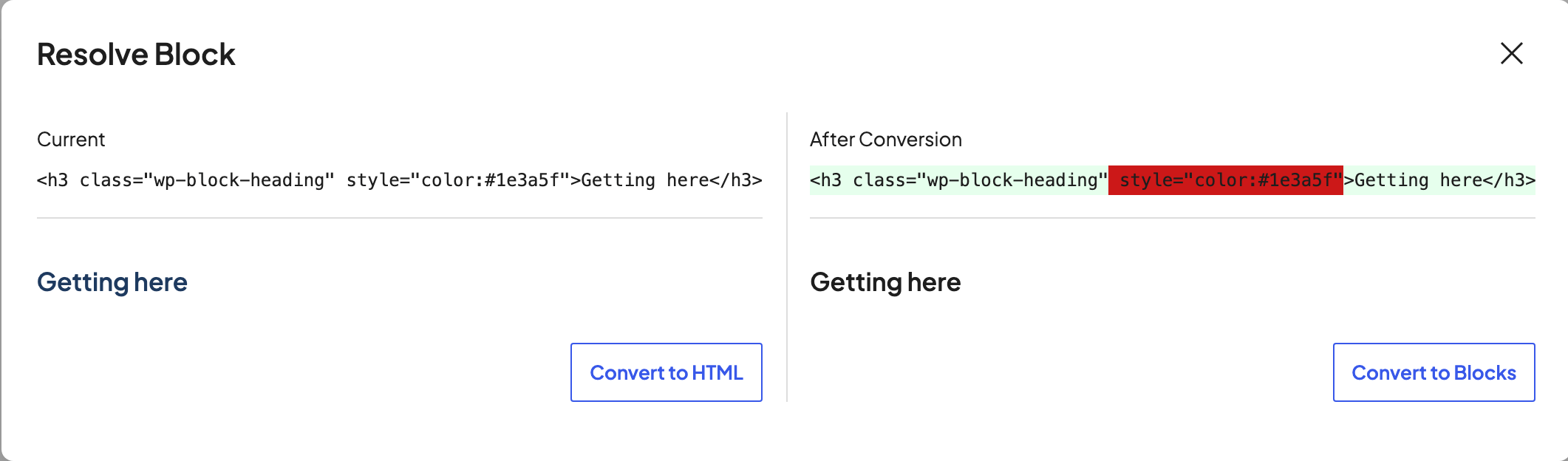
Neither one brings back the original block type and its settings. Use them when the content matters more than the block's design, such as a block of text that broke.
If Attempt recovery doesn't work
Badly damaged blocks sometimes can't be recovered. The live page still shows the old version as long as the block stays in place.
- Open the live page in another tab to use as a reference.
- Add a new block of the same type and rebuild the content.
- Once the new block matches, delete the broken one.
- Click Save.
Should I use Convert to HTML?
The warning's ⋮ menu also offers Convert to HTML. Only use it if you're comfortable editing raw HTML. It replaces the block with a Custom HTML block, and you can't get the original block back. The Custom HTML block's Convert to Blocks only turns it into basic blocks, so if the HTML version doesn't work out you'll still have to rebuild the block.
Common mistakes
- Deleting the block first. Once you save without it, the live page loses it too. Rebuild before you delete.
- Saving straight after recovery without checking. Recovery can drop hand-added code or links.
- Recovering dozens of blocks one by one after an update. If many pages broke at once, the block plugin needs a fix or an update tool, not hand repairs. Tell whoever looks after the plugin.
If your site runs on Dirigible
If many pages show the error after a Dirigible Blocks update, you don't have to recover each block by hand. Run Update blocks in Dirigible → Tools & Maintenance: it re-saves the affected pages with the current blocks. If blocks have lost their images, colors, or layout, check for a Restore block settings from revisions card on the same page, and run it before Update blocks. See Content gardening tools.
If the editor itself has turned into a plain text box, that's a different problem. See Restore the block editor if Classic Editor took over.
