

Set your site title, tagline, and favicon
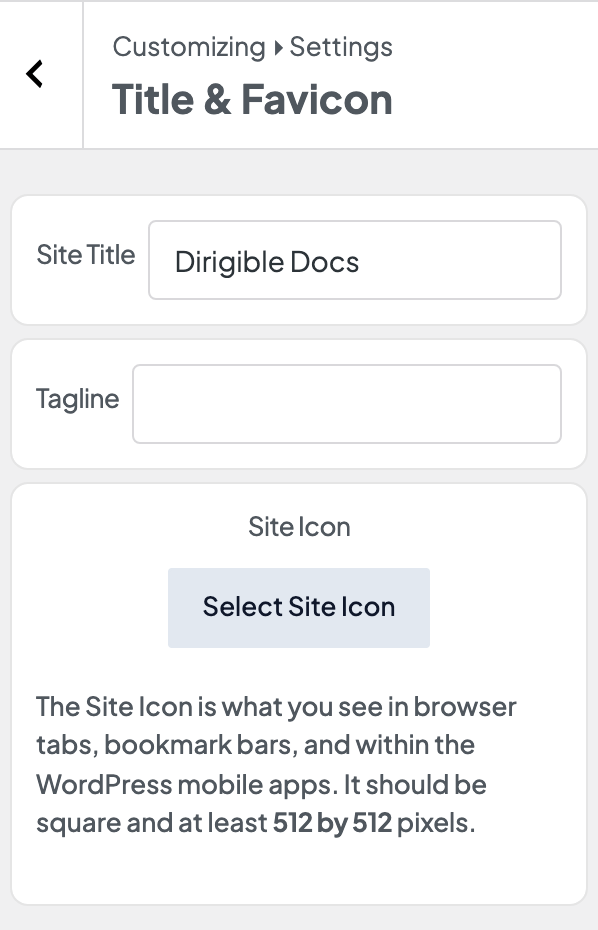
To change your site title, tagline, or favicon, go to Appearance → Customize and open Settings → Title & Favicon (on most other themes, Site Identity). These three small settings tell browsers and search engines who you are:
- Site Title is your site's name, usually your business or brand name.
- Tagline is a short line describing what you do.
- Site Icon, often called a favicon, is the small square image in browser tabs, bookmarks, and history, and on a phone's home screen when someone saves your site there.
Change the site title and tagline
Go to Appearance → Customize.
Open the section that holds Site Title. On a Dirigible site it's Settings → Title & Favicon. With other themes it's usually Site Identity.
Edit Site Title and Tagline.
Click Publish.
You can also change both under Settings → General. Click Save Changes at the bottom.
What to write
- Site title: your business or brand name, the way people search for it, like Lakeside Dental. It's added to page titles across the site, so keep it short and leave keywords out.
- Tagline: one plain sentence about what you do and where, like Family dentistry in Madison, Wisconsin. Leave it empty rather than keep WordPress's old default.
How do I add a favicon?
- Make a square image at least 512 × 512 pixels. A PNG works best. Most logos are too detailed at tab size, so use a simple mark or your initial on a solid background.
- Go to Appearance → Customize → Settings → Title & Favicon (Site Identity with other themes).
- Under Site Icon, click Select Site Icon (or Change image to replace one).
- Upload the image or choose it from the media library, then crop it if WordPress asks.
- Click Publish.
The Site Icon setting is also under Settings → General.
Browsers hold on to favicons longer than anything else. If the old icon still shows in your tab, open the site in a private window. See Fix WordPress changes not showing on your site.
If your site runs on Dirigible
- Theme Setup asks for your site title and tagline in its Details step. See Run Theme Setup on a new site.
- Page titles in search: with Dirigible SEO, a page's title in browser tabs and search results is the page name followed by your site title, unless you write a custom SEO title. Your homepage shows the site title on its own. See Edit the SEO title and meta description for a page.
- Header: if you haven't uploaded a logo, the header shows your site title as text. Your logo's alt text is also built from the site title. See Add your logo and set up the site header.
- Search engines: Dirigible's structured data uses the site title as your business name and the tagline as its description. Dirigible doesn't print the tagline on the page itself. See Check your site's structured data.
