

Video & Text
A video embed beside a styled content column in the Media & Text layout.
Usage
Video & Text pairs an embedded video with a content column in a side-by-side band on desktop and a stacked layout on mobile. It belongs to the Media & Text suite — a family of layout blocks that share the same media-beside-copy formula. For a photo beside copy, use the Photo & Text Columns starter.
Search for Video & Text in the block inserter. Related suite blocks include Photo & Text (a Columns starter), Map & Text, and Call To Action. Each is purpose-built for a specific media type; Video & Text is the option for video beside copy.
The block ships with a locked two-child template: a Video embed on one side and a Content panel on the other. You cannot add or remove columns, but you can edit everything inside each side.
This is not the standalone core YouTube block — Video & Text is a full two-column layout with a styled content area. For a video embed without a text column, use core Video or Video Gallery instead.
Layout (parent)
- Block Sizes — even 50/50 split (default), larger video column, or larger content column (sidebar Block Settings icon buttons)
- Swap Blocks — toolbar control reverses video and content on desktop only; on mobile, the video stays above the text
Video column (child)
The video side uses the core Video block. Paste a YouTube or Vimeo URL in the embed field, or upload a video file from the media library. The video fills its column with object-fit: cover on desktop.
Video captions are hidden in this layout — keep supporting copy in the content column instead.
Content column (child)
The text side is a Content block (ds/blocks-content) — the same container used in Blocks and Map & Text. The default template includes a heading, paragraph, and button; add or replace blocks inside the panel.
Select the Content child to style that column:
- Text Color (reverse print) — light text on dark backgrounds
- Text Alignment — nine-position grid for content placement within the panel
- Style — Color, Image, or Pattern background with overlay options
These settings apply only to the content column, not the video side.
Block width
Video & Text supports Full alignment from the block toolbar and defaults to Full width so the video and content band can span the page.
Tips
- Paste a YouTube or Vimeo URL into the core Video block — no separate Dirigible embed field is required.
- Use Swap Blocks when the video should appear on the right on desktop.
- Use Block Sizes to give the video or copy column more emphasis.
- Style the content column background when the video side is busy or low-contrast — a Color or Image background on the Content child helps text readability.
- For a photo beside copy without column sizing controls, use Photo & Text instead.
Settings
Block Settings
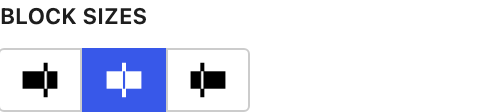
Adjust the desktop width ratio between the video and content columns — even split, larger video side, or larger content side. Proportions apply on desktop; columns stack on mobile.