

Masked Image
Give a photo a distinctive silhouette with a mask shape.
Usage
Masked Image crops one photo into a shape: an organic blob, a preset like a heart or star, or your own SVG. Choose the image, pick a shape, and adjust focal point and aspect ratio from the sidebar. Use Wide or Full alignment from the block toolbar.
When to use it
Use it for editorial hero accents, team photos, or product shots where a soft or geometric shape fits the brand. Pair with copy in a Columns or Media Callout layout.
Tips
- Click Randomize Blob until you like the shape. Switch Shape to Custom Shape when you need an exact silhouette (a preset, an SVG from the Media Library, or a pasted path).
- Set Image Focal Point so faces or products stay centered inside the mask.
- Animation sliders move the mask while the photo stays still — set speed to 0 to freeze motion.
Screenshots
Front-end
-
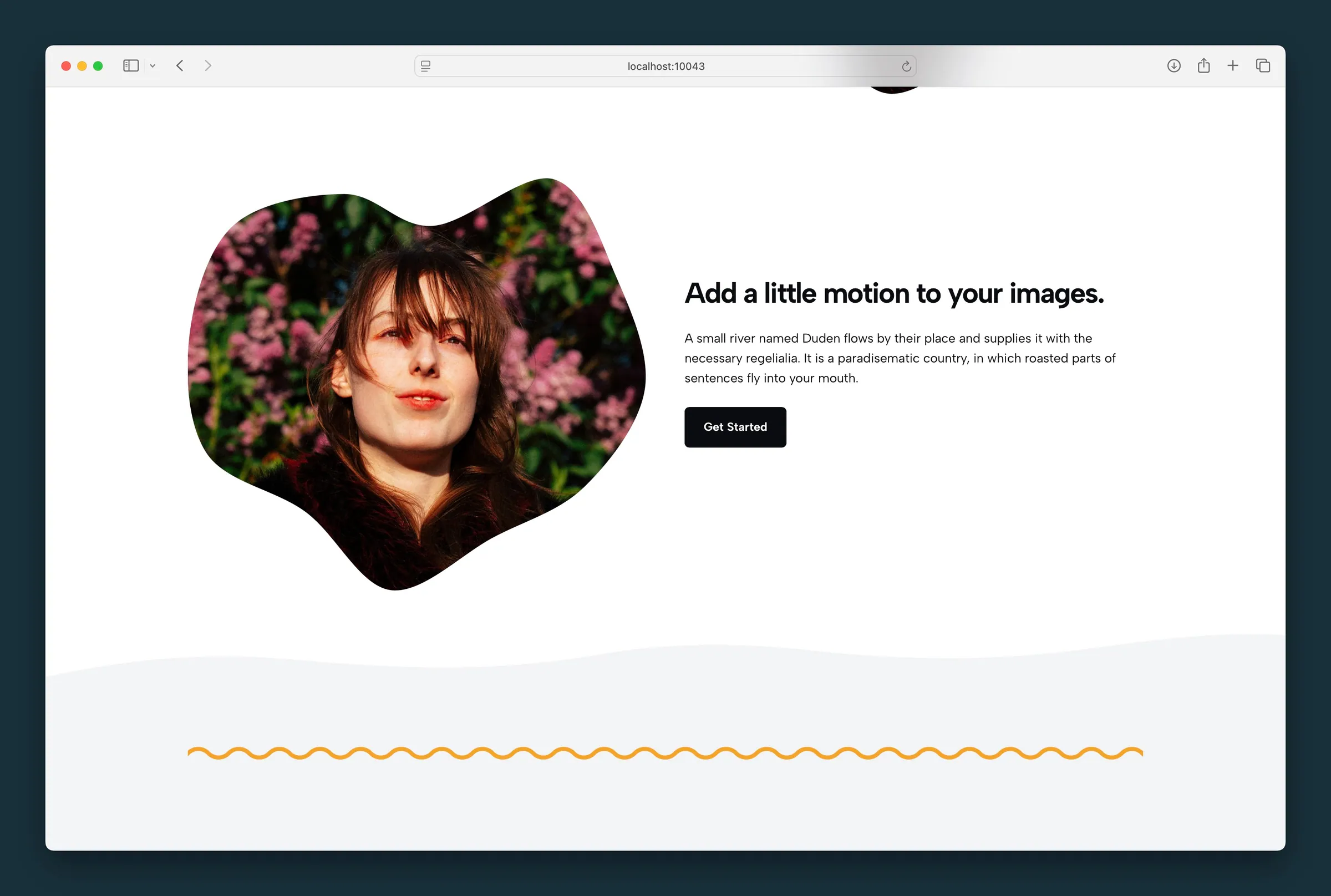
Organic blob mask in a columns layout with headline, body, and button. -
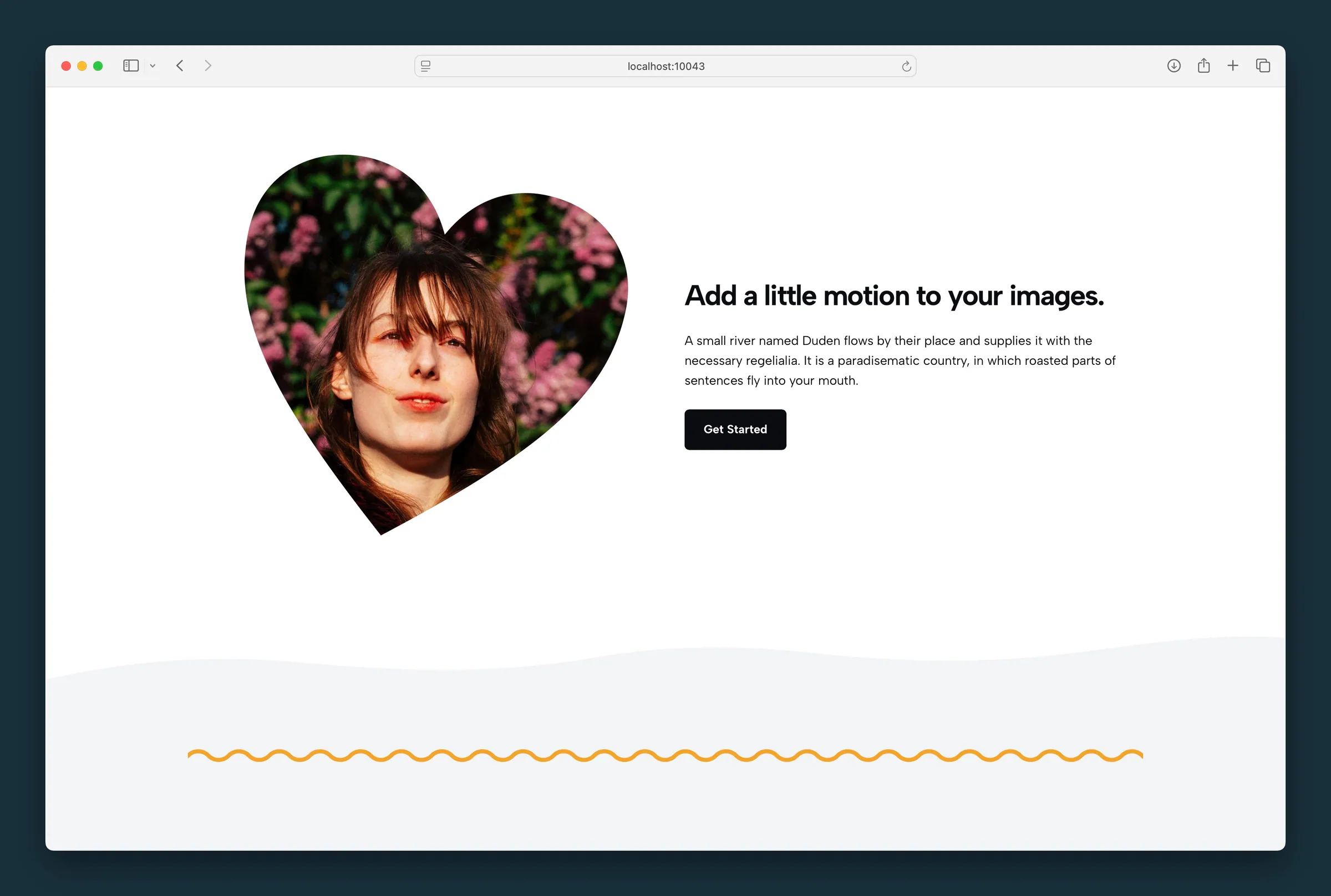
Heart preset shape clips the same portrait — set Shape to Custom Shape and pick a preset silhouette.
Editor
-
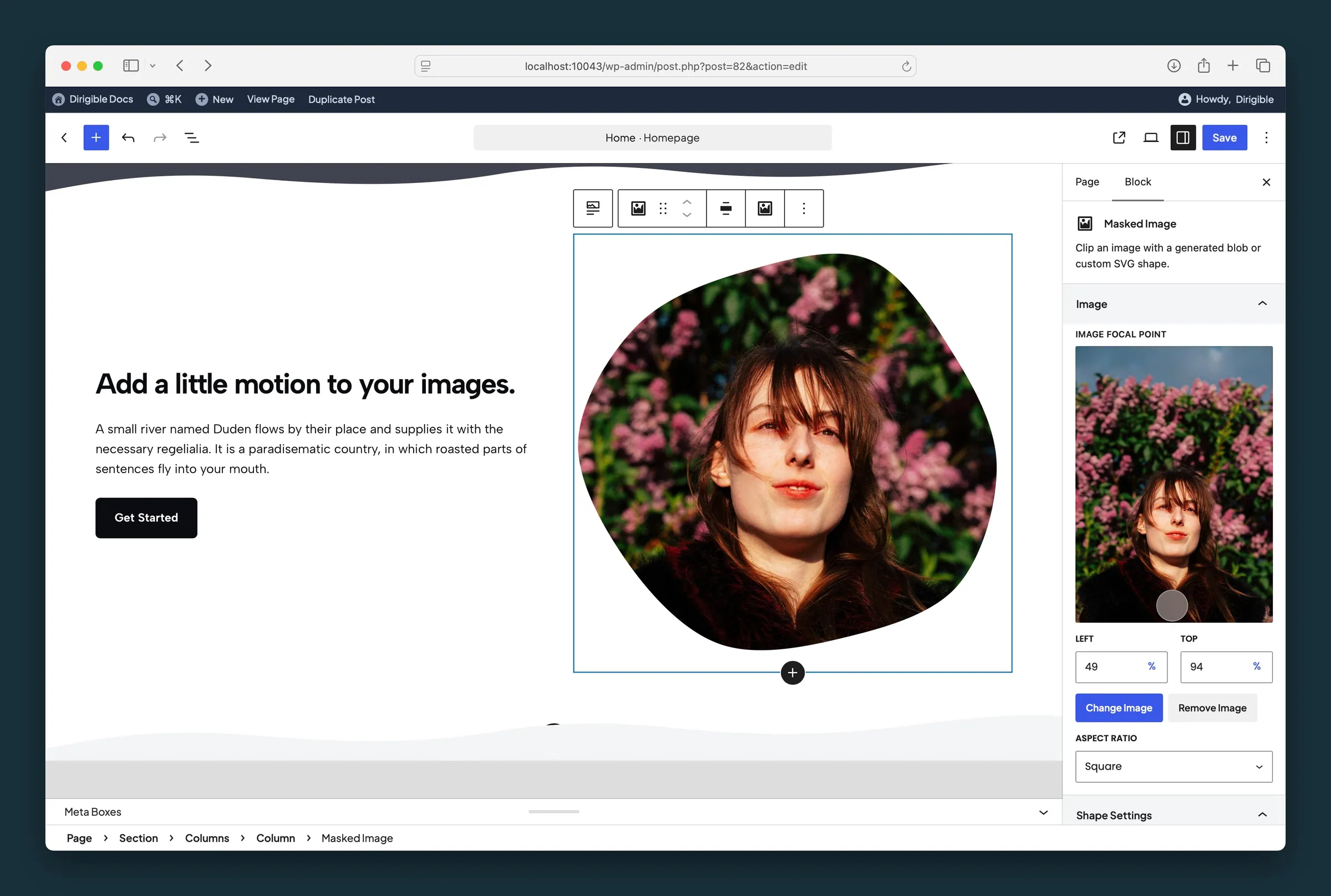
Image panel — focal point, aspect ratio, and Change Image for the photo inside the mask. -
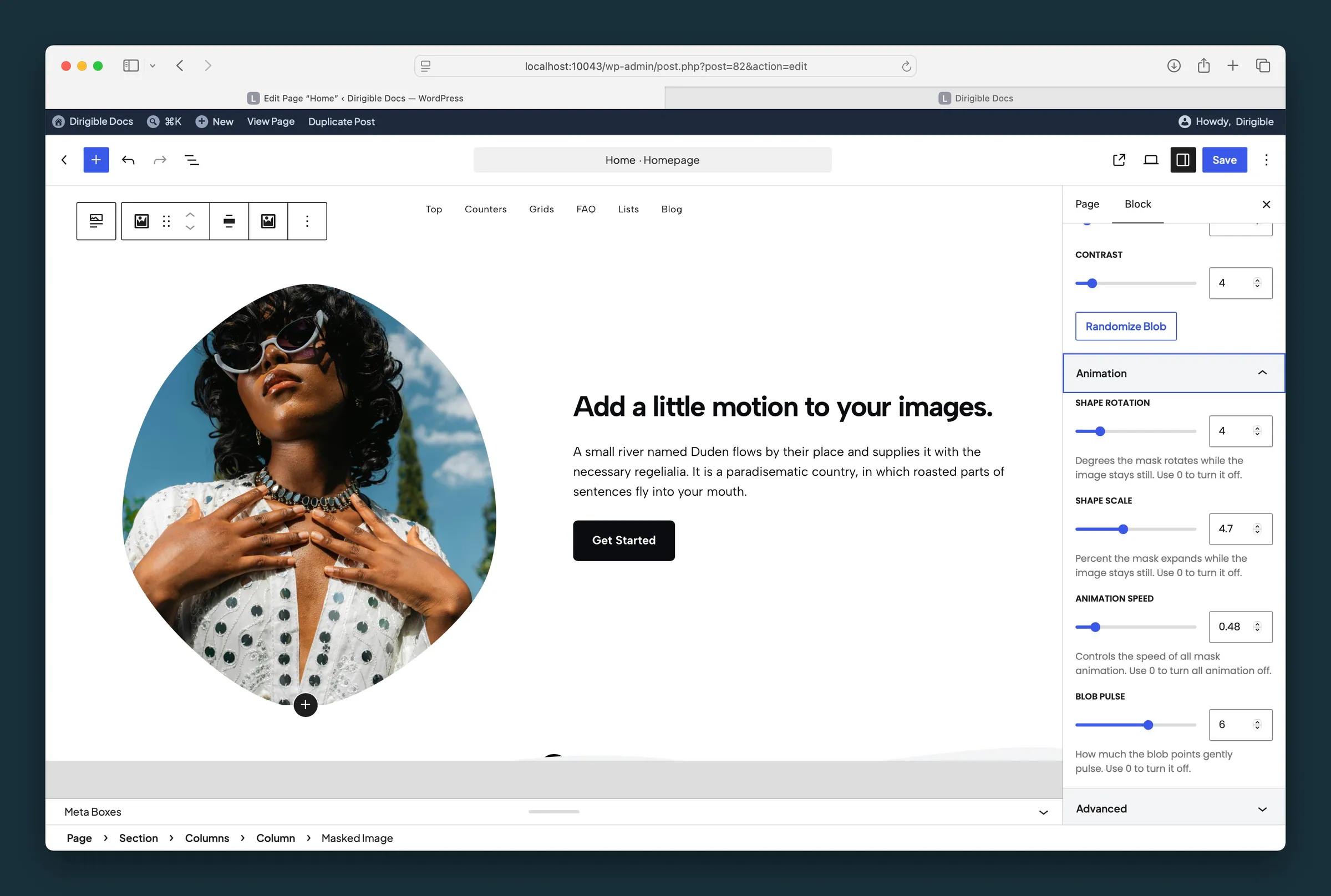
Shape Settings and Animation — blob complexity and contrast, plus rotation, scale, speed, and pulse sliders.
Settings
Image
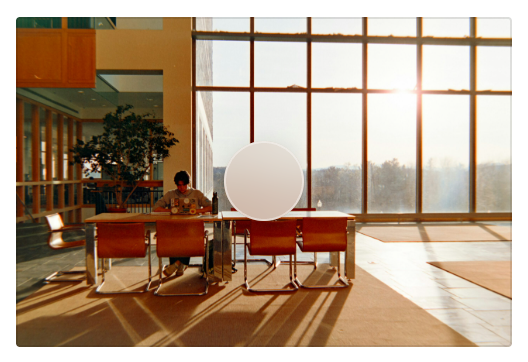
Drag the focal point so faces, products, or other key details stay visible inside the mask. It follows the image's focal point from the Media Library until you move it here; after that it's this block's own.
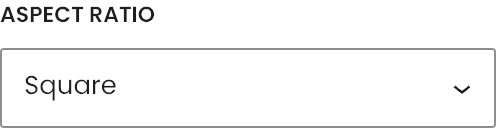
Sets the outer frame of the masked image before the shape clips the photo.
Shape Settings
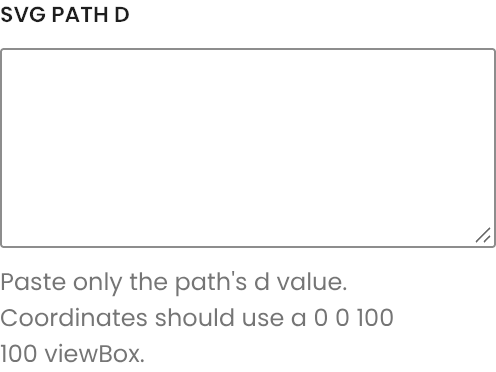
Paste only a path’s d value when Custom Source is SVG Path. Coordinates should use a 0 0 100 100 viewBox.
Animation
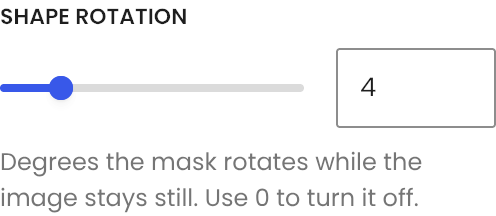
Degrees the mask rotates while the image stays still. Use 0 to turn it off.
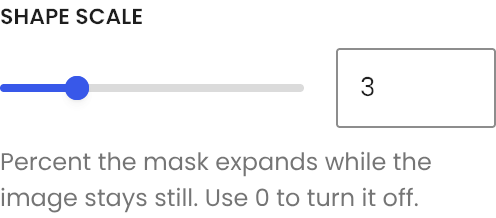
Percent the mask expands while the image stays still. Use 0 to turn it off.
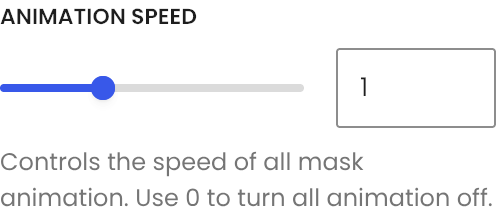
Controls the speed of all mask animation. Use 0 to turn all animation off.
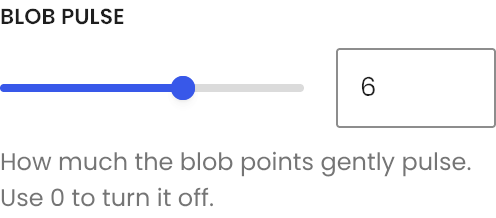
How much the blob points gently pulse. Only available when Shape is Blob; use 0 to turn it off.
