

Quote Slider
Rotate through testimonials, one quote card at a time.
Usage
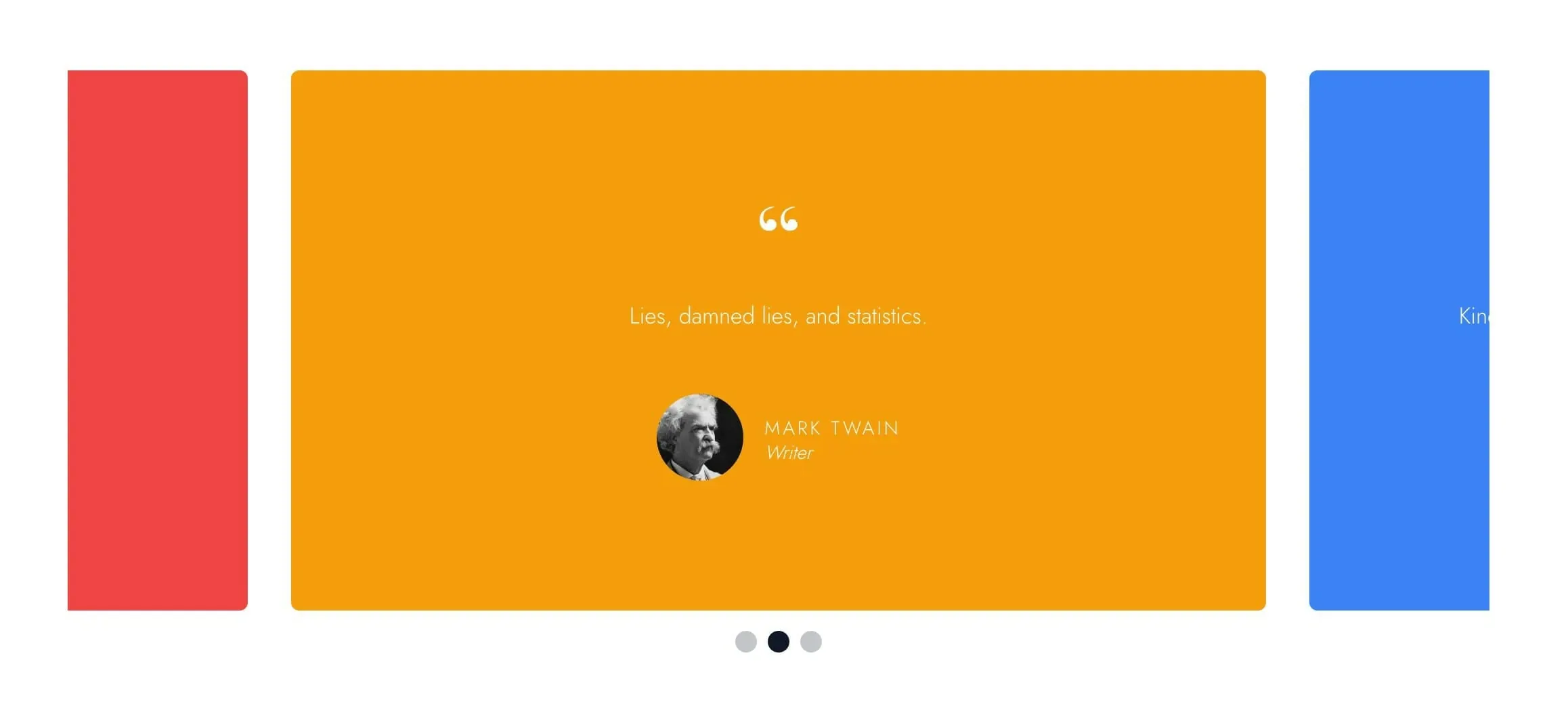
Quote Slider is a testimonial carousel. Each slide is a card with a large quotation mark, the quote, and an optional citation with a name, title, and headshot.
The neighboring slides peek in at the edges so visitors can tell there's more to see. Visitors can swipe, scroll sideways on a trackpad, click the dots below, or use the arrow keys once the slider has keyboard focus. Dragging with a mouse doesn't move the quotes.
Every card is as tall as the longest quote, and shorter cards sit centered in that space, so the page below never jumps as quotes change.
Click Add Slide in the block, then type the quote, name, and title right on the card. Press Enter for a new line, and twice for a new paragraph. In the editor, all slides show at once as a grid of cards. On the live page they sit in a single row that slides.
Slider settings
Select the block for settings that apply to every slide:
- Wraparound: on by default. The slider loops from the last quote back to the first.
- Autoplay: off by default. Turn it on to advance quotes automatically.
- Autoplay Interval (seconds): time between quotes (default 3). Appears when Autoplay is on. Autoplay pauses while the cursor is over the slider, and doesn't run for visitors who've turned on reduced motion in their device settings. Visitors can stop it with a small pause button at the bottom right, which appears when they hover over the slider or reach it with the keyboard (on phones and tablets it's always shown).
On phones, each slide is almost the full screen width. On larger screens, slides match your theme's content width.
Slides
The Slides panel lists every slide. Use the arrows to reorder them, the trash icon to remove one, and Add Slide to add another. Click a slide in the list, or click into its card, to choose which one the Selected Slide panel edits:
- Citation Headshot: an optional round photo beside the citation.
- Background: the card color (new slides start on Primary).
- Reverse Print: light text for dark backgrounds, on by default. Use this rather than recoloring the text by hand.
A name or title you leave empty doesn't show on the live page.
When to use it
Use it for customer testimonials, reviews, press quotes, or student and staff voices: several short quotes that each deserve a moment, without taking a full section apiece.
Quote Slider supports Wide and Full alignment and defaults to Full, which lets the neighboring cards run off the edges of the screen.
For a single quote, use Quote. For several quotes that all stay visible, use Quote Group. For slides built from any blocks, use Slider.
Tips
- Keep quotes short, since each card is no wider than your content width on desktop.
- Keep quotes about the same length. One long quote makes every card that tall, with empty space around the short ones.
- Citations without a headshot are centered.
- The headshot's description for screen readers comes from its Alt Text in the Media Library.
- When you mix light and dark cards, set Reverse Print on each slide to match its Background.
Screenshots
Front-end
-

A quote card with light text on a dark background.
Settings
Slider
Loops from the last quote back to the first.
Advances quotes automatically. When off, visitors swipe or use the dots.
Seconds between quotes. Appears when Autoplay is on.
