

Action Strip
Turn a horizontal band into a single, prominent CTA link.
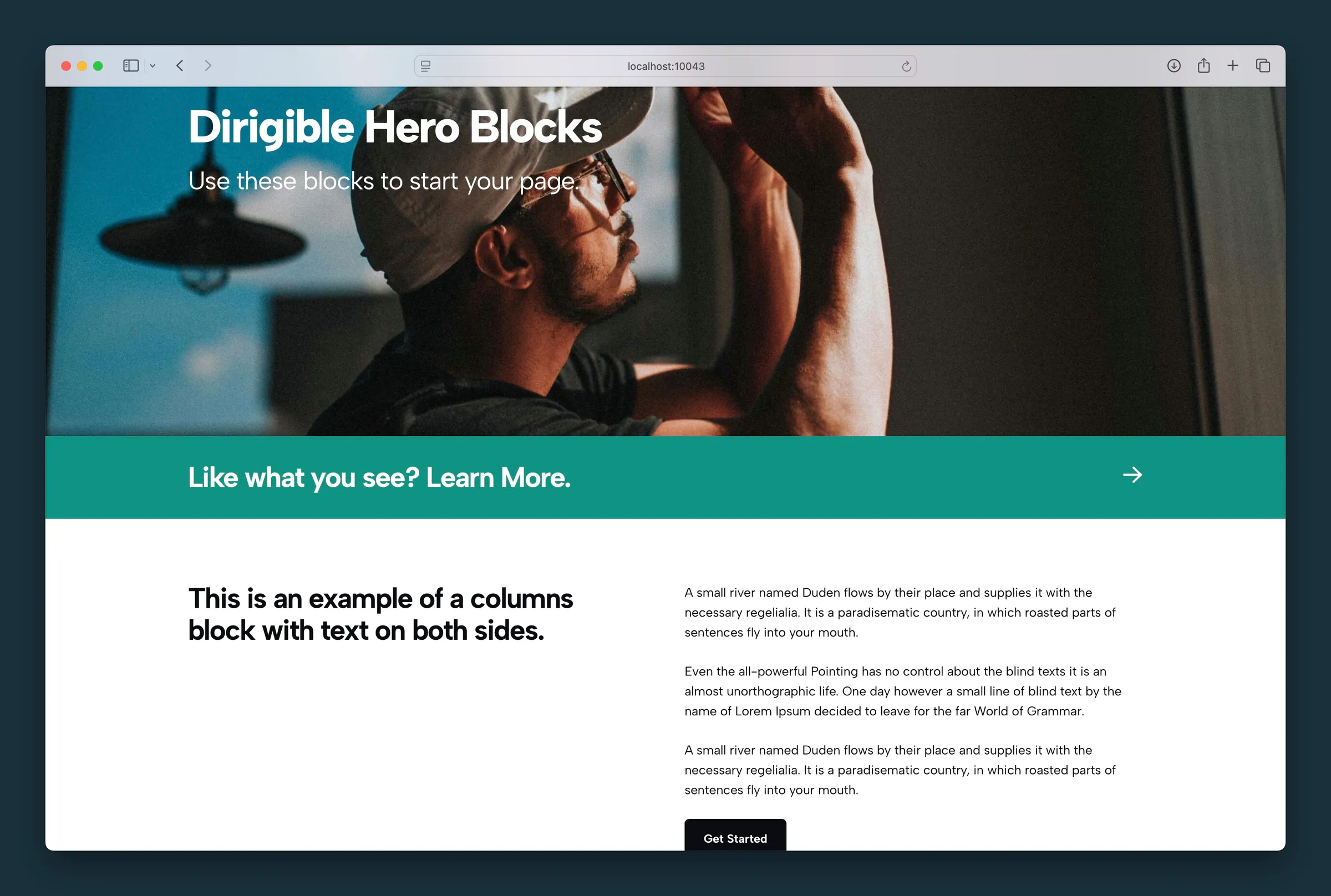
Usage
The Action Strip is a full-width call to action band that works as one clickable link. Use it between sections to prompt a next step, like booking an appointment, contacting sales, or reading more.
Type the headline right in the editor and set Link URL in the sidebar. The whole strip is the link, with an optional icon beside the text.
When to use it
Action Strips work well as a bridge between sections: after a portfolio grid, below a hero, or above the footer. Keep the copy to one line. On a dark strip color, set Text Color to Light.
Tips
- Spaced under Justify puts the headline on one side and the icon on the other, the most common layout for a CTA strip.
- Add Link Text (like "Learn more") to show words before the icon, so visitors can tell the strip is a link. Link Text Style makes it look like a heading, paragraph, button, hollow button, or understated link. On a colored strip, Hollow shows up where a filled button can blend in.
- Increase Padding when the strip feels cramped against the sections around it.
Screenshots
Front-end
-
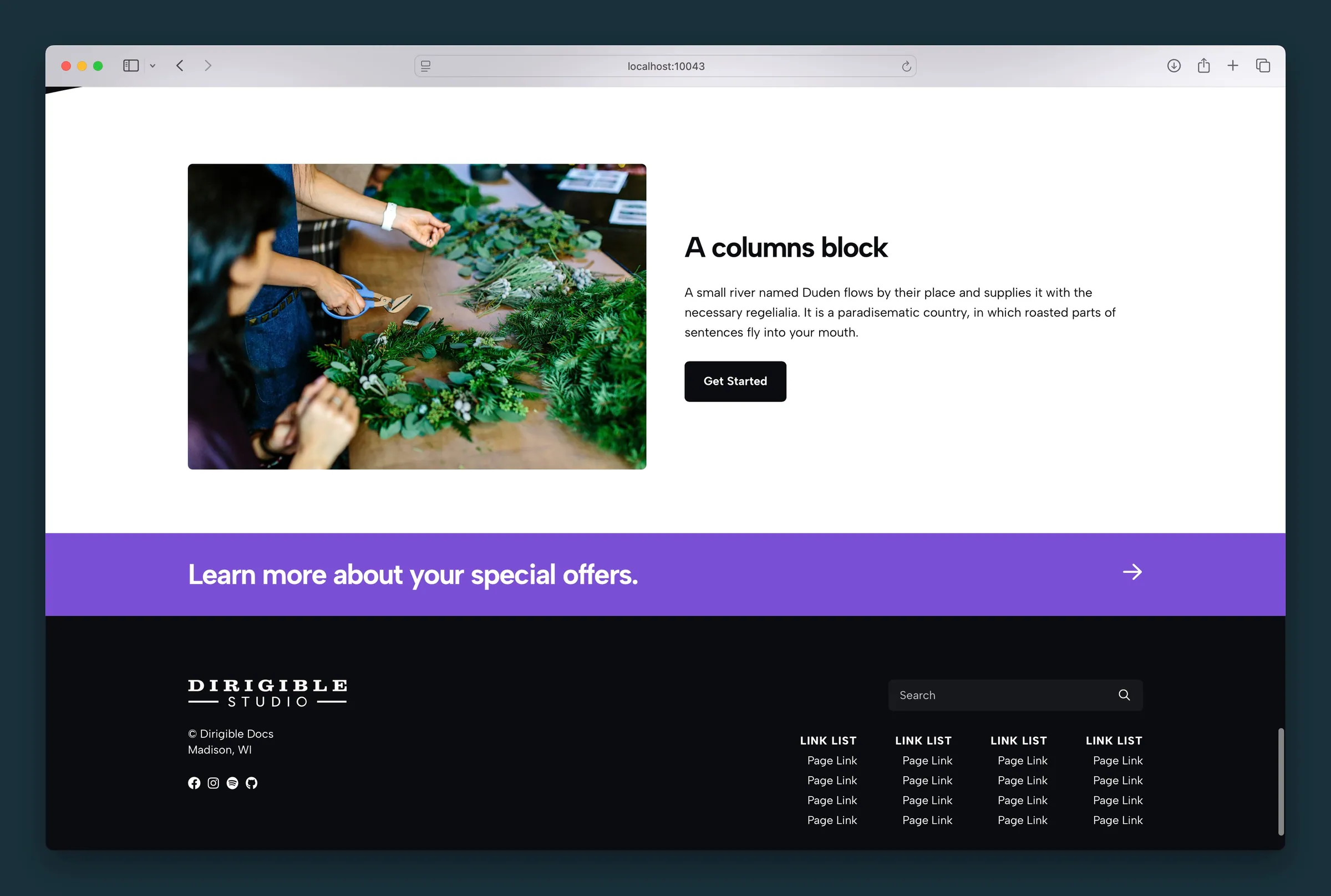
Purple action strip used as a CTA band above the footer.
Editor
-
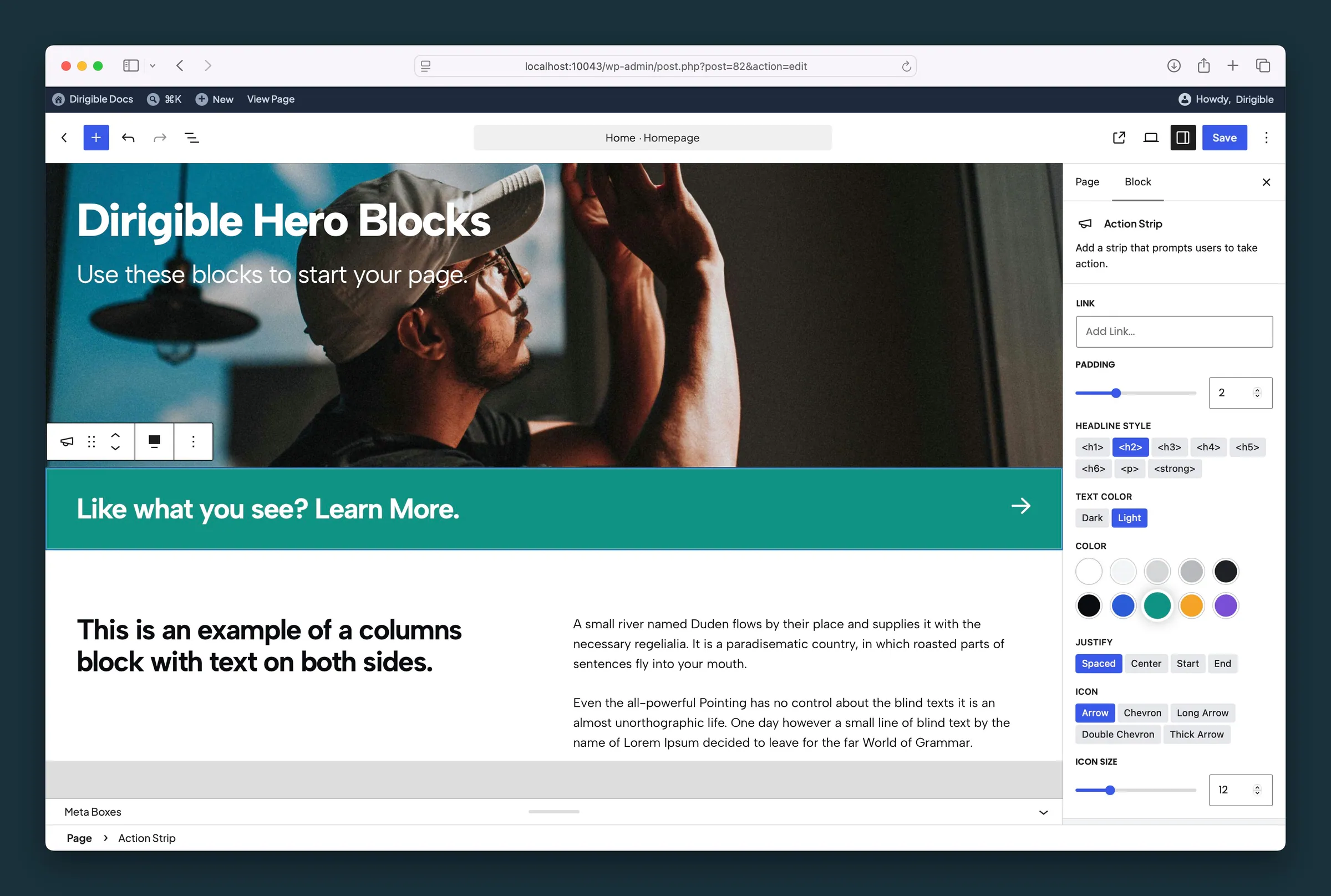
Action Strip settings — link, padding, headline style, color, justify, and icon.
Settings
Sets where the strip links when someone clicks it. The entire band is one link.
Optional words shown before the icon, like "Learn more", so the strip reads as a link. Leave it empty to show only the icon.
Sets how the Link Text looks. Shows once Link Text is filled in.
- <button>Looks like your site's button.
- <hollow>An outlined button. With Light text it turns white, so it shows on colored strips.
- <understated>Looks like your site's understated text link.
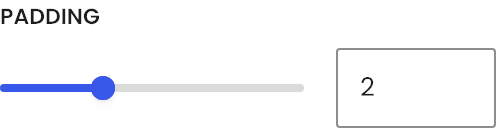
Adds space above and below the headline inside the strip.
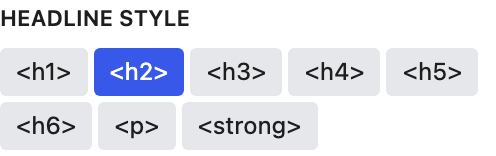
Controls which visual style the headline uses. This does not change the underlying heading level.
- <h1>Looks like your site's H1 style.
- <h2> defaultLooks like your site's H2 style.
- <h3>Looks like your site's H3 style.
- <h4>Looks like your site's H4 style.
- <h5>Looks like your site's H5 style.
- <h6>Looks like your site's H6 style.
- <p>Looks like normal paragraph text.
- <strong>Looks like a bold paragraph.
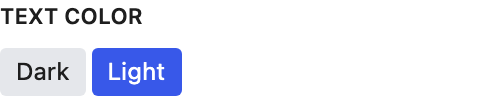
Light switches the strip's text to light colors for dark backgrounds. Choosing a Color picks Dark or Light for you, whichever reads better on that color; change it any time.
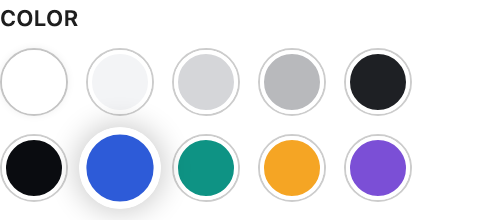
Sets the strip background from your site color palette.
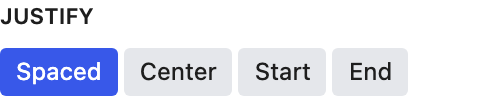
Controls how the headline and icon sit across the strip.
- Spaced defaultHeadline on one side, icon on the other — the usual CTA strip layout.
- CenterGroups the headline and icon together in the center.
- StartGroups the headline and icon on the left.
- EndGroups the headline and icon on the right.
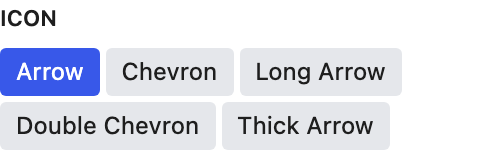
Makes the icon larger or smaller beside the headline.
