

Site Preview
Show a live, scrollable preview of another website in a browser-style frame.
Usage
Site Preview shows a live, working copy of another website inside a frame on your page. Visitors can scroll and click around a scaled-down version, and switch between Desktop, Tablet, and Mobile views before visiting the site.
Use it in a portfolio or case study to show off a website you built, without sending visitors away.
Preview frame
The block loads the URL you enter and zooms it out so more of the page fits in the frame. Device icons above the frame switch the size:
- Desktop — full-width frame
- Tablet — tablet-shaped frame
- Mobile — phone-shaped frame
Settings
- URL — the website to show (required)
- Title — a description of the preview for screen readers (not shown on the page)
- Shadow — drop shadow around the frame (on by default)
- Hide Toggles — hides the desktop, tablet, and mobile icons
- Hide Button — hides the Visit link below the preview
Visit button
The Visit button opens the URL in a new tab. Hide it if you already link to the site elsewhere on the page.
Block width
Site Preview supports Wide and Full alignment from the block toolbar.
Tips
- Some websites don't allow themselves to be shown inside other pages. If the preview stays blank, that site is blocking it.
- Use Hide Toggles for a cleaner look. Keep them when showing how the site works on phones is part of the story.
- Introduce the project with a Hero or Section above the preview.
Screenshots
Front-end
-
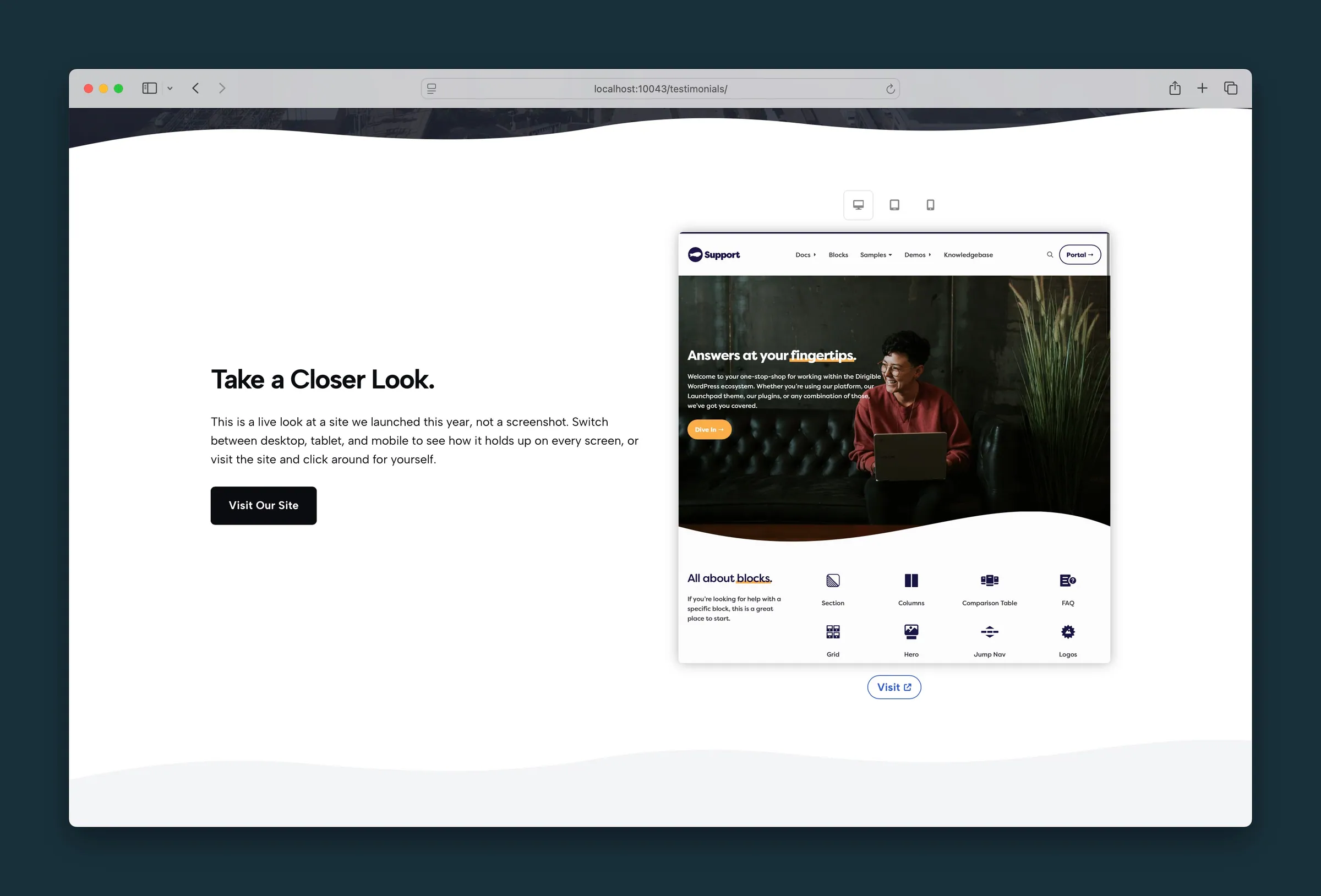
Desktop frame with device toggles above the preview and a Visit link below. -
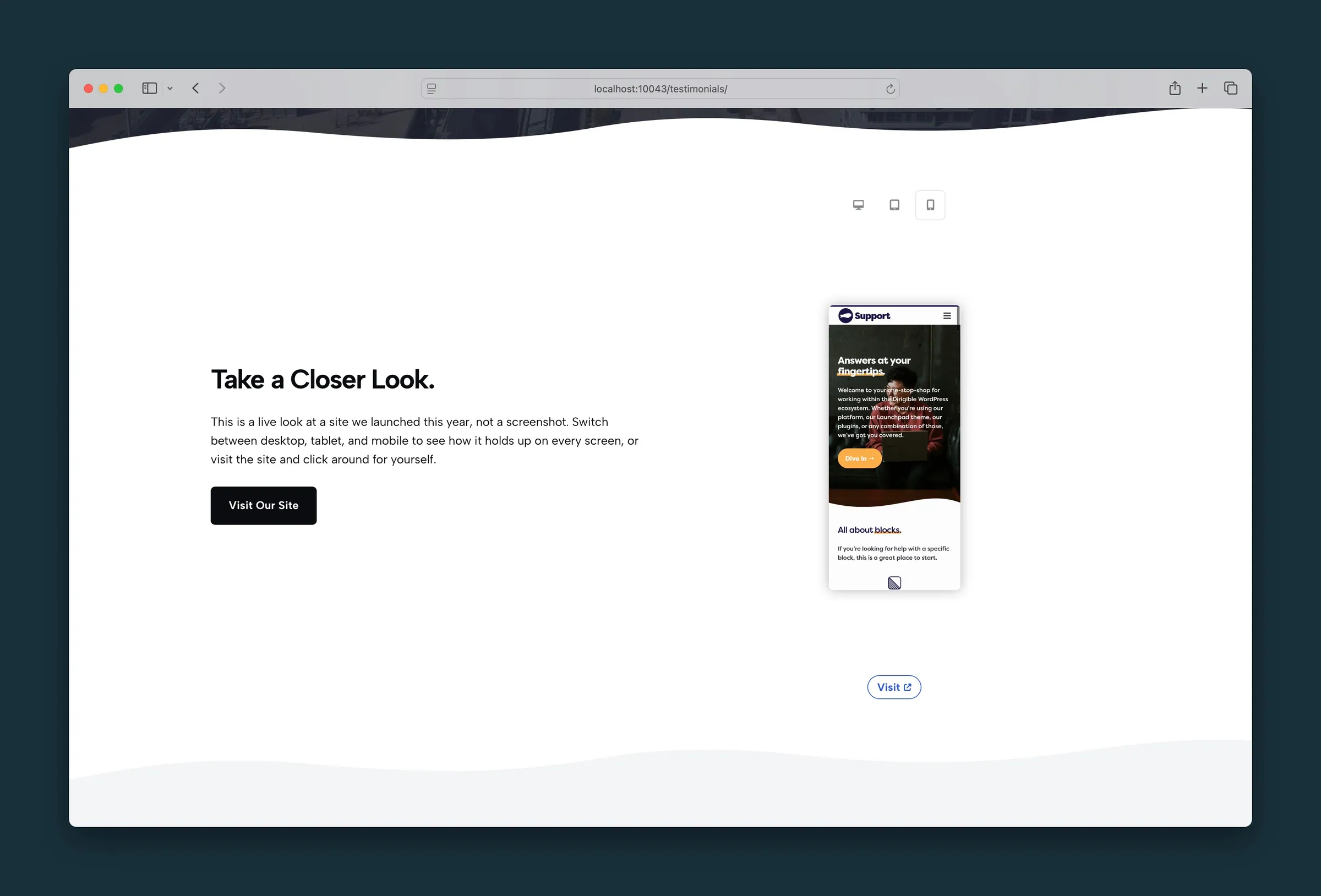
The same preview narrowed to the mobile frame.
Editor
-
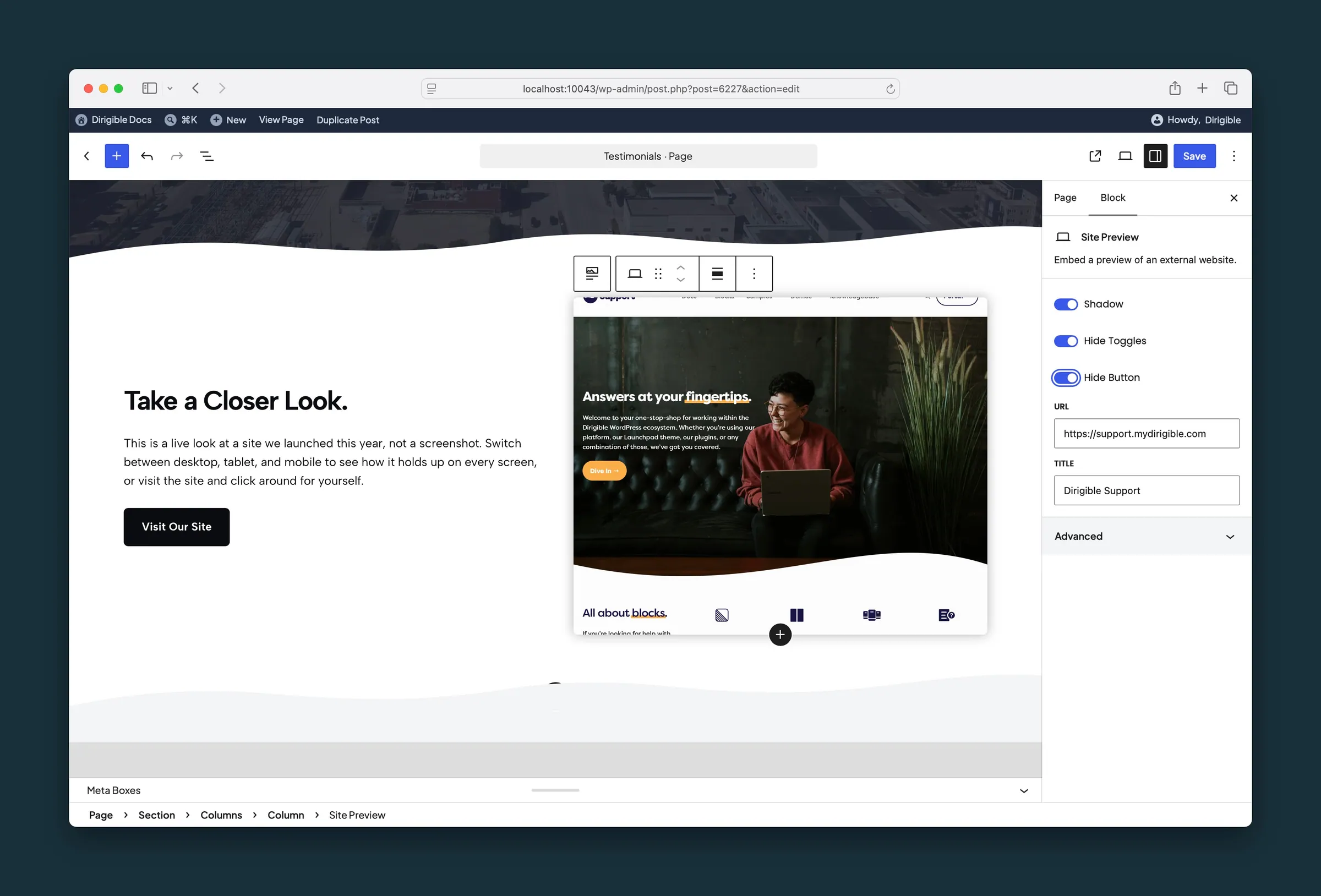
Hide Toggles and Hide Button on — the device icons and Visit link are gone. -
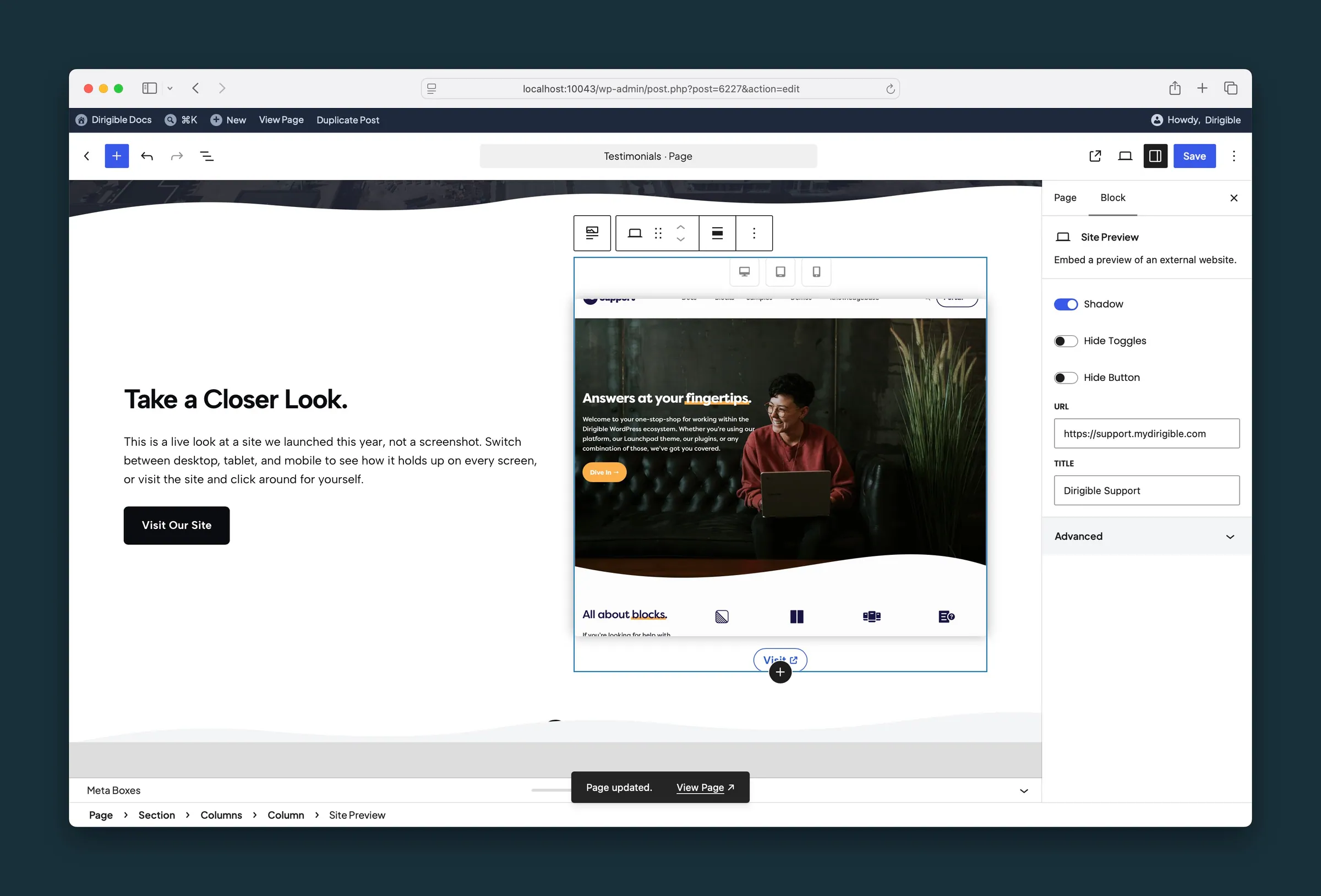
Those switches off — device icons, Visit link, URL, and Title are visible.
Settings
Settings

Drop shadow around the preview frame. On by default.

Hides the desktop, tablet, and mobile icon row above the preview.

Hides the Visit link that opens the URL in a new tab.
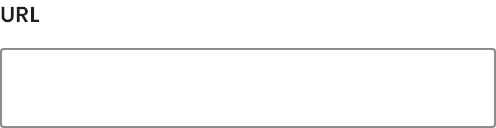
The website to show in the preview.
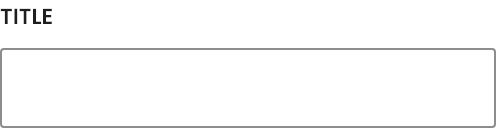
Describes the preview for screen readers. Not shown on the page.
