

Lookbook
Page through cover, copy and photo spreads like a magazine.
Usage
Lookbook is a magazine-style slider. On desktop, visitors move through full-width spreads one slide at a time using the arrows and dots below, or by swiping or scrolling sideways on a trackpad. Every slide is as tall as the tallest one. On phones and small tablets the slides stack one under another, so everything stays readable without swiping.
Add slides with the + button inside the block. There are four kinds, and you can mix them freely:
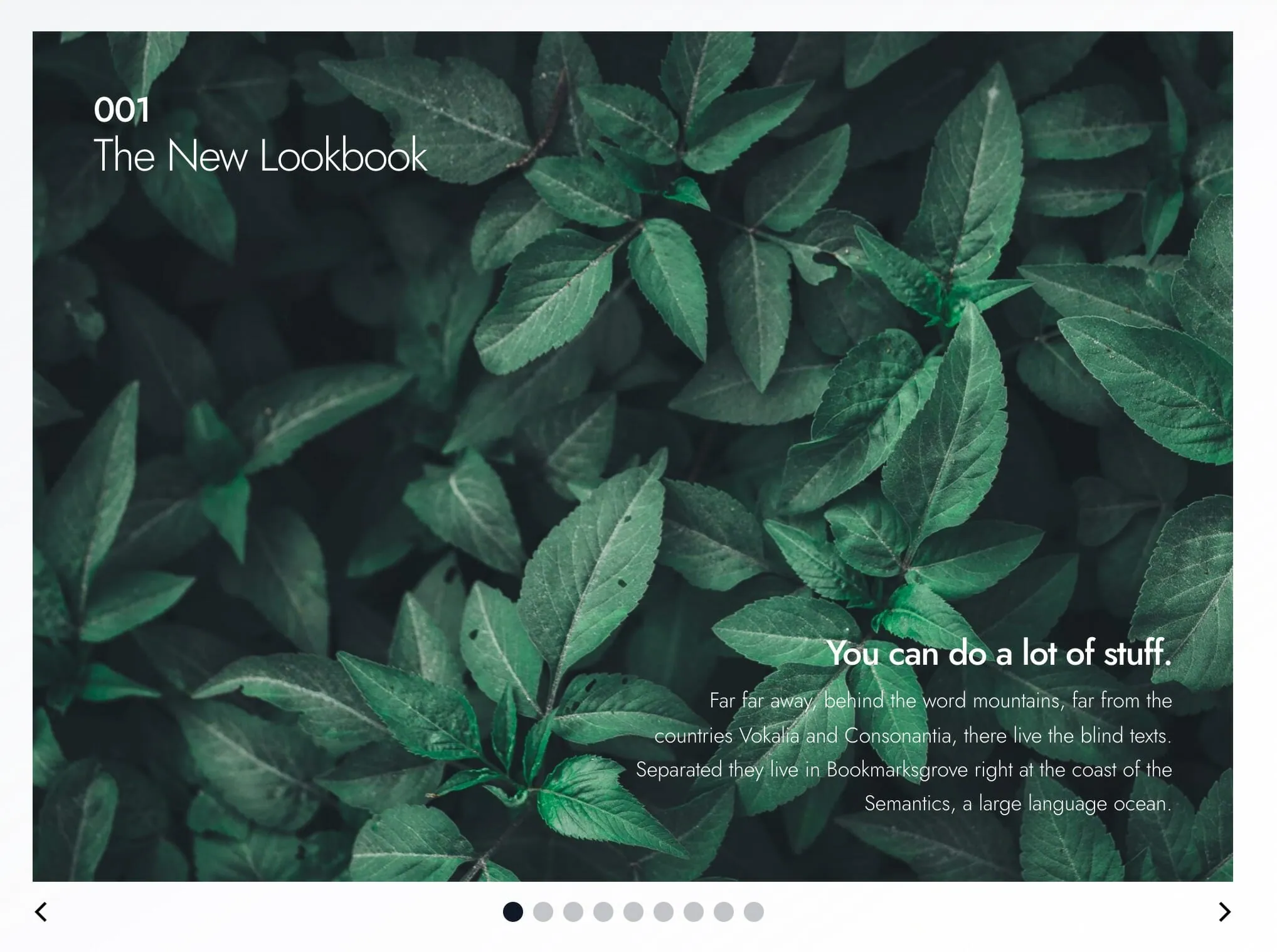
- Cover Slide: a full-width Background Image with a lead and headline at the top, and a subheadline and body copy at the bottom right.
- Copy Slide: a text-led spread. Fill in one, two or all three of Copy Area 1, Copy Area 2 and Copy Area 3; on desktop the layout changes with how many you use. An optional Logo shows small (at most 128 pixels wide and 40 tall).
- Image Collage: one to five overlapping photos in its Gallery, with the copy set among them. The collage changes with the number of photos.
- Image Blocks: one to three photos in a tidy grid beside a block of copy. The grid changes with the number of photos.
Choose Edit Gallery on a photo slide to add, remove or reorder its photos.
In the editor every slide shows at once, one under another. Select a slide and fill in its photos and copy in the block settings sidebar; the slide in the editor updates as you go and shows the layout visitors get at that width.
Body copy fields take bold, italic, underline and links. Press Enter for a line break, and twice for a new paragraph.
When to use it
Use it for brand stories, seasonal collections, editorial spreads, or portfolio chapters: anything that suits a print-style layout with overlapping photos, columns of copy, and cover pages.
The layouts are built for wide screens. On a phone each slide becomes a simple stack of photos and copy, so check both before you publish.
Don't put essential content only on later slides. Many visitors never move past the first one.
Tips
- Open with a Cover Slide, then follow with Copy Slide, Image Collage or Image Blocks pages.
- The number of photos (or filled copy areas) picks the layout. Add or remove one to try the next layout, and switch Alternative Layout for a second arrangement.
- Lead works well for a section label, issue number, or chapter marker.
- Use Light Text instead of recoloring each heading by hand. It changes all the text on the slide at once.
- Leave Autoplay off for text-heavy spreads so visitors can read at their own pace.
- Each photo's description for screen readers comes from its Alt Text in the Media Library.
- For a carousel of Hero and Section slides built from any blocks, use Slider instead.
Screenshots
Front-end
-

An Image Collage slide: several photos on a colored background.
Settings
Lookbook
Loops from the last slide back to the first. Turn it off to stop at the ends.
Advances slides automatically on desktop. It pauses while the cursor is over the Lookbook, and doesn't run for visitors who have turned on reduced motion. A small pause button appears at the bottom right when visitors hover over the Lookbook or reach it with the keyboard.
Seconds between slides. Appears when Autoplay is on.
Copy Slide
The slide's background, from your site's color palette. On Image Blocks it fills the copy area, not the photos.
Light text for a dark photo or background. It changes all the text on the slide at once. On a Cover Slide, the slide's own background turns dark too.
A second arrangement of the same content. On a Copy Slide it rearranges the lead, headline and copy areas. On Image Blocks with one photo it swaps the photo and the copy; with two or three, the copy sits in a panel over a photo. Desktop only: the stacked phone layout stays the same.
A short label set apart from the headline, such as a section name or issue number.
The slide's main title.
Cover Slide
Light text for a dark photo or background. It changes all the text on the slide at once. On a Cover Slide, the slide's own background turns dark too.
Puts a solid panel behind the text so it reads where it overlaps a photo. On a Cover Slide the panel sits behind the lead, headline and body copy; on an Image Collage, behind the headline and body copy, in the slide's Background Color.
A short label set apart from the headline, such as a section name or issue number.
The slide's main title.
Cover Slide: a supporting line above the body copy, at the bottom right of the slide.
Image Blocks
The slide's background, from your site's color palette. On Image Blocks it fills the copy area, not the photos.
Light text for a dark photo or background. It changes all the text on the slide at once. On a Cover Slide, the slide's own background turns dark too.
A second arrangement of the same content. On a Copy Slide it rearranges the lead, headline and copy areas. On Image Blocks with one photo it swaps the photo and the copy; with two or three, the copy sits in a panel over a photo. Desktop only: the stacked phone layout stays the same.
A short label set apart from the headline, such as a section name or issue number.
The slide's main title.
Image Collage
The slide's background, from your site's color palette. On Image Blocks it fills the copy area, not the photos.
Puts a solid panel behind the text so it reads where it overlaps a photo. On a Cover Slide the panel sits behind the lead, headline and body copy; on an Image Collage, behind the headline and body copy, in the slide's Background Color.
Light text for a dark photo or background. It changes all the text on the slide at once. On a Cover Slide, the slide's own background turns dark too.
A short label set apart from the headline, such as a section name or issue number.
The slide's main title.
