

Post Cards
Usage
Open Appearance → Customize → Blog & Posts → Post Cards to set what each post card shows on the blog page and archives. Turn Featured Image, Date, Categories, Tags, and Link on or off, set the Excerpt Length, then pick an Image Style and Headline Style.
Link Text and Link Style set the wording and look of the card link when Link is on.
When to use it
- Launching a blog and deciding how much detail belongs on the card versus the post itself.
- Photo-heavy blogs that want large image crops without a date on every card.
- Minimal news pages that keep Excerpt Length short and let the titles do the work.
Tips
- Image Style applies to every card. Pick a crop that works for a mix of photo shapes.
- Turn categories off on busy grids; keep them on for editorial sites.
- A short Excerpt Length keeps cards the same height. Longer excerpts suit the List or Magazine layouts under Settings → Layout.
- These settings apply to the blog page and archives. Single posts are set under Post Pages.
Settings
Post Cards

Featured Image
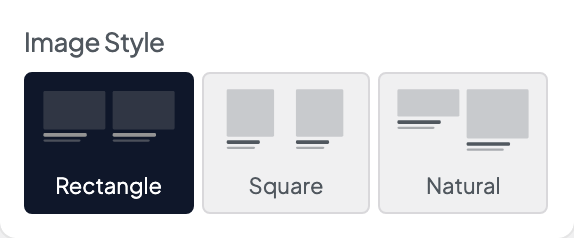
Image StyleAvailable when Featured Image is “Undefined”
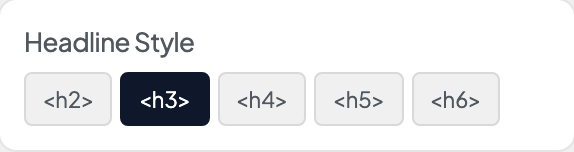
Headline Style

Date

Categories

Tags

Link
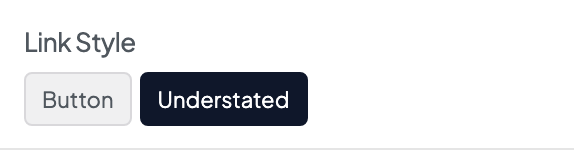
Link StyleAvailable when Link is “Undefined”
Link TextAvailable when Link is “Undefined”
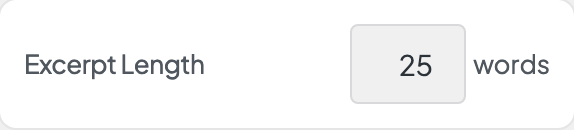
Excerpt Length
