

Starting Templates
What it helps you do
Reuse a layout you already built. Mark one published page, post or portfolio item as the starting template, and every new item of that type opens with those blocks already in place — so you are not rebuilding the same hero, sections, and spacing from scratch.
Where to find it
- Open any Page or Post, or a Portfolio item when Dirigible Portfolio is active. Other content types don't have the panel.
- In the editor sidebar, open the Page / Post (document) settings — not the block settings for a selected block.
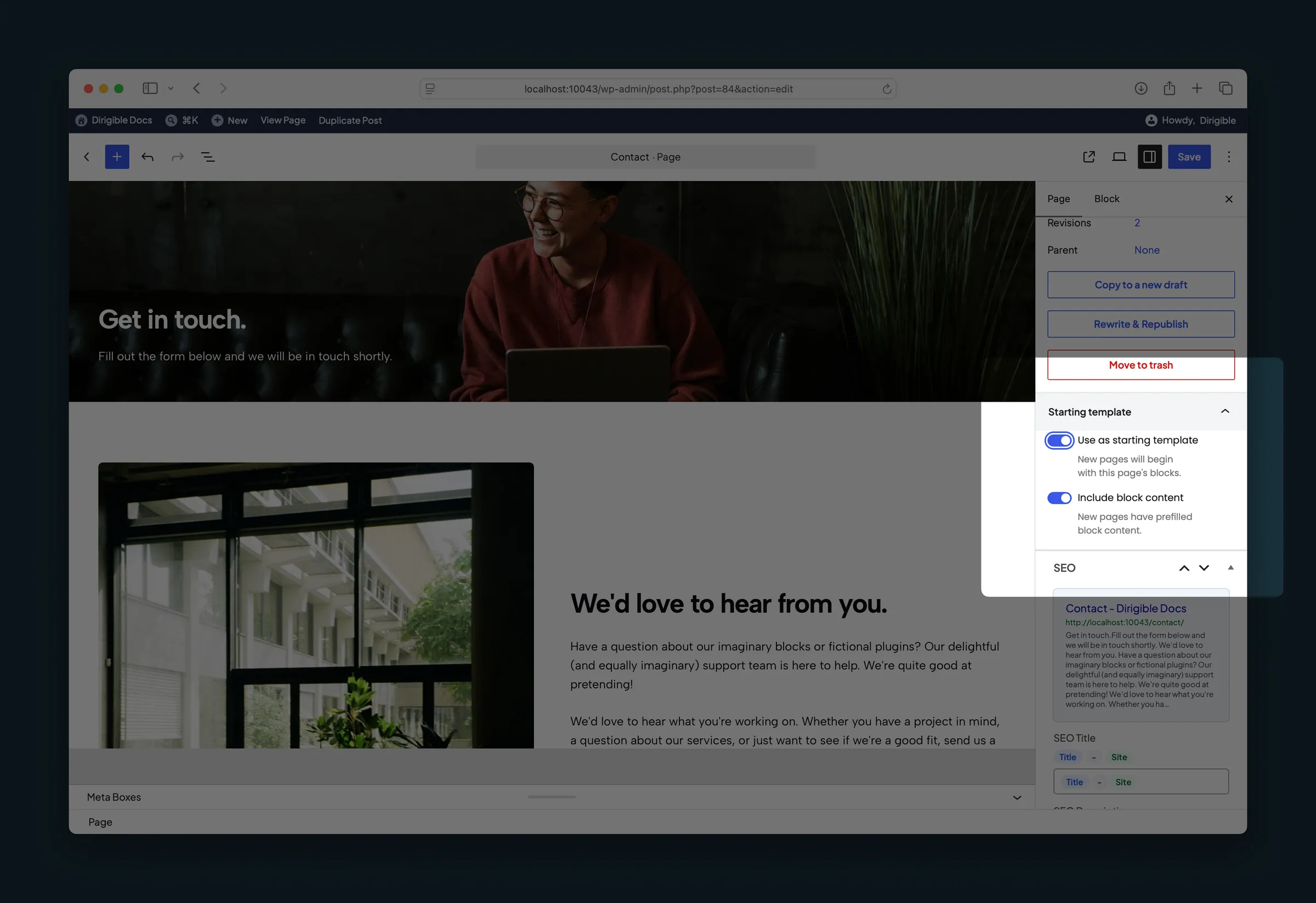
- Look for the Starting template panel.
- Use as starting template — this item becomes the Add New starter for its type.
- Include block content — when on, new items get the headlines, paragraphs, images, and other content; when off, they get the same blocks with the text, links, images and videos cleared.
There is no Customizer control for this. The toggles live only in the document settings of the editor.
How to use it
- Build and Publish (or schedule / set private) the page or post whose layout you want to reuse. Drafts cannot be the starter: on a draft the toggle is off and reads "Publish this page before using it as the starting template."
- Open that item in the block editor and open the document settings sidebar.
- In Starting template, turn on Use as starting template. Help text confirms that new items of this type will begin with these blocks, or names the starter this one replaces when you save.
- Leave Include block content on if new pages should arrive with the same text and media; turn it off if you only want the empty layout.
- Click Update (or Publish) so the choice saves.
- Go to Add New for that type (for example Pages → Add New). The canvas starts with the starter’s blocks.
- Edit the new item freely — change copy, swap images, remove sections. It is a copy, not a live link to the starter.
Only one starter is allowed per type. Turning the toggle on for a different page replaces the previous starter for that type.
What happens automatically
- With a starter and Include block content on, Add New opens with a one-time copy of the starter’s blocks and content.
- With a starter and Include block content off, new items get the same blocks with text, links, images and videos cleared, so you fill in fresh text and media. Style and layout settings stay. Blocks that list site content (posts, events, people, collections) still show the site’s own items.
- Pages created somewhere other than Add New, such as from the Customizer’s menu panel, start empty.
- If no page starter is set, new pages still open with Dirigible’s default starter layout (a hero plus a content section) so Add New Page is never a blank canvas.
- Posts without a starter stay blank, and portfolio items keep the Portfolio layout, until you designate one.
- Trashing or permanently deleting the starter clears that type’s assignment so new items no longer copy from it. Restoring it from the trash does not make it the starter again.
- A duplicate or imported copy of the starter is an ordinary page. The starter only changes when someone turns the toggle on and saves.
Things to know
- Requires Dirigible Blocks. The Starting template panel appears in the block editor when that plugin is active.
- Only Editors, Managers and Administrators see the Starting template panel and can set or clear a starter. Authors and Contributors don't see it; their new items still start from the starter an Editor chose.
- Publish (or private / scheduled) first — drafts and other non-live statuses cannot be the starting template.
- Starters are per type: one for pages, one for posts, and one for portfolio items. A page starter does not apply when you add a new post.
- Earlier versions also showed the panel on other content types, such as Events and People. Starters set there no longer apply.
- Existing pages and posts are not updated when you change the starter. Only items created after you set (or change) the starter receive the new layout.
- This is not WordPress’s classic Template dropdown (Default Template, Landing, and similar theme PHP templates). Those still control the page shell; Starting template only seeds the block content on Add New.
- Turning off Use as starting template on the current starter (and updating) removes it; new items of that type go back to the default behavior above.