

Product Pages
Usage
Open Appearance → Customize → Store → Product Pages when WooCommerce is active. Quantity Spinner shows or hides the quantity picker beside Add to Cart. Show Image Captions shows captions under product photos when they have one.
When to use it
- Products people only buy one of at a time (turn Quantity Spinner off).
- Product photos whose captions add detail, such as a color name or what's in the box (turn Show Image Captions on).
Tips
- The short description sits under the price. The long description is on the Description tab below Add to Cart.
- Weight and dimensions show on the Additional information tab when the product has them in WooCommerce.
- Product pages don't list categories or tags. The breadcrumb above the title links to the product's category.
- Use Styles → Buttons and Styles → Forms to style the purchase area.
Settings
Product Pages
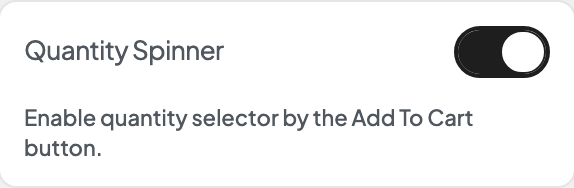
Quantity Spinner
Enable quantity selector by the Add To Cart button.
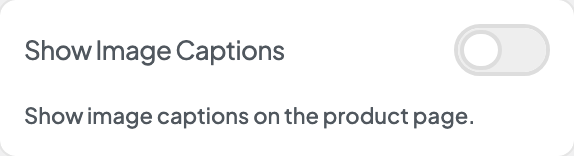
Show Image Captions
Show image captions on the product page.
