

True-to-Site Block Editor
What it helps you do
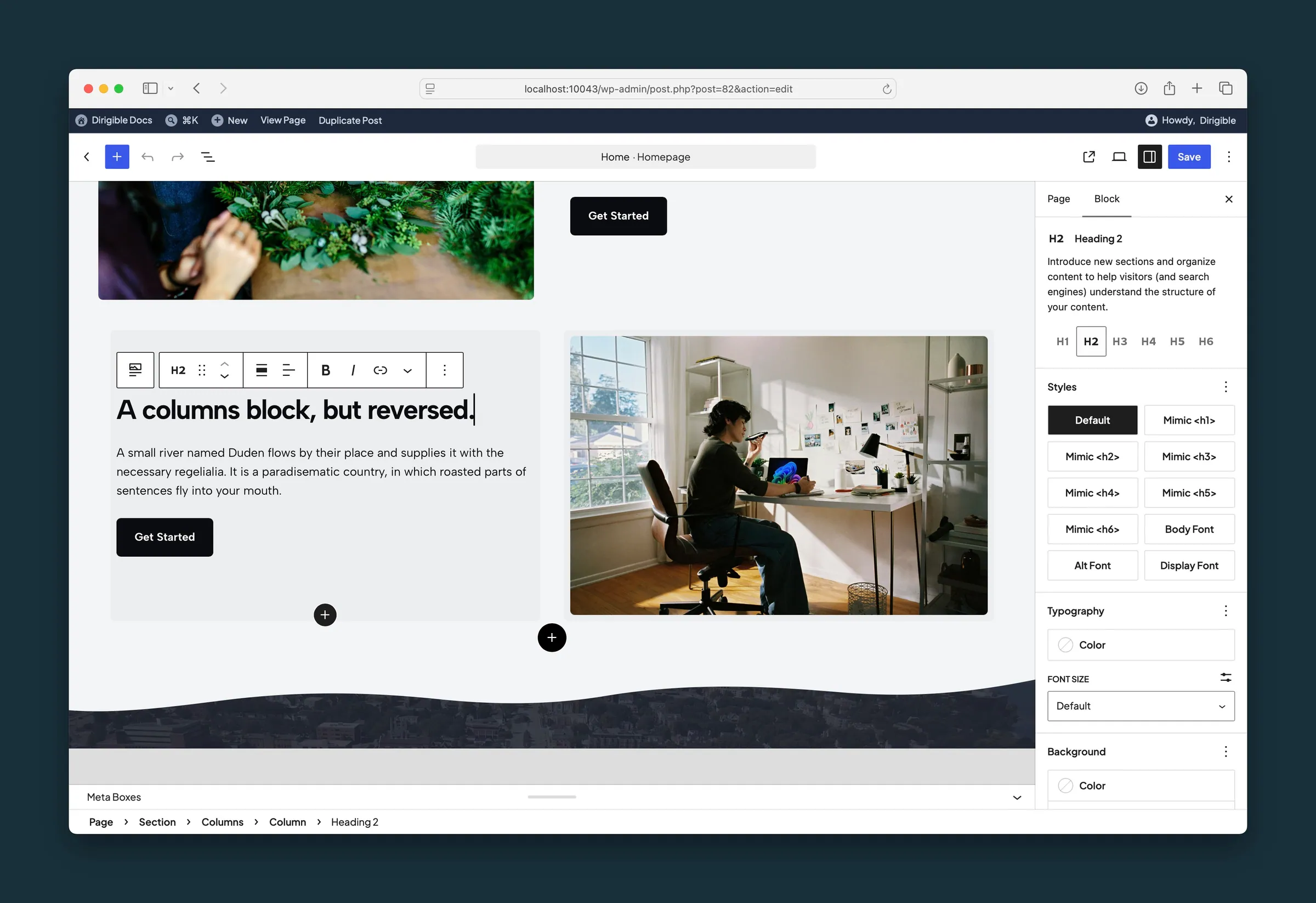
Edit pages on a canvas that looks like the live site, with the same fonts, colors, buttons, and spacing, so you spend less time switching between the editor and Preview.
Where to find it
- Any page or post you open in the block editor.
- The editing canvas in the center shows your site's styles. The sidebar and toolbar keep the standard WordPress look so the controls stay easy to read.
How to use it
- Open a page or post in the block editor as usual.
- Build with Dirigible blocks. Text, buttons, and widths match your Customizer choices with no extra setup.
- Use the preview options in the editor toolbar to check tablet and mobile layouts.
- When in doubt, click Preview or view the published page. The editor is close to the live site but not identical for every block.
What happens automatically
- The editor loads the same styles as the live site, applied only to the editing canvas.
- Your site colors, fonts, and text sizes carry into the editor, so headings and paragraphs look the way they will on the page.
- Fonts from Dirigible Fonts load in the editor just as they do on the site.
- Google Fonts, Adobe Fonts (Typekit), and other fonts from Scripts & Embeds → Embed Fonts also load in the editor.
- Additional CSS from the Customizer applies inside the editor where it matches the block markup.
- Block insert buttons and column hover outlines are styled to keep the layout from jumping while you edit.
Extra styles for WordPress blocks
Some standard WordPress blocks get extra choices under Styles in the block sidebar:
- Accordion → Icon Beside Title puts the open/close icon right after each heading's text, instead of at the far right edge. Select the Accordion block itself (not one item) to pick it, and every item in that accordion follows.
Things to know
- Some things only run on the live site: sticky headers, scroll animations, and some third-party scripts.
- Additional CSS written for the live page may not show in the editor if the block markup differs. Check the live page for important tweaks.
- WooCommerce admin screens don't use Dirigible editor styles. This feature covers pages and posts.
- Customizer style changes reach the editor after you publish them. You may need to reload an open editor tab.
