

Logo
Usage
Open Appearance → Customize → Header & Menus → Logo to add your logo. Upload a Logo for the standard header and a Reverse Logo (usually all white) for transparent headers over photos and headers with reverse colors.
Set Logo Size so the logo fits the header without crowding the menu. Turn on Change Size on Mobile or Change Size on Scroll to use a smaller logo on phones or after visitors scroll.
When to use it
- Adding your branding to a new site before you fine-tune the header.
- Home pages with a photo under a transparent header. Pair Reverse Logo with Reverse Print under Desktop.
- Long horizontal logos that need to shrink on small screens or when the header scrolls.
Tips
- SVG or PNG both work; SVG stays sharp at every size.
- Scroll Logo only shows when Change Logo on Scroll is on and the header is sticky or floating. Use it for a simpler mark that reads well small.
- Hide Logo removes the logo but keeps the menu in place, for text-only headers.
- Mobile and scroll sizes are separate, so you can keep a large desktop logo and shrink it only on phones.
Settings
Logo
Logo
Logo with normal colors. Requires svg or png.
Reverse Logo
The reverse printed logo, normally all white. Requires svg or png.
Logo Size

Hide Logo

Change Size on Mobile
Logo Mobile SizeAvailable when Change Size on Mobile is “Undefined”

Change Size on Scroll
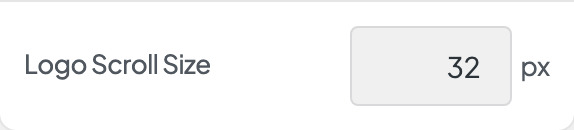
Logo Scroll SizeAvailable when Change Size on Scroll is “Undefined”

Change Logo on Scroll

Scroll LogoAvailable when Change Logo on Scroll is “Undefined”
