

Guided Theme Setup
What it helps you do
Launch a new Dirigible site in one guided flow instead of jumping between the Customizer, plugins screen, and page editor. You can add your site license, install core plugins, set brand basics, and optionally generate starter pages before you publish.
Where to find it
- Appearance → Theme Setup — opens the full-screen wizard.
- On first activation of Dirigible (or a Dirigible child theme), WordPress may redirect you here automatically.
- Dirigible → Flags — Reset Theme Setup stamps lets you run the wizard again without changing existing content.
How to use it
Work through the steps with Next, Back, Skip, or the step dots in the footer.
| Step | What you do |
|---|---|
| Welcome | Read the overview and continue. |
| License | Paste your site license (it starts with ds_site_) and click Next. Once it's checked, the field shows Active with your plan's name, and the wizard goes straight on to Install. Skip is available if you want to finish later. |
| Install | Creates a child theme and installs the core plugins your plan includes (Dirigible Blocks, Fonts, SEO, Optimize and AI), downloading them with your site license. On a Better Breeder plan, it also installs Better Breeder and Better Breeder Extended. Coming from License, it starts on its own; otherwise click Install. Each row turns Active when ready, and plugins outside your plan show Not in your plan and are left out. |
| AI | Optionally connect OpenRouter for AI-assisted logo and copy generation. You can leave this blank and complete setup by hand. |
| Details | Set site title, tagline, address, country, time zone and contact details. Time zone starts at your site's time zone; on a site still on WordPress's default (UTC) it follows the US state or Canadian province you type in State until you pick a zone yourself. Outside the US and Canada, fill in Country and pick your city in Time zone. |
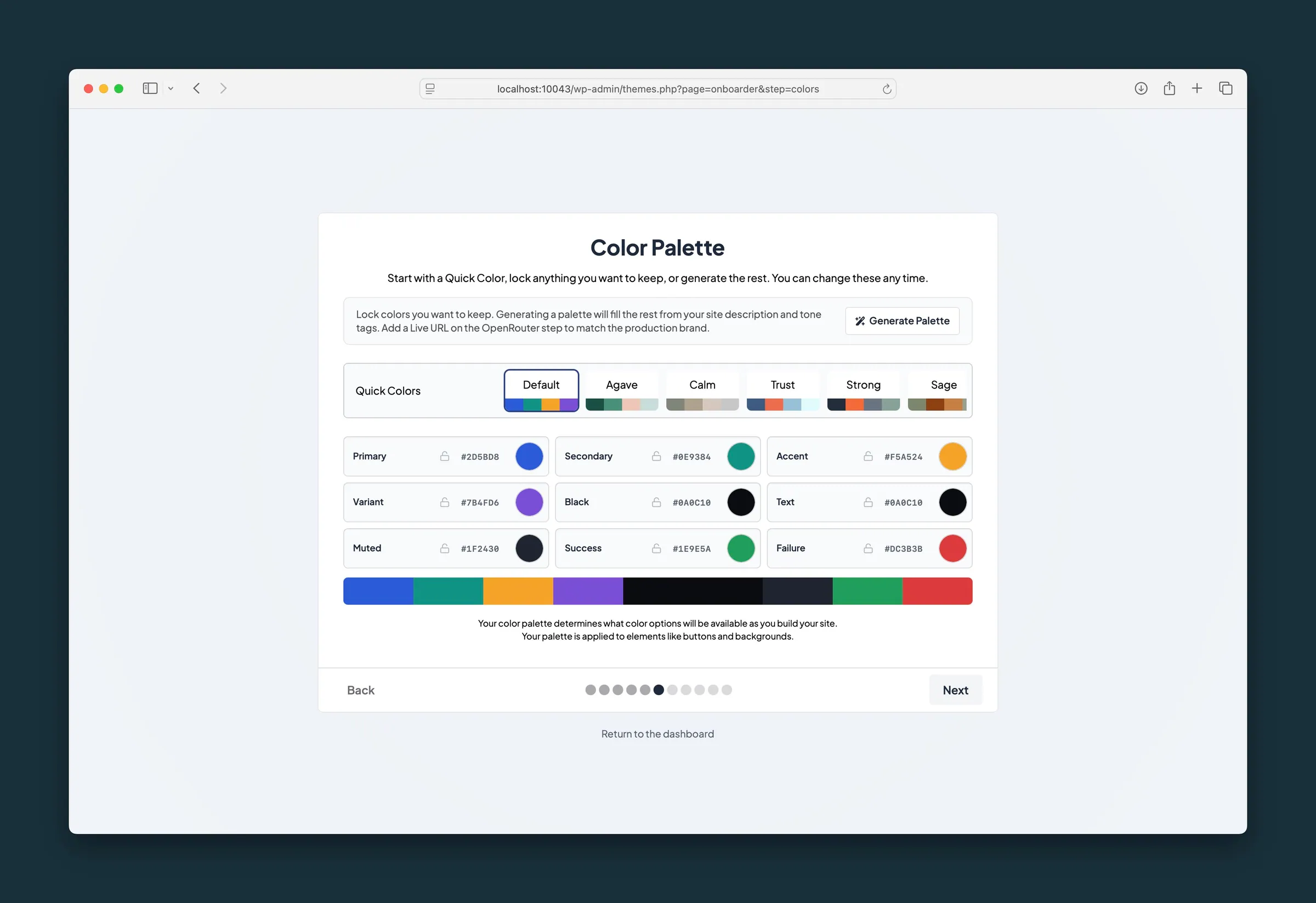
| Colors | Pick or fine-tune your palette (including hex entry on each swatch). With AI connected, Generate Palette fills every unlocked color and names the idea behind it; each click suggests a new direction. Text, muted, primary, and form colors are darkened if needed so they stay readable on white. Under the swatches, the same contrast check as the Customizer's Palette lists any color pairs that are hard to read as you change them. It only warns: you can still continue. |
| Typography | Choose heading and body fonts. With AI connected, Generate Typography picks a pairing from Dirigible's curated font systems, and Regenerate offers a different one. Headings and buttons stay in sentence case unless you ask for capitals in Feel. |
| Logo | Upload logos or use Generate a logo when AI is connected. SVG is preferred over PNG. |
| Socials | Add social profile handles. Email and Phone start with what you typed on Details. |
| Content | Choose starter pages (Home, About, Contact, Blog, Showcase, Terms and Conditions, Privacy Policy) and Menus. Optionally add placeholder photos, then Next to generate copy and create pages. With no photos picked, a later run uses your Default Images. |
| Ready | Finish and jump into the dashboard or Customizer. |
What happens automatically
- Your site license unlocks plugin downloads during Install and updates for the theme and every Dirigible plugin afterwards. You can change it later on Dirigible → License or Dashboard → Home.
- The child theme is created and activated before plugins install one by one.
- Generate Content can fill starter page copy from your site description and tone tags when OpenRouter is connected; without a key, placeholder text is used instead.
- Your palette, fonts, logos, and social profiles are saved as you finish each step.
- A brand-new site already has a finished look before you run setup, or if you dismiss it: a navy palette with warm neutrals, a modern type scale, brand-colored buttons with rounded corners, underlined links and roomier form fields, plus the wizard's header, footer and blog layout. Headings use Schibsted Grotesk and text uses Inter once Dirigible Fonts is active; until then both use your visitor's system font. This happens only when the theme is first activated on a site that has never saved a Dirigible setting, so existing sites never change. Setup's own palette and font choices are unchanged, and picking them replaces this look.
- The photos Content puts on the starter pages become the site's Default Images, so blocks you add later start with them too. Running setup again with photos picked replaces them. With no photos picked, the starter pages use your Default Images and they stay as they are. Sample photos already in your Media Library are reused, never uploaded twice, and a run with only Blog, the legal pages or Menus ticked adds no photos at all.
- The first Content run sets post-name permalinks (/about/), closes comments on new posts and turns off avatars, but only where WordPress's own defaults are still in place. Later runs leave those settings alone, so changes you make under Settings stay.
- Every button and link on the starter pages opens a real page: the sign-up and pricing buttons go to Contact, Home's welcome button to About, and the button beside Home's photo to your WooCommerce Shop page when there is one (Contact otherwise). If a page wasn't created, the link uses an existing page of that name, then Contact or About; when there's neither, the button is left out rather than pointing back at the page it's on. With AI connected, each button's wording, and the text of the section around it, is written for the page it opens: without a shop, the section beside Home's photo describes what you do instead of inviting visitors to shop.
- Ticking Home makes the new Home page your front page. On the first run, ticking Blog on its own makes the new Blog page your posts page, and switches to a static front page only when the site has no front page yet. On a later run, Settings → Reading changes only when you tick Home: ticking Blog on its own adds a Blog page and leaves your front page and posts page as they are.
- Your tagline and time zone stay as you set them: Content doesn't change them.
- Animations is set to Standard for brand-new sites, unless someone already chose a level.
- Menus creates a Main menu for the header and a Footer menu, each with Home, About, Contact and Blog. Showcase and the legal pages stay out of both.
- Privacy Policy fills WordPress's own draft Privacy Policy page and publishes it at /privacy-policy/, as long as nobody has edited that draft.
- WordPress's "Hello world!" post (with its sample comment) and Sample Page move to the trash when Content runs, but only while they are exactly as WordPress made them. Restore them from the trash if you want them back.
Things to know
- Re-running setup after the first pass shows a Before you continue step. Nothing is deleted, but colors, fonts, logo and menus can change, and on Content every box starts unticked: each page you tick is created again as a new page, and a new Home page takes over as the home page (with a new Blog page as the blog page when you tick both).
- OpenRouter usage in later steps is billed to your OpenRouter account, not to Dirigible.
- Generate Content locks navigation while pages are created so you do not duplicate Home, About, or Contact.
- You can change anything later in Appearance → Customize or on individual pages.
- The wizard works on a phone: each step fits the screen and scrolls inside its card, with Back and Next always in view.
- If the licensing server refuses the key, the reason shows above the field and Next changes to Retry. With the field empty, Next also offers Continue Anyway. Sites that already have a key for each product can Skip this step: Install still downloads with those keys.
