

Import and Export Theme Settings
What it helps you do
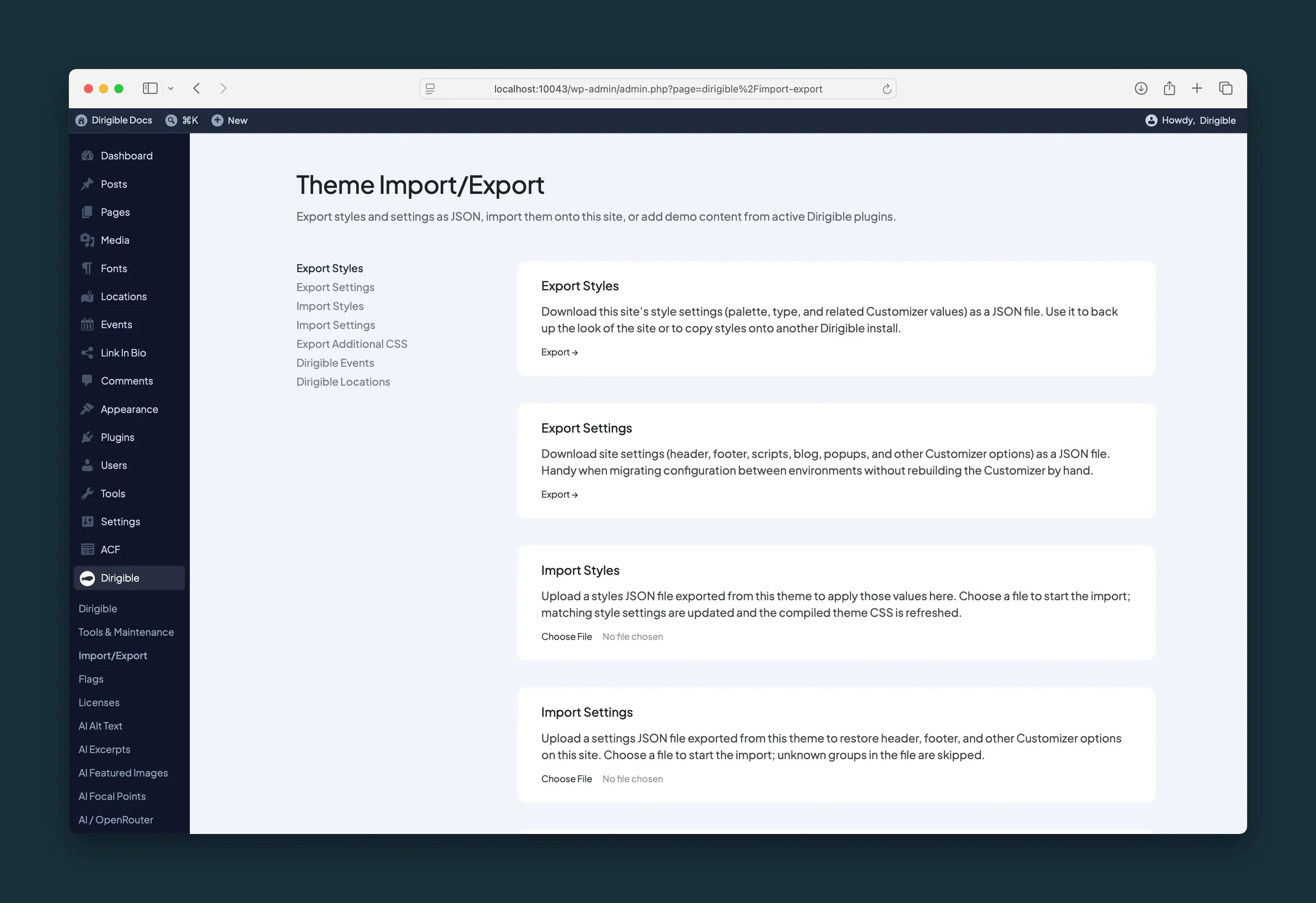
Copy a site's look and settings to another site, keep a backup before big changes, or restore styles after a move, without redoing every Customizer panel by hand.
Where to find it
- Dirigible → Import/Export in the WordPress admin sidebar.
The page has separate tools for styles, settings, and Additional CSS, plus Import sample data when a Dirigible plugin that ships demo content is active.
How to use it
Import sample data
Some Dirigible plugins include optional sample posts and pages you can add for demos or screenshots. On Dirigible → Import/Export, the Import sample data section lists only plugins that are installed, active, and ship that content. Click Import sample data for a plugin to add its demo content. You can run it again later — sample items are updated in place rather than duplicated.
If a plugin’s sample content uses a WordPress export file, you may need the free WordPress Importer plugin active first (Plugins → Add New). Dirigible will tell you when that is required.
Export
- Go to Dirigible → Import/Export.
- Click Export under Export Styles to download palette, typography, widths, and related style JSON.
- Click Export under Export Settings to download theme settings (header, footer, scripts, blog options, and other Customizer groups), plus the Customizer settings of your Dirigible plugins (and, with Dirigible Hours, the weekly and holiday hours). Styles aren't in this file; export them separately.
- Click Export under Export Additional CSS to download Customizer Additional CSS as a
.cssfile.
Import
- Under Import Styles or Import Settings, choose a JSON file exported from Dirigible.
- The import starts as soon as you choose the file. Imported values replace the matching settings on this site right away, so there is nothing to Publish.
- Read the message under the import tool. It says how many values changed and lists anything it skipped, and why.
- Visit the site, or open Appearance → Customize, to check the result.
Move to another site
- Export styles and settings from the source site.
- On the destination site, activate the same Dirigible plugins first, so their settings have somewhere to go.
- Import each file (styles first is usually easiest).
- Confirm fonts and plugins match — missing font plugins or blocks can make imported styles look different until those pieces are installed.
What happens automatically
- Export files record which part of the Customizer each value belongs to, so imports land in the right place.
- Export files from older Dirigible versions still import when possible.
- Anything the import skips is listed with the reason: settings from a plugin that isn't active on this site, styles in a settings file (or settings in a styles file), and site-specific settings such as logos, images, and page choices.
- The Additional CSS export contains what's saved in Customize → Additional CSS.
Things to know
- Import updates settings — it does not copy media files, menus, or page content. Logos, images, and page choices (such as a 404 page) aren't imported either; set them on each site.
- Plugin settings import only when that plugin is active on this site. If the message says a plugin's settings were skipped, activate the plugin and import the file again.
- Imports change the live site immediately. Export first if you might want to undo an import.
- Take a fresh export before major redesigns so you can roll back.
- Import/Export does not replace a full site backup plugin for database and uploads.
