

WooCommerce
What it helps you do
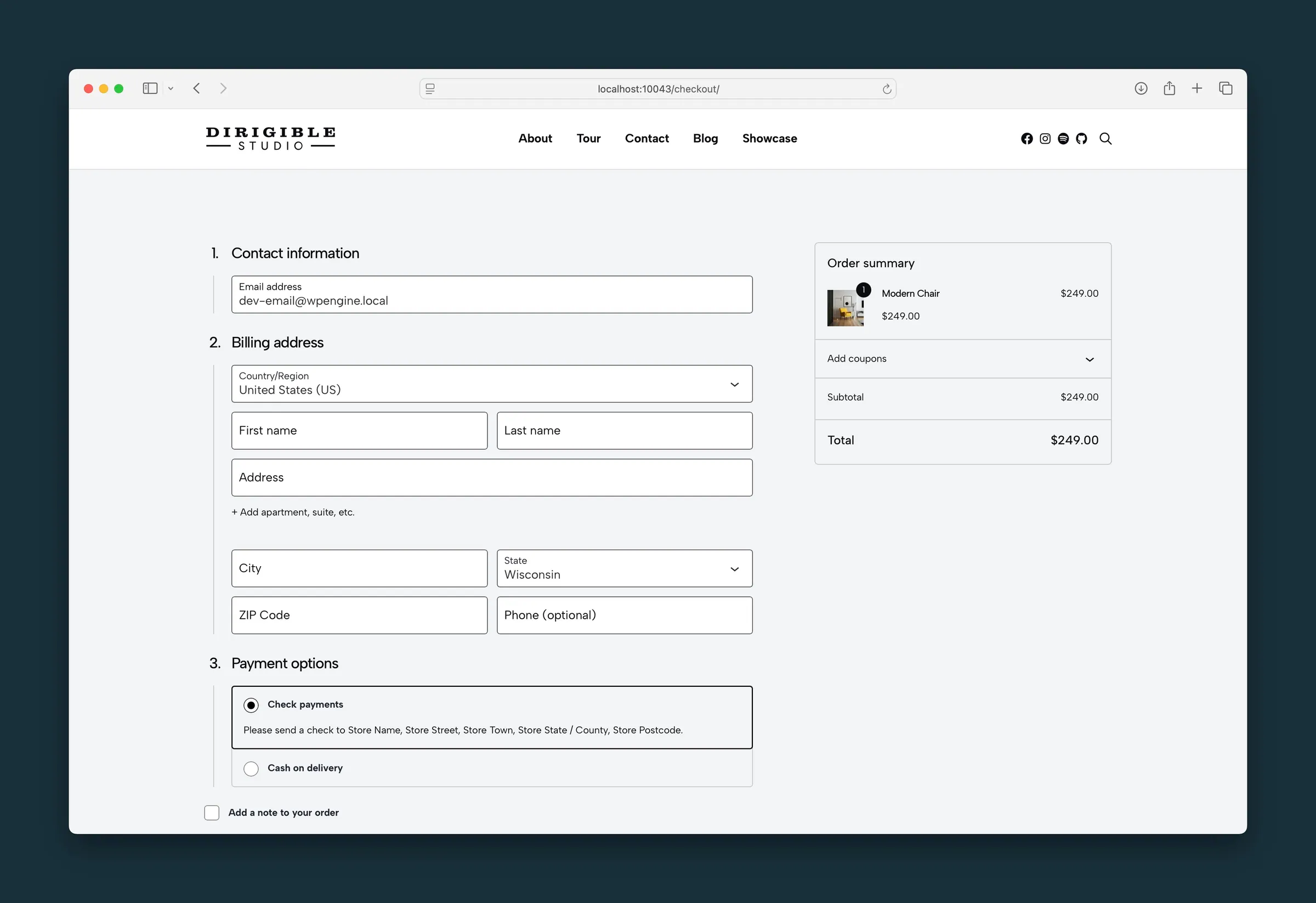
Run a WooCommerce store that looks like the rest of your Dirigible site. Shop grids, product pages, cart, checkout, and My Account inherit your palette, buttons, and forms — including WooCommerce’s block cart and block checkout, not only the classic shortcode pages.
Where to find it
- Plugins — install and activate WooCommerce (and any payment or shipping extensions you need).
- Appearance → Customize → Store
- Product Catalog — shop layout, product card titles, image fit, excerpts, and quick add-to-cart.
- Product Pages — quantity spinner and image captions.
- WooCommerce → Settings — store address, payments, shipping, tax, and account options (owned by WooCommerce).
- Pages — Cart, Checkout, Shop, and My Account pages created by WooCommerce; edit Cart and Checkout in the block editor when you use the block templates.
The Store panel appears only while WooCommerce is active.
How to use it
- Activate WooCommerce and finish its setup checklist (currency, pages, and payments).
- Open Customize → Store → Product Catalog to set Layout, Image Sizing, Product Card Title, and whether shop tiles show Excerpts or an Enable Cart Button quick-add badge.
- Open Product Pages to toggle the Quantity Spinner and Show Image Captions.
- Edit the Cart and Checkout pages. Keep (or insert) the WooCommerce Cart and Checkout blocks so shoppers get the modern block experience — Dirigible styles those blocks to match your theme.
- Add products, assign categories, set featured images, then preview the shop, a product, cart, and checkout on mobile and desktop.
- Optionally place a Mini Cart block in the header or a page so visitors can review the cart without leaving the page.
Use Styles → Buttons and Styles → Forms if purchase buttons or checkout fields need brand polish.
What happens automatically
- Shop, category, product, cart, checkout, thank-you, login, and My Account screens load Dirigible store styles so colors, type, and spacing match the rest of the site.
- Block cart and block checkout pages get theme-tuned layouts for line items, totals, coupons, and shipping choices.
- The Mini Cart drawer and store notices use the same visual language sitewide.
- Product cards in the shop and in WooCommerce product blocks share the same card treatment; simple in-stock products can show a quick-add badge when that catalog option is on.
- Single products use Dirigible’s product image viewer, sale badges, breadcrumbs in the product summary, and a related-products row (three products) under the main buy area.
- Common WooCommerce extensions (Bookings, Product Add-Ons, Local Pickup Plus, gift cards, and the Stripe, Square and Authorize.net payment gateways) receive matching styles when those plugins are active on the pages that need them.
Things to know
- Variable products and most complex product types still open the product page to choose options — quick add-to-cart on the shop grid is for simple products only.
- Classic (shortcode) cart and checkout still work; the block versions are fully supported and are what new WooCommerce installs typically use.
- Shopping Cart under Product Catalog sets the Cart / Bag / Basket label used with the header mini-cart icon.
- Payments, tax, shipping zones, and email templates are set up in WooCommerce itself. Dirigible styles the pages your customers see.
- Purchase tracking (Google Analytics / Tag Manager ecommerce) lives under Scripts & Embeds → Analytics & Tracking when you enable enhanced ecommerce there.
- Checkout error messages (a missing field, a declined card) appear at the top of the checkout form, where WooCommerce scrolls to them. Elsewhere in the store, notices such as "Added to cart" still appear in the corner of the screen.
- WordPress's automatic plugin and theme updates wait while someone is checking out. See Checkout-Safe Updates.
