

Gravity Forms
What it helps you do
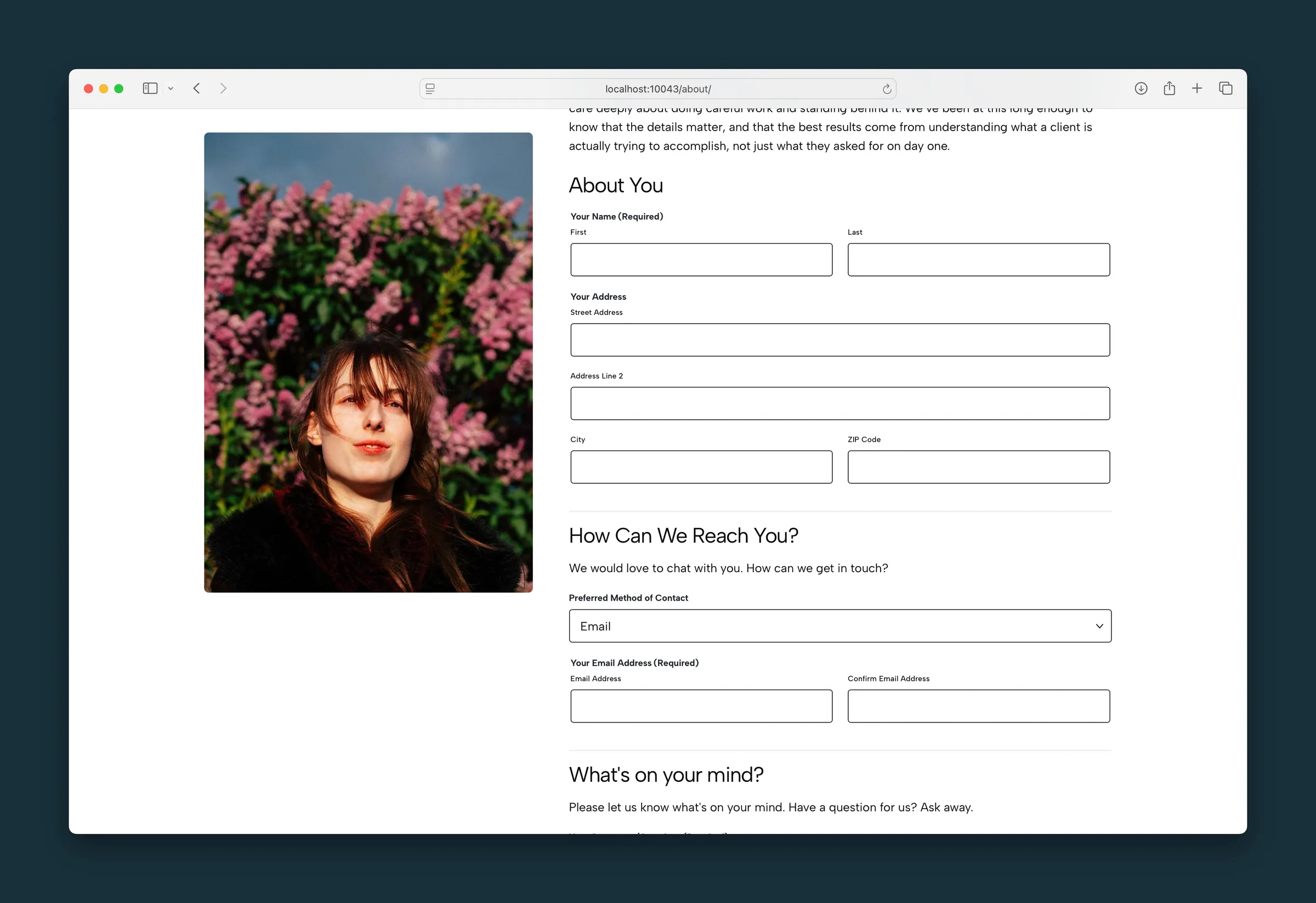
Collect inquiries, newsletter sign-ups, and other submissions with Gravity Forms that look like the rest of your Dirigible site. Fields, labels, and submit buttons follow Styles → Forms and Styles → Buttons. Dirigible also adds a site-wide submission limit, campaign tracking, pop-up and footer form spots, and form cleanup tools. You still build forms, notifications, confirmations, and entries in Gravity Forms.
Where to find it
- Plugins — install and activate Gravity Forms (and any add-ons you need).
- Forms in the WordPress admin — create forms, set notifications and confirmations, and review entries (owned by Gravity Forms).
- Appearance → Customize
- Styles → Forms — field, label, and sublabel look sitewide.
- Styles → Buttons — submit button styles.
- Settings → Gravity Forms — hourly Form Submission Limit, Debug Hidden Fields, Block Tor Submissions and Allow Form Post Creation.
- Settings → Newsletters — choose Gravity Form and enter a form ID for footer newsletter CTAs.
- Pop-up → Content — optional Gravity Form ID inside the site pop-up.
- Pages — insert the Gravity Forms block and pick your form (show or hide title and description in the block settings).
- Dashboard — the Form Parameters panel lists the campaign parameter names Dirigible can fill when Gravity Forms is active.
- Dirigible → Tools & Maintenance — the Forms card (a Settings check for notifications, confirmations and forms with Post Fields, and Entry cleanup, whose scan also reports entry counts, table sizes and drafts) when Gravity Forms is active.
How to use it
- Activate Gravity Forms and create a form under Forms (fields, required rules, notifications, and confirmations live there).
- Open Customize → Styles → Forms so inputs and labels match your palette; use Styles → Buttons if the submit button needs brand polish.
- Edit a page, insert the Gravity Forms block, select the form, and choose whether to show the form title or description.
- Optional: set Settings → Gravity Forms → Form Submission Limit if contact forms attract burst spam (limit is per visitor IP, per hour, across forms).
- Optional: put the same form ID in Pop-up → Content or set Newsletters to Gravity Form for footer sign-ups — see Pop-up and Newsletter.
- Preview the page on mobile and desktop, submit a test entry, and confirm the thank-you message or redirect page and the admin notification email.
- Optional: for campaign attribution, enable Allow field to be populated dynamically on hidden fields and use Parameter Names such as
utm_source,utm_medium,utm_campaign,utm_content,utm_term,utm_expid,gclid,camp_id, orutm_time(when the visitor first arrived from a campaign link, in Unix seconds). They're listed on the Dashboard Form Parameters panel.
Build contact pages with the Gravity Forms block on the page itself — not by pasting a form shortcode into the footer.
What happens automatically
- Gravity Forms' own styling is replaced with Dirigible's, so fields, layout, error messages, progress bars, and file uploads match the site.
- Forms in the block editor canvas use the same theme form styling so the preview stays closer to the live page.
- Submit buttons inherit your button styles; validation and error states use palette Failure (and related form required colors) under Styles → Palette / Forms. Error messages stay easy to read: where Failure wouldn't (on its light tint in the error box at the top of the form, or on the section), they show a darker shade of it, or a lighter one on dark sections. In Reverse Print sections, field messages stay white where white reads on the section's background color, and show a readable shade of Failure only where it doesn't; over a photo or video they keep the section's text color.
- The default "required fields" note above each form is hidden; each required field's label shows it instead.
- Notification emails append a short line naming the site the submission came from.
- When a visitor arrives with campaign URL parameters, Dirigible remembers that first campaign for 90 days and fills matching dynamically populated fields on your forms, on any page they submit from. A later campaign link doesn't replace it. The 90 days hold in Safari and on iPhone too: the site sets the cookie from the server, which Safari keeps longer than one set in the browser, and stores nothing itself. While the GDPR banner blocks cookies, only the link the visitor is on counts. The values are filled in the visitor's browser, never in the page itself, so pages stay cached for everyone and one visitor's campaign can't show up in another's form. A
camp_idthe page sets itself (for example from a Courses campaign theme) wins over the link. A field's own Default Value is kept when the visitor has no campaign. - Every form gets Gravity Forms' Advanced Honeypot and a 2-second Submission Speed Check, and a submission they flag is discarded without creating an entry. New forms are covered as soon as they are created. The form's Spam Detection settings show these as set by the theme; If Links/URLs are found and Custom Spam Confirmation stay yours to choose. Bots that post without loading the page are stopped this way; a botnet that drives real browsers is not, and for that add the Simple Cloudflare Turnstile plugin (below).
- Two more checks run on every submission, and a submission they catch is handled the same way as a honeypot catch. A bot that copies one real submission and re-sends it from many addresses is recognised after the third copy within ten minutes. A web address typed into a Name field, including a bare one such as
example.org/offer, counts as a link, following the form's If Links/URLs are found choice. - For a site under attack from the Tor network, Settings → Gravity Forms → Block Tor Submissions turns away submissions from Tor exit addresses. It is off by default because some real visitors use Tor for privacy.
- Form Submission Limit caps how many times one IP can submit a form in an hour. The form stays on the page; a visitor over the limit sees a fixed “try again in an hour” message above it when they submit.
- Other dynamically populated fields filled from the page address (for example
?email=or?firstname=, or the program and enrolment term a "Form 1" confirmation passes on to "Form 2") are filled in the visitor's browser from the address they're on, never in the page itself, and nothing is remembered. Links that pre-fill a form keep working, but a visitor's name or email no longer ends up in the cached copy of the page or in the address the form posts to. A value the page sets itself (for example a Courses degree's Eloqua code) still wins over the link. - Default values that use the visitor's own merge tags work on cached pages. {ip}, {user_agent}, {date_mdy}, {date_dmy} and {today} in a Hidden field are filled in when the form is sent, from the visitor who sends it, so the entry gets their IP address, browser and date, matching the entry's own IP and User Agent details. {referer} (the page the visitor came from) and {embed_url} (the address of the page the form is on, including its query string) are filled in the visitor's browser. Before, Gravity Forms filled them all when the page was built, so a cached page gave every visitor the first visitor's IP address, referrer and page address, and a date that could be weeks old. Notifications show the right values.
- Debug Hidden Fields reveals ordinary hidden fields on the front end for troubleshooting — honeypot fields stay hidden. Admins can turn it on for every form page in the Customizer; anyone can turn it on for one visit by adding
?ds_form_debug=1to a form page's address (for example/contact/?ds_form_debug=1). It only shows the visitor's own values, in their own browser, so it's safe on a live site. Campaign fields are labelled with their parameter and where the value came from: link (this visit's URL), first-touch (remembered from an earlier campaign link), page (set by the page), posted (what the visitor sent, shown again after an error, on the next page or when they resume a saved form), form (the field's default) or none. Fields filled from the address show their parameter (for example?email=) and link, form or none, and merge tag fields show whether the browser filled them or they're filled when the form is sent. - With the Simple Cloudflare Turnstile plugin on your forms and Dirigible Optimize active, the "verify you're human" check waits until a visitor scrolls near the form or starts filling it in, so a footer form no longer adds Cloudflare's challenge download to every page view. See Turnstile on demand in the Optimize docs.
Things to know
- Creating fields, confirmations (message or thank-you page), notifications, and viewing Entries are Gravity Forms admin screens — Dirigible styles the visitor-facing form and adds the extras above; it does not replace those workflows.
- The submission limit is sitewide (all forms share the hourly IP cap), not a per-form setting inside Gravity Forms.
- Turn Debug Hidden Fields off on production sites when you finish testing. To check a live form without it, add
?ds_form_debug=1to the page's address instead. - Until the form is sent, a Hidden field with {ip}, {user_agent} or a date merge tag holds a placeholder such as
{ds:ip}; that's expected. In a visible field, those merge tags show the visitor's own date and browser, and {ip} and {today} start empty. - A visible field never shows a placeholder, and when conditional logic hides and shows it again it goes back to the value filled in for the visitor (a link's value, their date), not to an empty field.
- Without JavaScript, visible fields with these merge tags start empty, {referer} is left empty and {embed_url} gets the address the form was sent from (without campaign parameters or the ones it fills fields from).
- Fields filled from the address work for every field type except List, including Date (drop-downs or separate boxes, read in the field's Date Format) and Time (
2:30 pm). - The form posts back to the page without the parameters it fills fields from (WordPress's own, such as
page_idorlang, stay), so an entry's Source URL no longer includes them. Use an {embed_url} field to keep the full address. - If jQuery defer breaks form behavior, uncheck Defer other plugins' jQuery scripts too on Optimize Settings → jQuery (the setting most likely to conflict with Gravity Forms), or check Don't defer jQuery. Deactivating Dirigible Optimize also turns the jQuery tweaks off. On a site still running an older Optimize, the same choice is Safe Defer under Scripts & Embeds → Performance.
- To lay out a Checkboxes or Radio Buttons field's choices in columns, add
ds-list-2col(ords-list-3col,ds-list-4col,ds-list-5col) to the field's Custom CSS Class under Appearance. Choices fill each row left to right; add-vertical(for exampleds-list-2col-vertical) to fill each column top to bottom instead. On phones the choices stack in one column. Older forms that use Gravity Forms' Ready Classes (gf_list_2coland similar) keep working, but Gravity Forms 4.0 warns about them: swap them for theds-list-names to clear the warning.gf_left_halfandgf_right_halfcan simply be removed: the form editor's side-by-side layout already sets how wide each field is. - Forms don't create posts unless Settings → Gravity Forms → Allow Form Post Creation is on. Gravity Forms' Post Fields group (Title, Body, Custom Field and the rest) is hidden from the form editor, and a form that already has one of those fields saves its entries and sends its notifications but creates no post. They were often picked for ordinary message fields, and every entry then also made a draft post. Turn the setting on only when a form should publish submissions as posts: it's off on every site until someone turns it on. Found lots of drafts under Posts? See Find out why your site has lots of draft posts.
- Entry spam cleanup, notification/confirmation audits, and entry and upload reports live under Tools & Maintenance, not in the Customizer.
- Turnstile spam protection works the same with the delayed check: an entry sent before the check finishes is turned away with "Please verify that you are human." When you test a form far down the page, scroll to it (or click into a field) and let the check finish before you submit. To rule the delayed check out while debugging, deactivate Dirigible Optimize.
